

Before you start: your app runs on credits
The whole setup is built on one idea: every user of your app has a credit balance. Users buy credits, and every generation spends them. This applies whether your users top up through a subscription, a one time credit pack, or a usage based plan. If your app doesn’t work with a balance yet (credits, tokens, coins or any other unit), that is the first change to make. Everything in this guide builds on it. With Customer Credits, Creem keeps that balance for you in a fully audited ledger. You credit, debit and read each user’s balance through the API, without writing ledger code and without storing balances in your own database.- Purchases credit the balance automatically. When a user buys a credit pack or a subscription renews, Creem adds the credits as part of the payment. You never apply purchased credits yourself, so you don’t have to handle double crediting, retries, or failed webhooks.
- You can still give credits yourself. Free credits at signup, rewards or promotions are a single API call.
- Every spend is linked to a screened prompt. Each debit carries the ID of the Moderation API result that cleared the prompt, so every generation can be traced back to a content check.
Key concepts
The integration connects five objects through their IDs:How the flow works
In practice, the most common flow looks like this:- A user signs up on your app.
- You create a Creem customer for that user, linked to your own user ID.
- You create a generation wallet for that customer.
- The user buys credits, through a subscription or a one time credit pack.
- Creem adds the credits to the user’s wallet automatically.
- The user wants to generate content.
- You check that the wallet has enough credits for the generation.
- You screen the user’s prompt with the Moderation API.
- You debit the wallet, with the moderation result ID attached.
- You generate the content, and reverse the debit if the generation fails.
Step 0: Set up the SDK
Install the TypeScript SDK, version 1.14.0 or later, and create one client. Your API key decides the environment: keys that start withcreem_test_ use the sandbox, live keys use production.
lib/creem.ts
Step 1: Create a Creem customer for each user
When a user signs up, or the first time they open your generator, create a Creem customer and setexternal_id to your own user ID. This links the Creem customer, and the wallet you create next, to your user.
Step 2: Create the user’s generation wallet
Create a credits account namedgeneration for the customer. This name makes it the AI generation wallet: every purchase of AI generation credits lands in it, and every spend from it requires a moderation result ID.
Free credits work like paid ones. Spending them still requires a moderation result ID, and Creem
refuses the debit without one.
Step 3: Sell credits with AI generation credits
Add AI generation credits to every product that sells credits for generations: credit packs and subscription plans. When a user pays, Creem adds the product’s credits to their generation wallet as part of the payment. Subscriptions add them again on every renewal. You don’t need the API for this step. You can create the product in the dashboard instead, or use the API if you manage products in code.- Dashboard
- API
- Create a new product, or open an existing one, in Products.
- In Delivery, click Add and choose New AI generation credits.
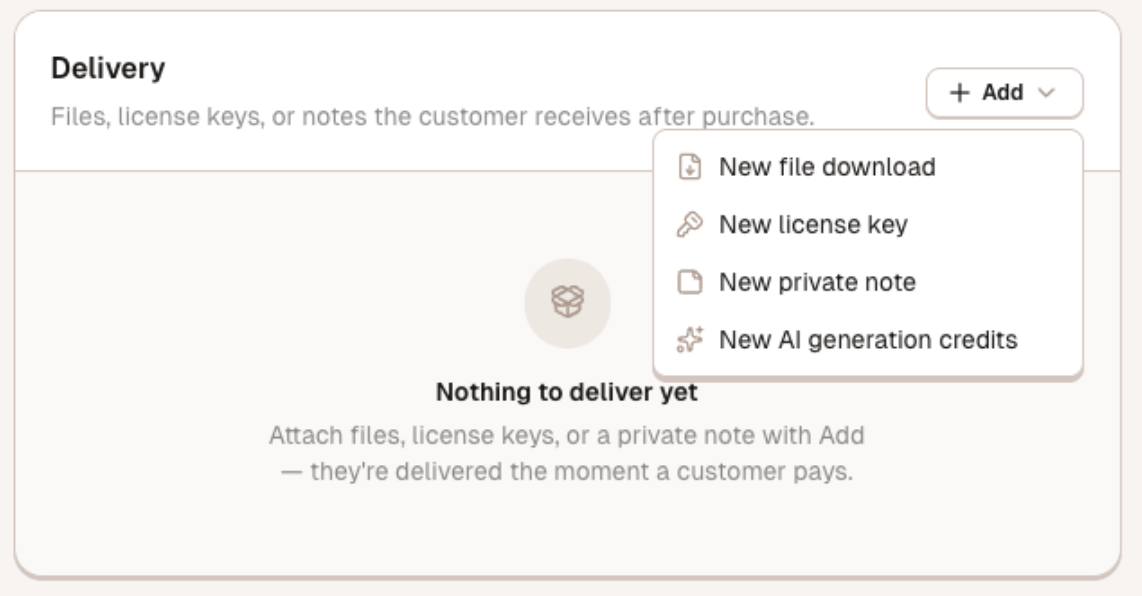
Add AI generation credits as a delivery on the product.
- Fill in the Description, the Credit amount each purchase grants, and the Unit label.
- For subscriptions, choose whether Unused credits reset each billing period. When it’s off, unused credits carry over to the next period.
- Set the pricing (one time for credit packs, subscription for plans) and save the product.
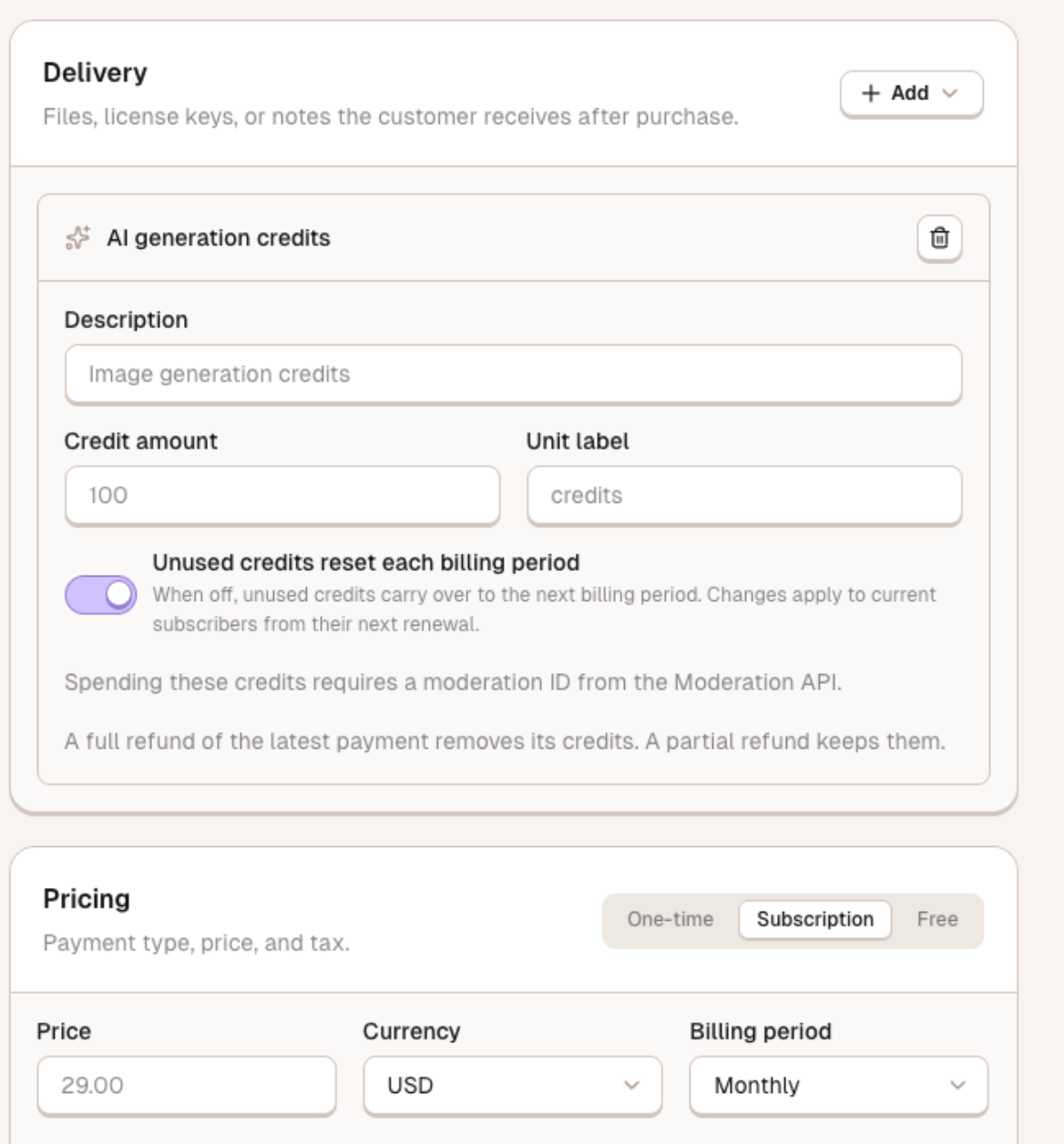
The AI generation credits delivery on a monthly subscription.
requires_moderation: true is what makes these AI generation credits. For subscription plans, add "resets_each_period": true to expire unused credits at each renewal instead of carrying them over.
Step 4: Let users buy credits
Start the checkout with the customer from Step 1, so the credits land in that user’s wallet.Step 5: Check the balance before generating
Before you screen and generate, check that the wallet has enough credits for the generation, so you can show the user a clear message early.This check is for your user experience. The debit in Step 7 is what actually protects the balance:
if the balance is too low at that moment, it fails with
insufficient_balance and nothing is
taken.Step 6: Screen the prompt
Screen the prompt before anything else reaches your model: before you queue, debit or generate. Pass anexternal_id that ties the call to your user and the generation.
- Only
allowgoes through.denyis a block. - Treat
flagas a block too. Screen again, or stop. - Fail closed. If the call errors or times out, don’t generate.
Step 7: Debit the wallet with the moderation ID
Debit the generation wallet and attach the moderation result ID from Step 6 asmoderation_id. Without a valid one, Creem refuses the debit and nothing is taken.
- One moderation ID pays for one debit. If one prompt produces four images, debit all four in one call.
- The moderation result must be recent. It must be an
allowdecision from your store, at most 24 hours old. - Use one idempotency key per generation, so a retry or a double click never charges twice.
Step 8: Generate, then return or reverse
Call your model. If it succeeds, return the result. If it fails after you debited, reverse that exact debit so the user keeps their credits. The wallet history shows both the debit and the reversal.TypeScript