

Re-reviews are requested from Balance → Payout Account using the Request re-review button. If you need help or the feedback is unclear, contact Creem support and include your Store ID.
Step 1 - Review the feedback
Read the review feedback carefully and make a checklist of every issue you need to fix before requesting another review. The most common requests, and how to fix them:For AI image and video generation products, the most common failure is that the Moderation API is integrated in sandbox mode only, not in production. See Verify your integration is live.
Step 2 - Find your Store ID
You will need your Store ID whenever you contact support about a review. Go to Settings in your dashboard. Your Store ID starts withsto_ and is displayed at the top of the page.
Step 3 - Request the re-review
Once you’ve made the required changes:- Go to Balance → Payout Account
- Review the Changes Requested card
- Click Request re-review
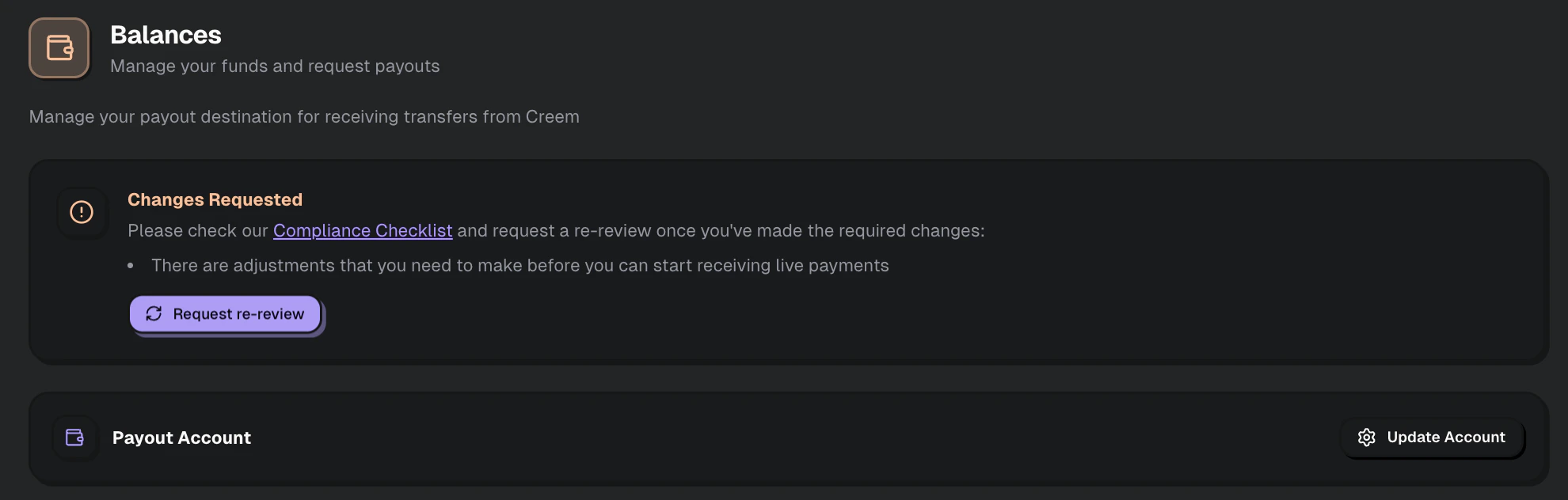
After fixing the requested issues, use the Request re-review button in Balance → Payout Account.
What happens next
Re-reviews are typically completed within 1-2 working days. During peak periods, it may take up to 3 working days. During the re-review, the team will:- Verify the changes you made are live on your website
- For AI products: check that your Moderation API integration is active in production
- Confirm no new issues were introduced
Common questions
I fixed everything but got another change request
I fixed everything but got another change request
Usually this means one or more changes were incomplete, not visible to the review team, or new issues were introduced. Double-check the exact feedback and make sure every fix is live before requesting another review.
My website was working - why did it say inaccessible?
My website was working - why did it say inaccessible?
This is usually caused by maintenance mode, password protection, Cloudflare bot protection, or a regional access block during the review window. Remove those restrictions before requesting a re-review.
Can I keep building while I wait?
Can I keep building while I wait?
Please finalise the requested adjustments before asking for a re-review. But you can carry on testing your CREEM integration while you wait for the review — you just can’t take live payments until the account is approved.
I wasn't told what to change
I wasn't told what to change
The specific feedback is in the email we sent and in your dashboard. If it isn’t clear, work through all of the items in Step 1 — most accounts that come back have hit more than one, and fixing them all before you resubmit is faster than resubmitting twice.If your status is Rejected rather than changes requested, this guide doesn’t apply — see If your account was rejected.
Related
Account Reviews
Full checklist and review requirements.
AI Wrapper Compliance
Extra requirements for AI image and video products.