

Pay what you want is only available for one-time payment products. It is not supported for
subscriptions.
How It Works
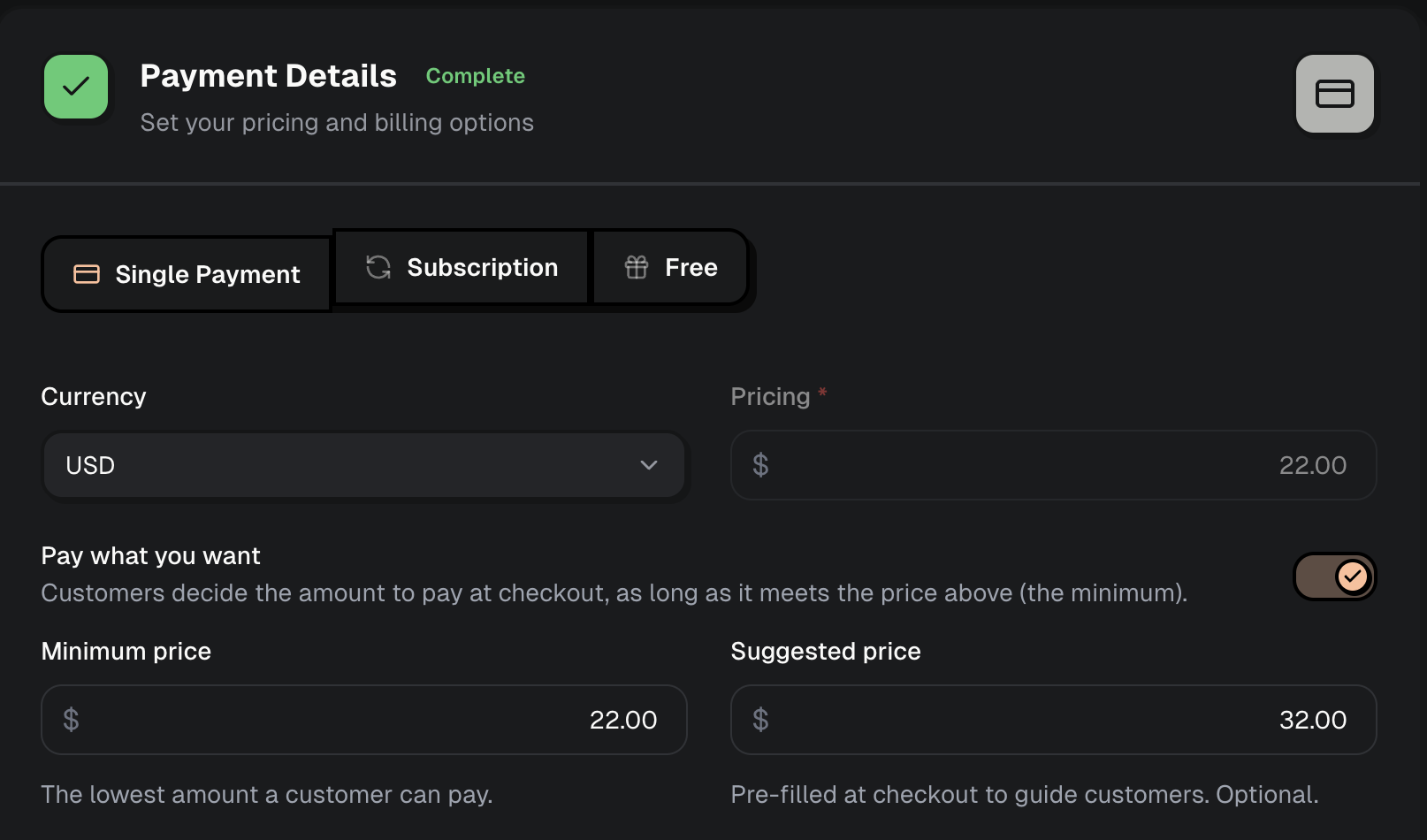
- The product’s price acts as the minimum — customers can pay this amount or more, but never less.
- The suggested price is pre-filled at checkout to nudge customers toward a higher amount. It must be greater than or equal to the minimum, and is optional.
- At checkout, the customer opens Choose price and enters any amount that meets the minimum.
Enable in the Dashboard
- Go to Products and create or edit a one-time product.
- Under Payment Details, select Single Payment.
- Toggle on Pay what you want.
- Set the Minimum price (the lowest amount a customer can pay) and, optionally, a Suggested price to pre-fill at checkout.
The Checkout Experience
When pay what you want is enabled, customers see a Choose price link on the checkout. Selecting it opens a dialog where they can set their own amount, as long as it meets the minimum. If you configured a suggested price, it’s pre-filled here.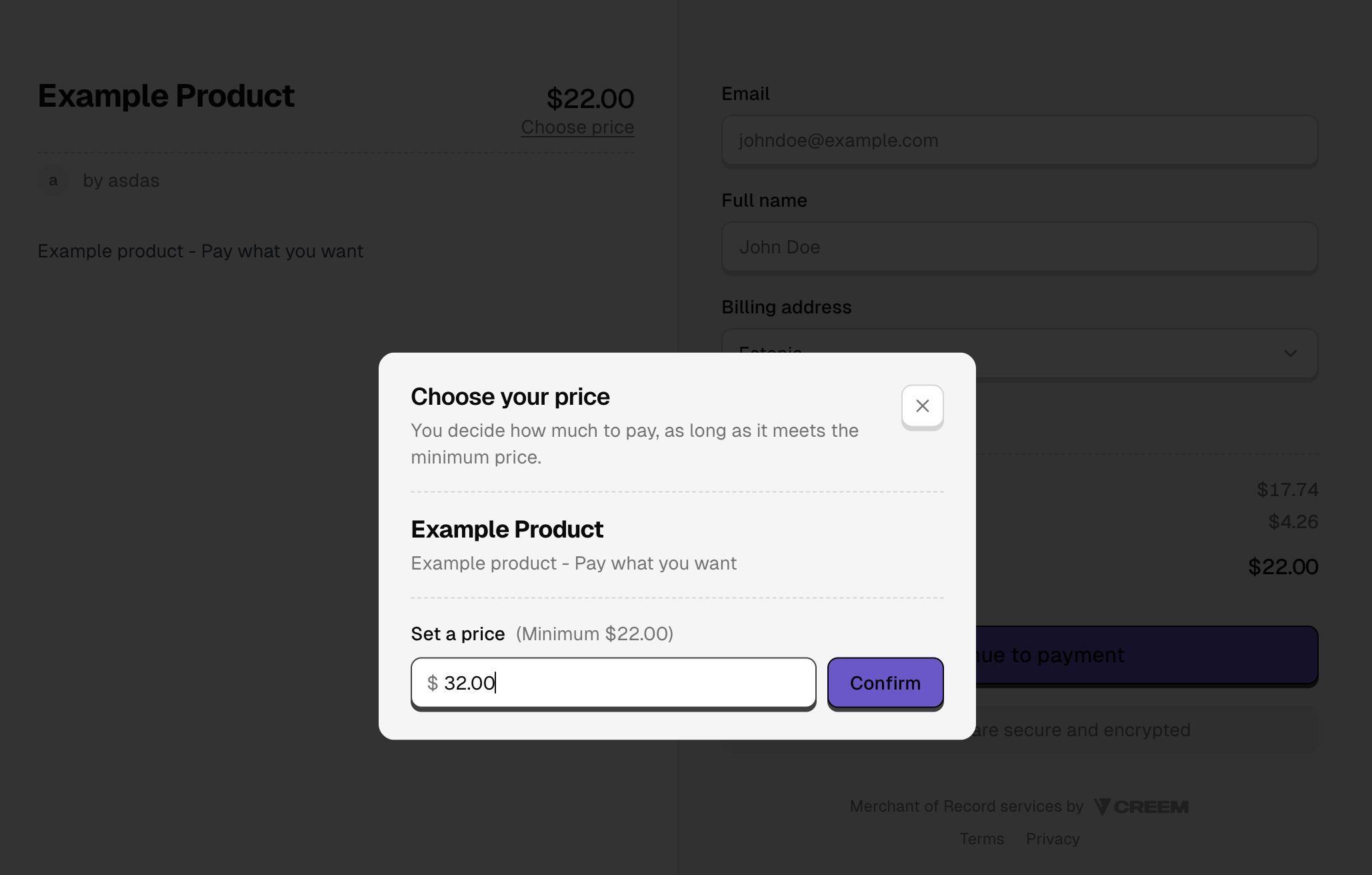
Next Steps
API Reference
Enable pay what you want programmatically with the create product endpoint
One Time Payments
Learn how single, non-recurring payments work in Creem
Checkout API
Create dynamic checkout sessions programmatically
Discount Codes
Run promotions with percentage or fixed-amount discounts
Webhooks
Handle payment events and automate your workflow