

Finding Your Store ID
Your Store ID is a unique identifier for your store (e.g.,sto_abc123). You’ll need it when contacting support or referencing your account.
To find your Store ID:
- Go to your Creem Dashboard
- Click Settings in the left sidebar
- Your Store ID is displayed at the top of the settings page
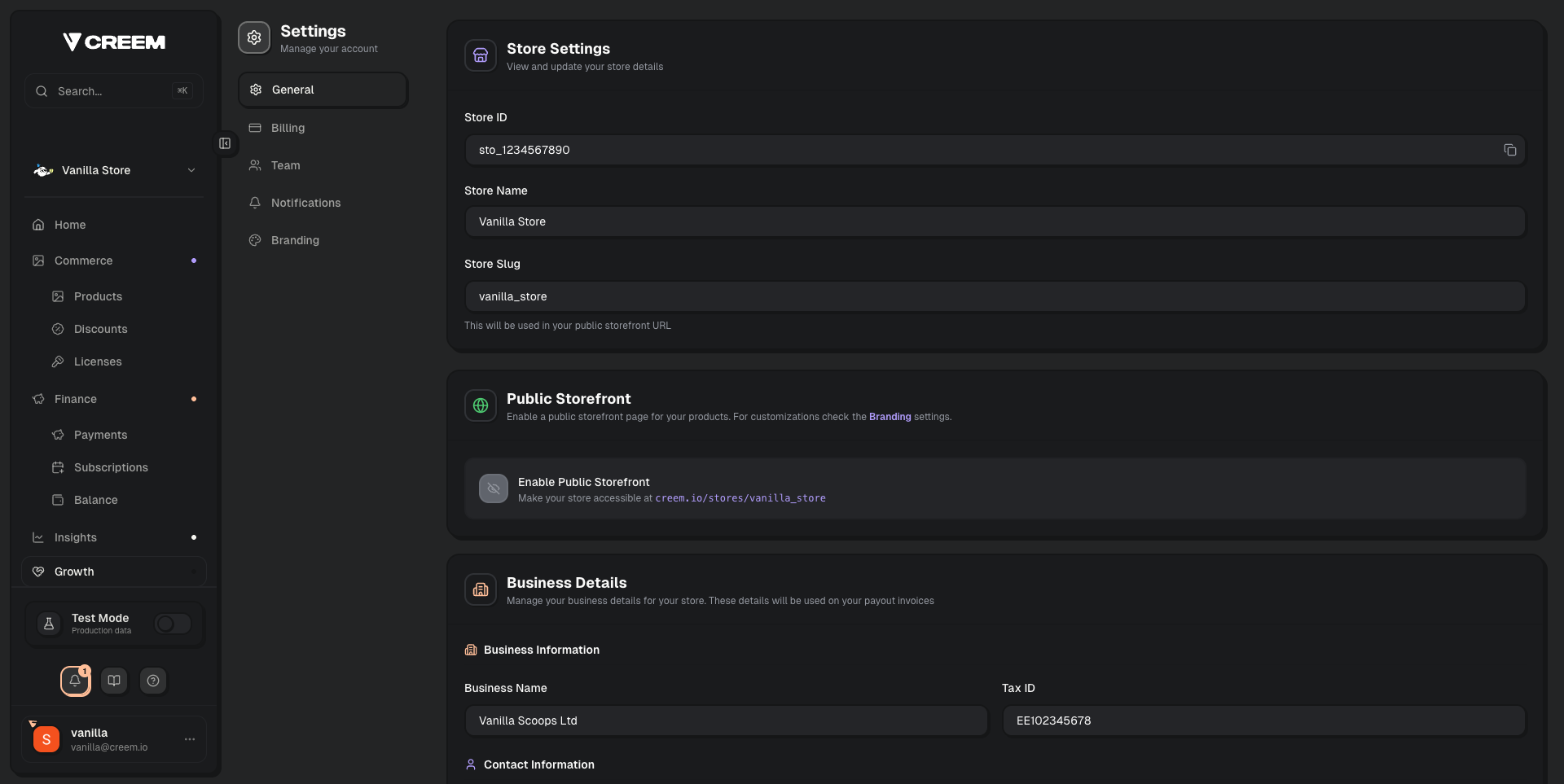
Your Store ID is shown at the top of Settings → General.
Finding Your API Keys
API keys are used to authenticate your integration with Creem.- Go to the Developers section in the left sidebar of your dashboard
- Copy your API Key for the environment you need (test or production)
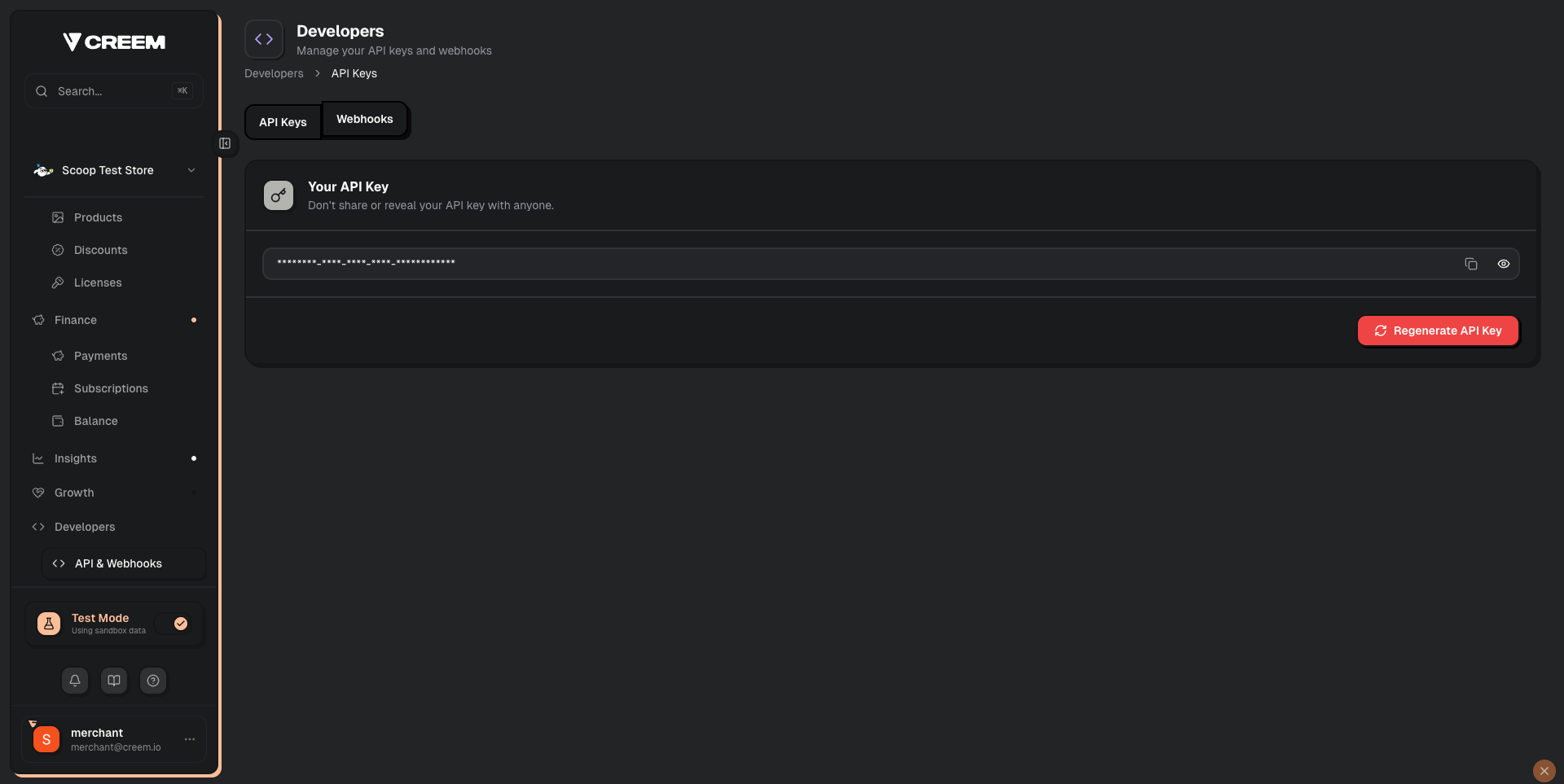
The Developers section shows your API key. Use the eye icon to reveal it, or the copy button to copy.
Configuring Your Support Email
Your support email is shown on customer receipts and must match a real, reachable email address. To update your support email:- Go to Settings → Business Details in your dashboard
- Update the Contact Email field
- Make sure this email is also displayed on your website (e.g., in your footer or contact page)
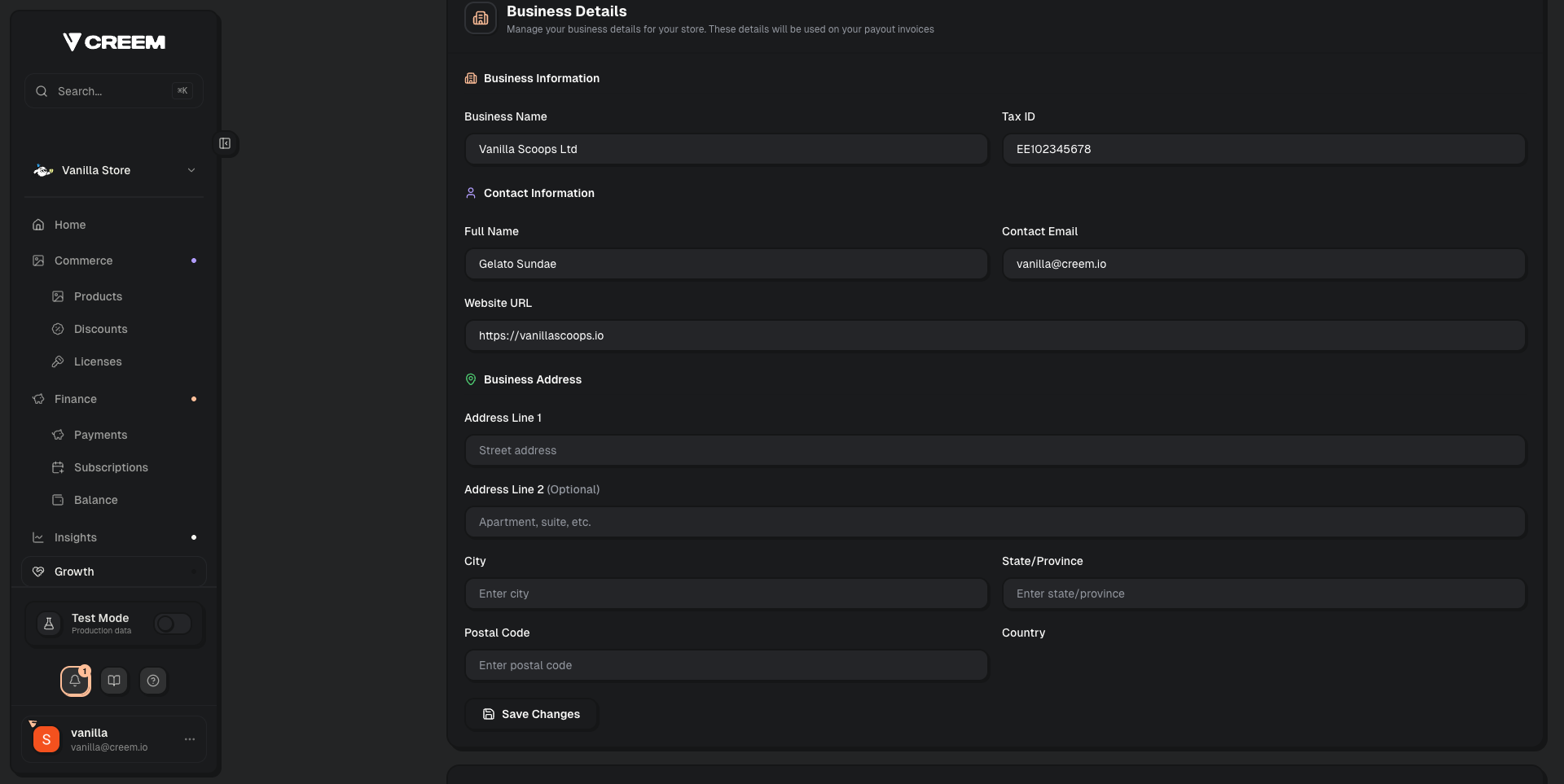
The Contact Email field is under Settings → Business Details → Contact Information.
During account review, we verify that your support email matches what’s shown on your website. A mismatch is one of the most common reasons for requests for changes.
Switching Between Test and Live Mode
Use the Test Mode toggle in the left sidebar to switch between environments. Each environment has its own:- Products and pricing
- API keys
- Transactions and customers
- Webhook endpoints
Products created in test mode are not automatically copied to production. You’ll need to recreate them in live mode when you’re ready to go live.
Managing Your Team
You can invite team members to your store from the dashboard:- Go to Settings → Team
- Click Invite Member and enter their email