

Creem also has a built-in affiliate program that runs inside your
Creem dashboard. This guide covers connecting a third-party affiliate platform instead, or
alongside it.
Overview
Rekomi is affiliate tracking and management software that plugs straight into Creem. Someone shares an affiliate link, Rekomi records the click, and when that visitor buys, the sale arrives from Creem and the right affiliate is credited automatically. Rekomi works out the commission and pays your affiliates for you, in 150+ countries. Setup is small on purpose. You add one webhook in Creem, paste two values into Rekomi, and pass one extra field through your checkout. There is no relay service to build and nothing to host. From then on, sales, subscription renewals, refunds, and chargebacks all arrive through that single webhook.What you'll learn
What you'll learn
How to connect your Creem store to Rekomi, how to carry the affiliate referral through Creem checkout, and how to confirm that commissions and clawbacks are tracking correctly.
What you'll need
- A Creem account in production mode
- A Rekomi account (start a free trial)
- A Creem API key with the
products:readscope
How It Works
Creem hosts checkout on its own domain, so the affiliate referral needs a way to travel from your site into the sale. That is the one piece you wire up yourself, and it is a single metadata field. Here is the whole flow:- A visitor clicks an affiliate link and lands on your site, and the Rekomi script stores the referral in their browser.
- They go to checkout, and you attach that referral to the Creem checkout as
rekomi_refmetadata. - Creem processes the payment and sends a signed webhook to Rekomi.
- Rekomi matches the referral to the affiliate, calculates the commission, and records it.
products:read key is all you need to hand over.
Rekomi reads
rekomi_ref from checkout metadata. Creem’s built-in affiliate
feature uses its own creem_ref URL token, which never ends up in
your metadata, so you can run both side by side.Integration Steps
Five steps, about ten minutes.1. Open the Creem setup page in Rekomi
Get your webhook URL
Get your webhook URL
In Rekomi, open Setup > Connect payment processor and choose Creem. The page gives you a webhook URL that is unique to your workspace, plus the two fields you will fill in shortly.Keep this tab open, you will come back to it in step 3.
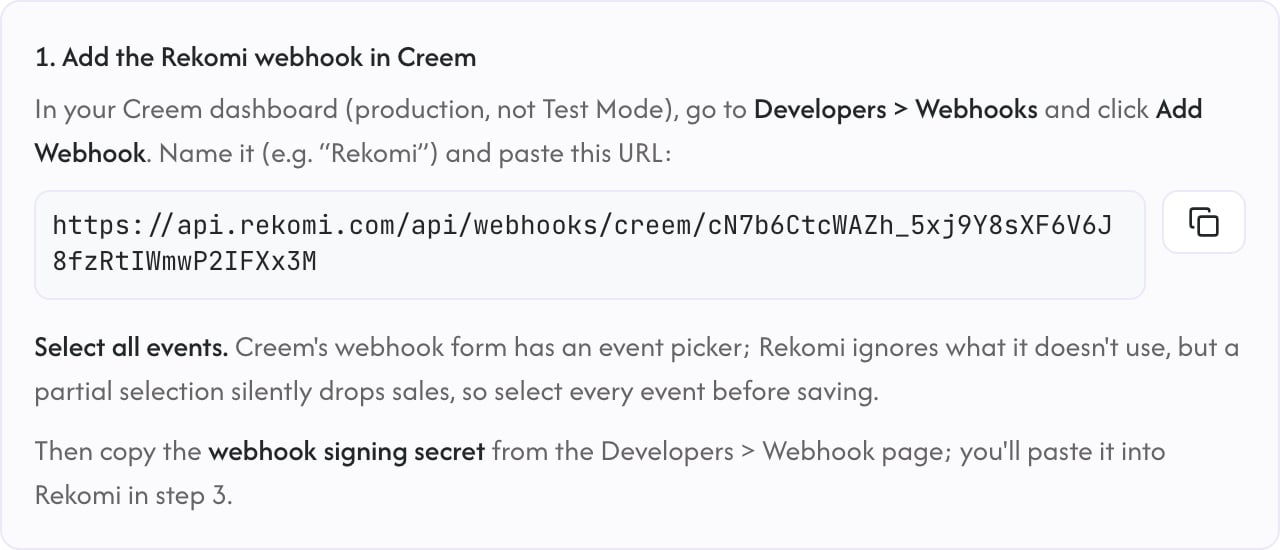
Step 1 in Rekomi: copy your workspace's webhook URL.
2. Add the webhook in Creem
Create the endpoint
Create the endpoint
In your Creem dashboard, go to Developers > Webhooks and click Add Webhook, then:
- Give it a name you will recognize later, for example “Rekomi”
- Paste the webhook URL from step 1
- Select all events
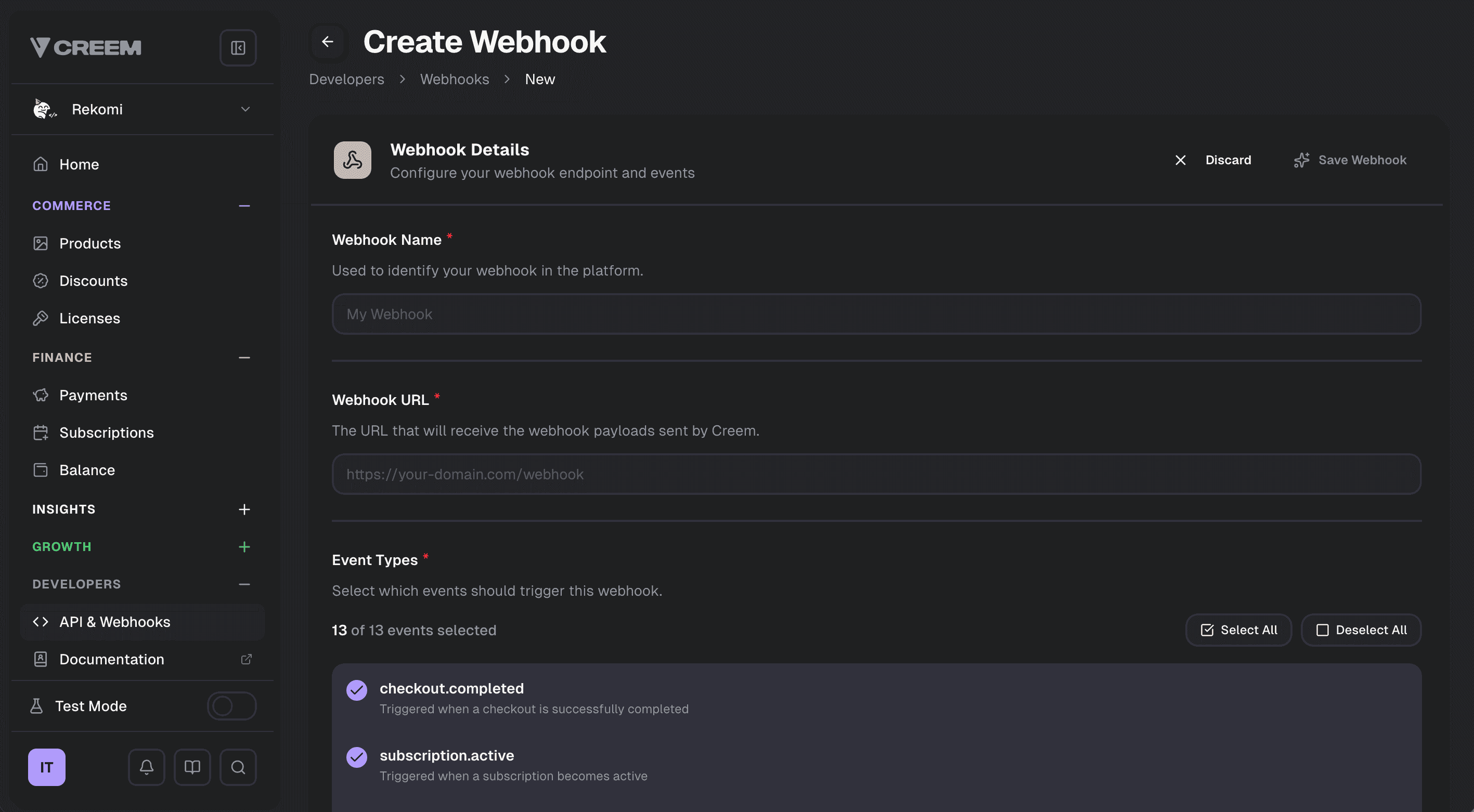
Step 2 in Creem: use Select All so the counter reads 13 of 13 events selected.
3. Create an API key and connect
Create the key
Create the key
In Creem, go to Developers > API Keys and create a key with the
products:read scope.Use a production key. If you paste a creem_test_ key into a production connection, Rekomi tells you
so before anything is saved.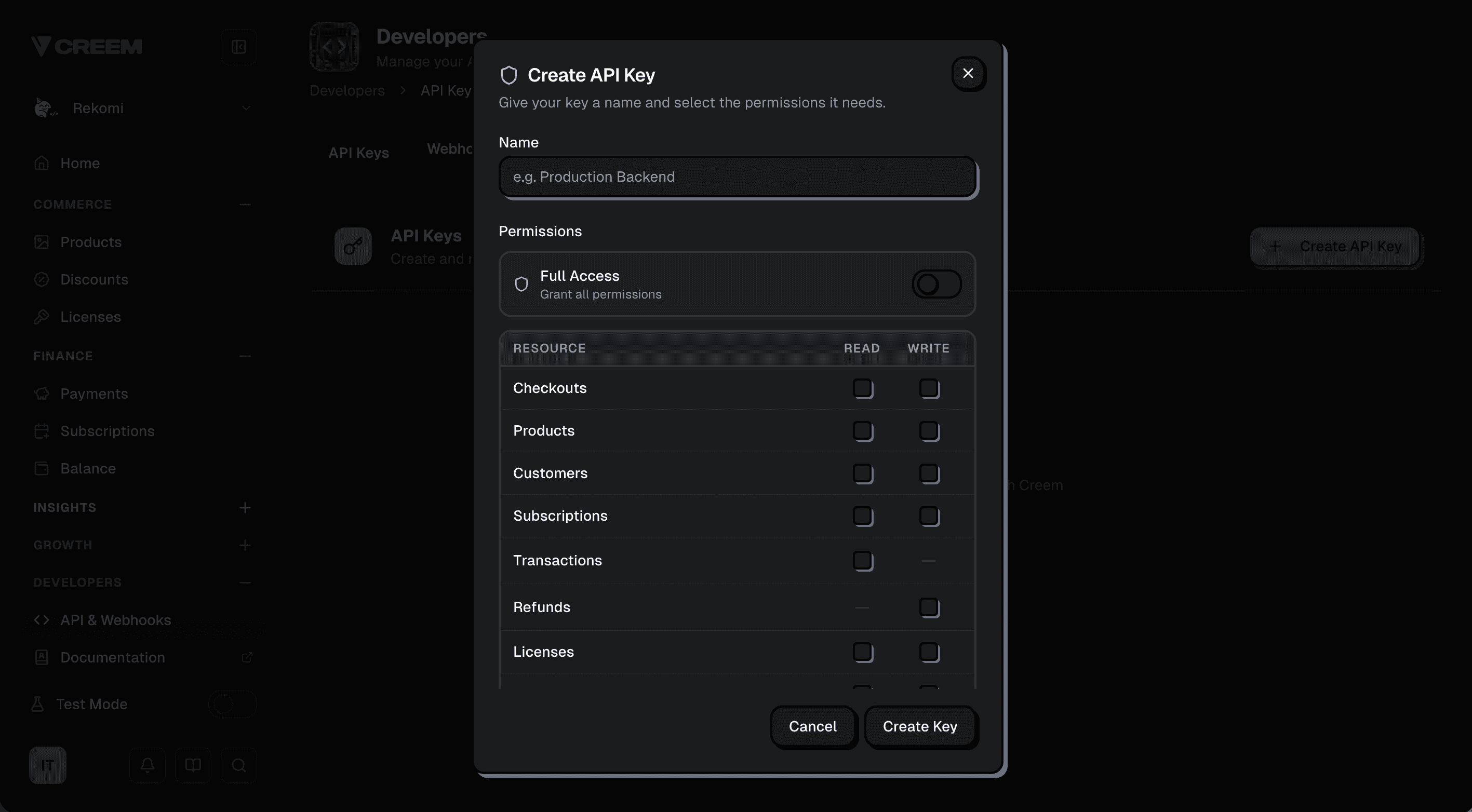
Step 3 in Creem: tick READ on Products. Nothing else is needed.
Paste both values into Rekomi
Paste both values into Rekomi
Back on the Rekomi setup page:
- Paste the webhook signing secret from Creem’s webhook page, including its prefix
- Paste the API key
- Click Connect Creem
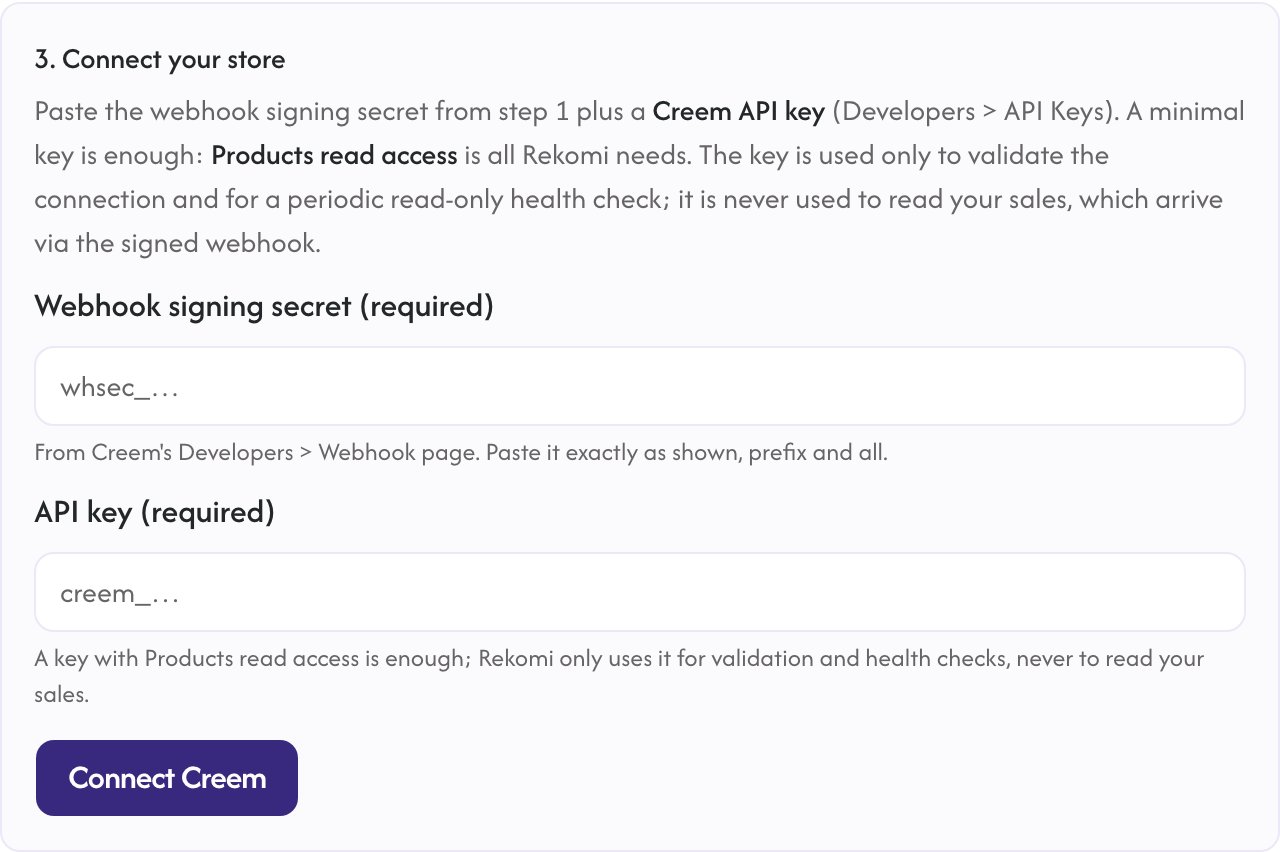
Step 3 in Rekomi: paste the signing secret and API key, then connect.
4. Add the Rekomi script to your site
Install the tracking script
Install the tracking script
Drop this into the Your program ID is in Rekomi under Setup > Install. The script remembers the referral and exposes
<head> of your marketing site so affiliate clicks get captured:window.Rekomi.getReferral(), which you will use in the last step.5. Pass the referral into checkout
Attach rekomi_ref to the sale
Attach rekomi_ref to the sale
This is the step that connects a click to a sale, so it is worth getting right. Without it, sales
arrive with no referral attached and no commission is credited.Pick whichever matches how you sell:If you create checkout sessions on your server, read the referral in the browser with
window.Rekomi.getReferral() and send it along with the rest of your checkout request.What Gets Tracked
Once you are connected, these all happen on their own:
Commissions are calculated on the pre-tax sale amount, in both of Creem’s tax modes. As Merchant of Record, Creem collects the tax, and your affiliates earn on the sale rather than on the tax. With
tax_mode: exclusive the tax sits on top of your price, and with tax_mode: inclusive your price already contains it. Rekomi works out the net from what the customer paid less the tax line, so an inclusive-priced product never pays commission on its own VAT.
Everything is de-duplicated by the underlying order, transaction, refund, and dispute ID, so redeliveries and manual resends never count twice.
Good to Know
- Check the event selection first. A webhook saved with only some events ticked is the most common problem, and it fails quietly. It is worth a look before anything else.
- Try a real purchase. Click an affiliate link, buy something, confirm the conversion shows up in Rekomi within a minute, then refund it and watch the commission come back off.
- Watch the event state, not just the key check. Rekomi’s key only has
products:read, so Rekomi can confirm the key works but cannot see whether your endpoint still exists. The setup page handles this for you: it stays amber until a real delivery lands, and says so again if events go quiet. - Re-created the webhook? Update the signing secret. Deleting and re-creating the endpoint in Creem gives you a new secret. Until you paste it in, deliveries fail their signature check even though the API key still looks fine.
- After an outage, resend from Creem. Creem retries with increasing delays for several hours. Past that, resend the delivery from your Creem dashboard, and Rekomi will record it without duplicating anything.
Full setup guide
Troubleshooting, security details, and the complete Creem reference in Rekomi’s own docs.