

Installation
Prerequisite: Node.js 22 or newer.creem --help to explore commands. With npx, replace creem with npx @creem_io/cli in the examples below.
Login
Runcreem login and enter your API key in the masked prompt, then verify your session:
Interactive browsing
Open products, customers, subscriptions, or transactions without a subcommand:j/k to move, Enter for details, / to search, : to open the command bar, and q to quit. The command bar supports customer billing links and subscription cancellation, pause, and resume. Destructive actions require confirmation. The TUI displays your test/live environment.
Browsing transactions
Opencreem transactions to browse amounts, types, and timestamps:
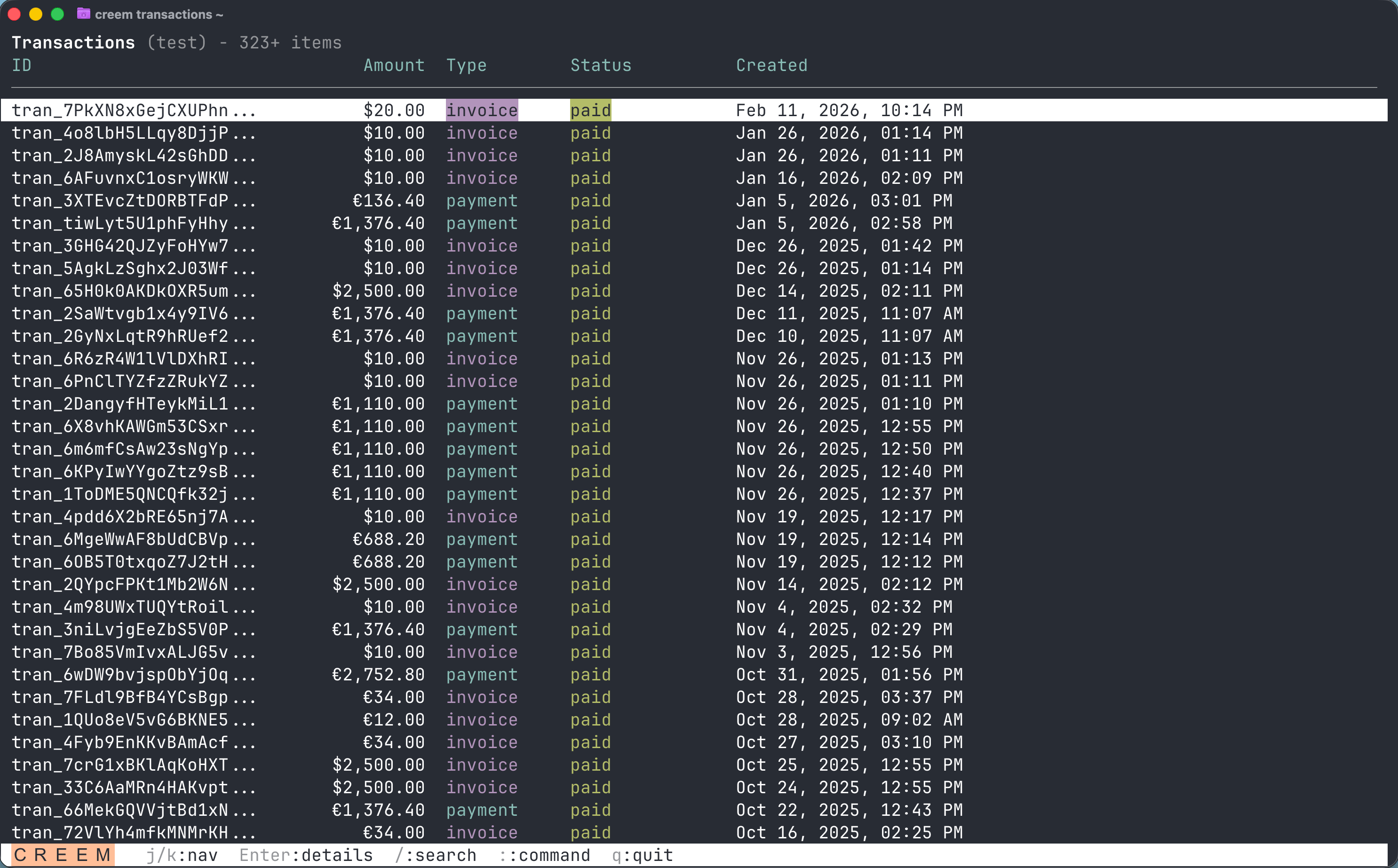
Interactive transaction browser.
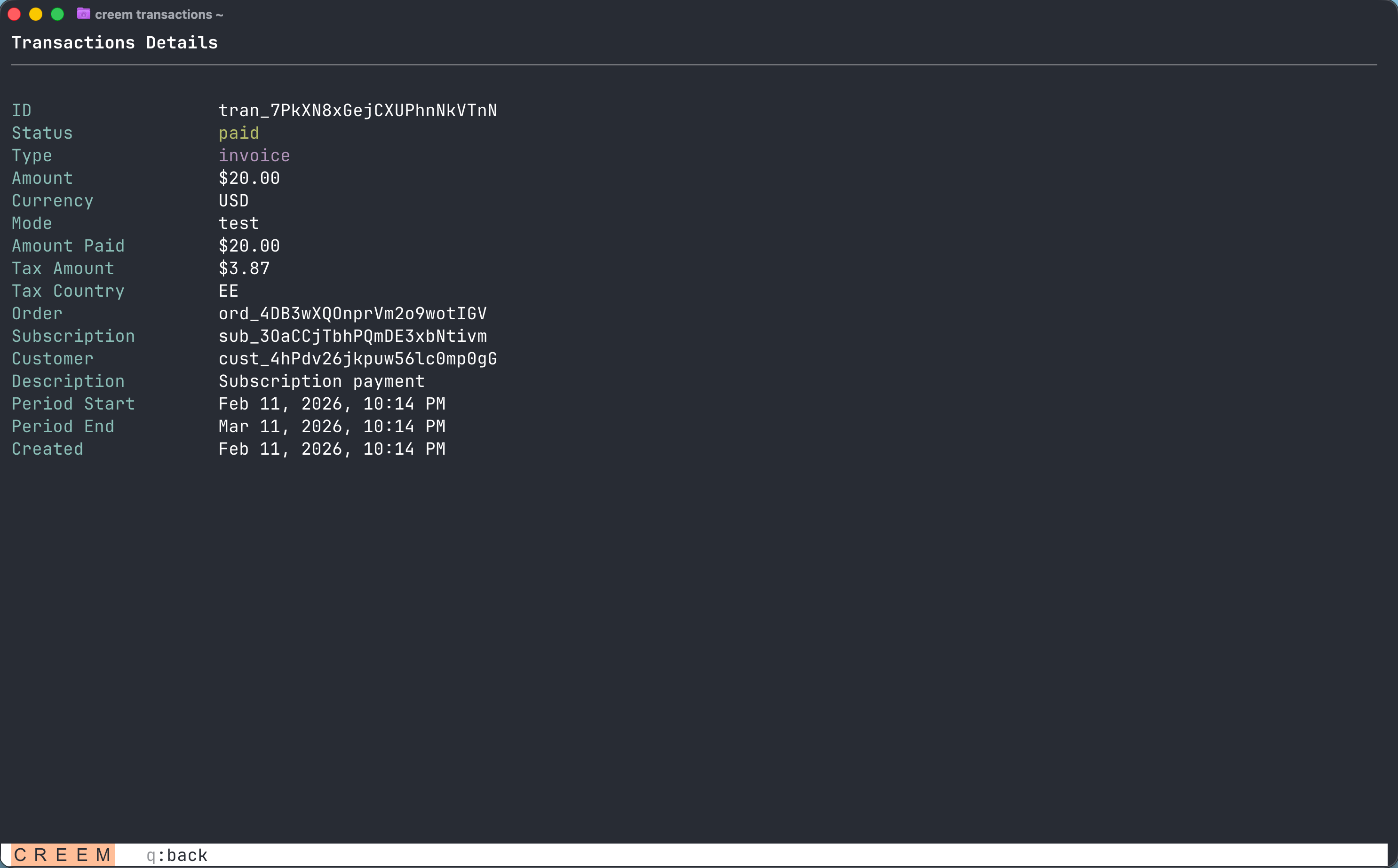
Transaction details, including the linked order, subscription, and customer.
Managing subscriptions
Opencreem subscriptions, select a subscription, and use the command bar to cancel, pause, or resume it:
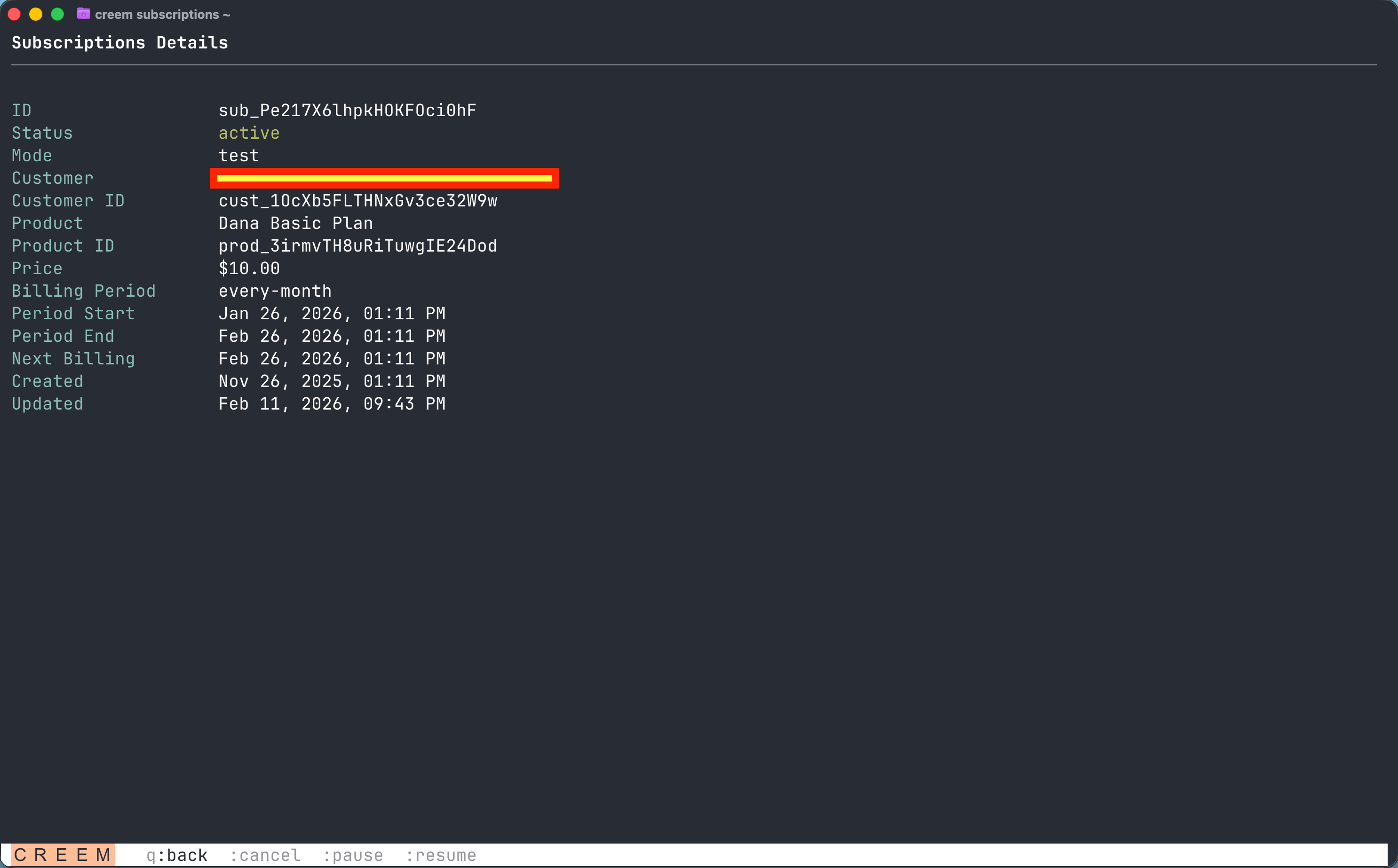
Subscription details with actions available from the command bar.
Scriptable commands
Create checkout links, issue refunds, manage customer credits and licenses, invite affiliates, and set up revenue splits with terminal commands. Use the shared command reference and append--help to discover flags.
--data @request.json with camelCase fields. Use --json for machine-readable results or --all --output ndjson to export every list item. See request bodies and pagination.
Environments and errors
The API key determines test/live mode.CREEM_API_KEY takes precedence over local login and is not saved. A conflicting --environment fails before an API call. Local credentials use a protected configuration file; creem logout removes the stored key.
Errors explain the problem, a repair step, and the trace ID when provided by the API. Interactive destructive actions show TEST or LIVE before confirmation; scripts and JSON output require --yes. Check write outcomes before retrying, because the CLI never retries writes automatically.
See the CLI reference for authentication, configuration, pagination, and guidance on upgrading existing scripts.