


Creem embedded checkout shown as a modal overlay on a merchant's site
How it works
- Create a checkout session on your server with your secret API key (see Checkout API) and read its
checkoutUrl. - Load the Creem embed script on your page.
- Open the checkout as an overlay or inline, and handle
onComplete.
1. Create a checkout session (server-side)
Every embed needs a checkout URL, created on your server with your secret API key so the price and product can’t be tampered with. Use the Checkout API or one of its SDKs and readcheckoutUrl (the raw REST API returns it as checkout_url):
2. Choose an embed path
Use exactly one of the three paths below — framework SDKs, the script loader, or a raw iframe.Framework SDKs
First-class packages for React (≥18), Vue (≥3), and Svelte (≥4) with typed props and lifecycle events. They share a framework-agnostic core,@creem_io/embed, which you can also use directly in vanilla JS.
- React
- Vue
- Svelte
useCreemCheckout() hook and the CreemEmbedCheckout.create() promise API. Full reference →theme, locale) and emits the same ready + completed events.
On completion the embed behaves exactly like the hosted checkout’s return page:
- Product has a Return URL → a short confirmation screen, then the top window navigates there (~3s).
- No Return URL → a “View order” button; the embed stays open until the customer closes it.
close() inside onComplete — it dismisses the embed and cancels the pending redirect. Cancelling the redirect from close() requires @creem_io/embed ≥ 0.3.3 (or @creem_io/react / /vue / /svelte ≥ 0.2.3); on older versions close() dismisses the modal but the redirect still fires.
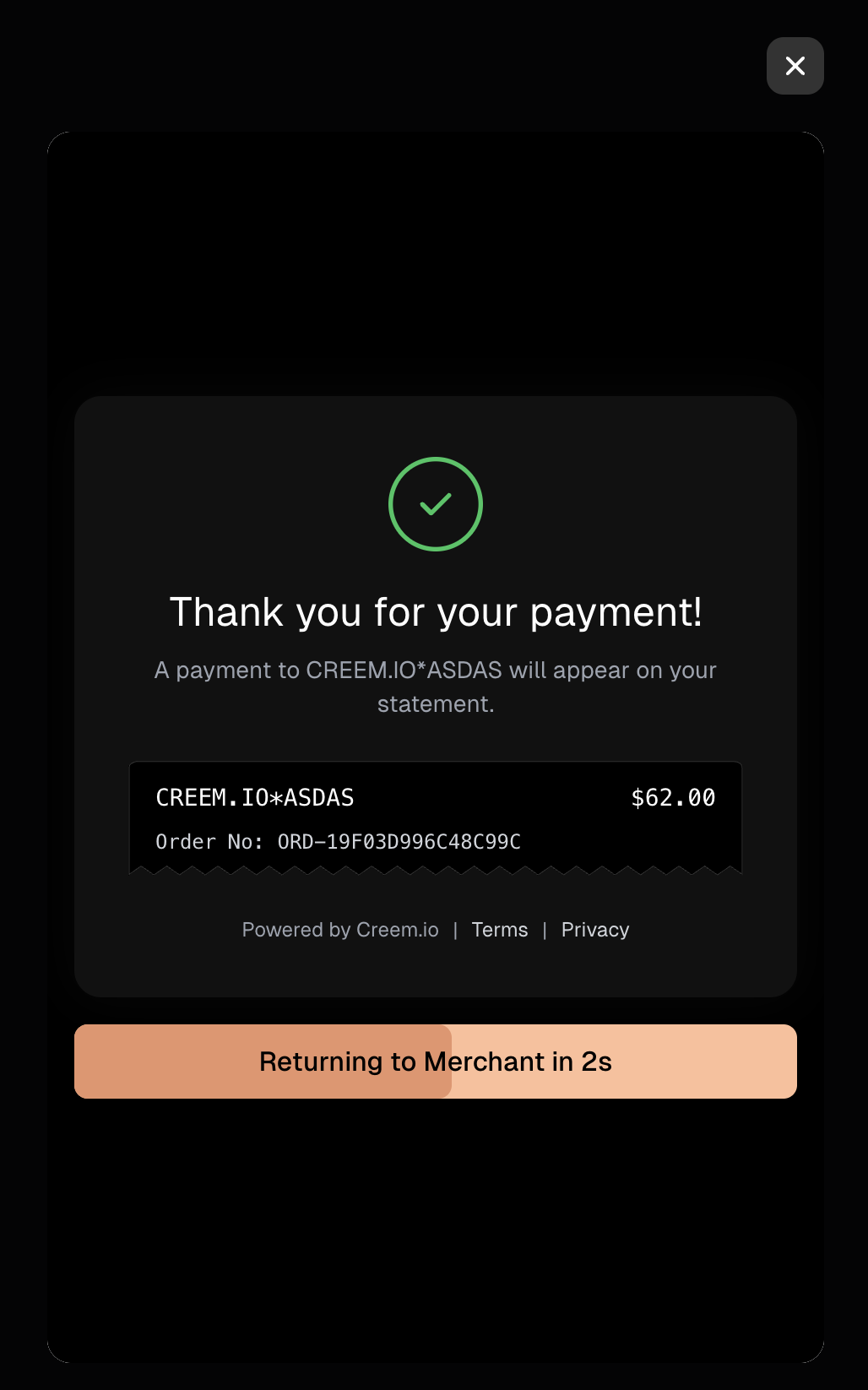
Product has a Return URL — a confirmation screen with a 'Returning to Merchant' countdown, then the redirect.
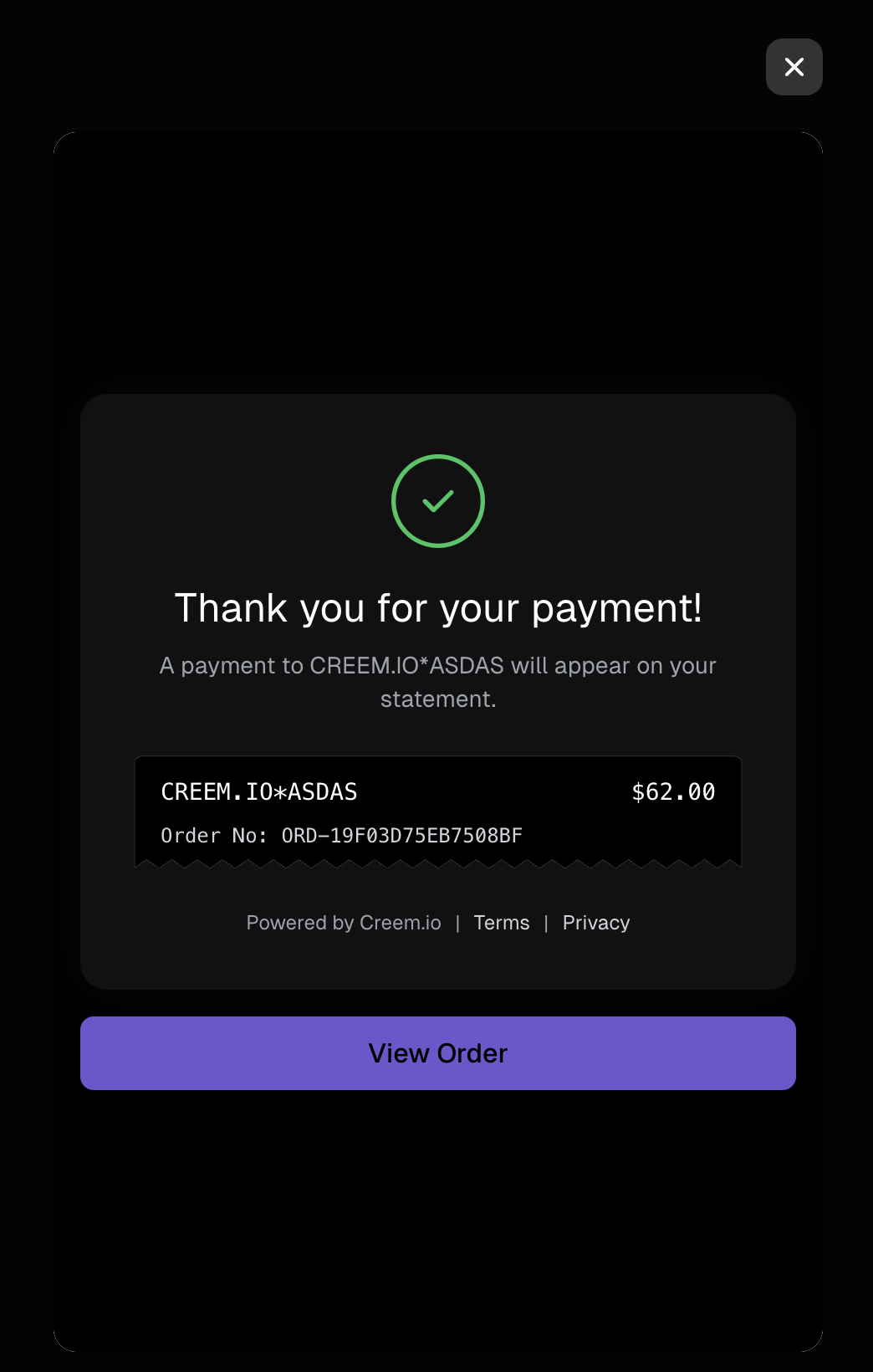
No Return URL — a 'View order' button; the embed stays open until the customer closes it (or you call close() in onComplete).
Open on click (dynamic sessions)
The components above need thecheckoutUrl at render time. For a pricing grid — many products, where you don’t want to pre-create a session for each one on page load — create the session on demand and open it imperatively with the useCreemCheckout() hook:
useCreemCheckout() composable. In vanilla JS (or any framework), use the promise-based CreemEmbedCheckout.create({ checkoutUrl }), which resolves once the checkout has rendered.
Script loader
For non-framework apps, or when you want a globalCreem object. No build step — drop in the loader script and open checkout from any framework or plain HTML.
Overlay
1
Add the script
2
Open checkout on click
Creem.close() from onComplete to dismiss it — this also cancels the pending redirect to the Return URL, keeping the customer on your page.
Inline
Mount checkout inside a container on your page:Declarative data attributes
Any element withdata-creem-checkout opens the overlay on click — no JS wiring, but it still relies on the loader script above:
data-creem-theme and data-creem-locale:
Raw iframe
The lowest-level option — no loader, no SDK. Use it when you only need inline display and will handle the lifecycle yourself, or don’t need callbacks:Presentation — theme & language
Works with the framework SDKs and the script loader.openCheckout and mount accept two presentation options, appended to the checkout URL for you:
locale to force a specific one (e.g. to match your own site’s language). Unsupported locales fall back to English. See the supported languages for the full list.
Affiliate attribution
If you run the Creem Affiliate Program, embedded checkout still credits referred sales to the right affiliate — and the SDKs and script loader handle it for you. Here’s what happens, and the one edge case worth knowing. How it works- An affiliate link (
creem.io/affiliate?code=…) sends the visitor to your site and appends acreem_reftoken to the landing URL. - On the hosted checkout, attribution rides a first-party cookie on Creem’s domain — nothing to do.
- Inside the embed, the checkout runs in a cross-site iframe, so the browser doesn’t send that cookie there — in any browser. Attribution instead rides the token: the SDK/loader reads
creem_reffrom your page, persists it in your site’s own first-party storage, and forwards it into the checkout iframe, so it works uniformly everywhere. No code needed for the common case.
creem_ref is an opaque, signed token — it identifies the click, not the affiliate. Don’t try to parse an affiliate code out of it, and you don’t need to read or forward it yourself: the SDKs and loader do it automatically. (It mirrors client_reference_id in Stripe-based tools like Rewardful and Tolt.)/?creem_ref=…, then navigates to another page (say /pricing) before opening checkout, and your app drops the query string on that navigation, the token is no longer on the URL. If it wasn’t captured before that navigation, attribution is lost — in every browser, since the embed relies on the token, not the cookie.
To cover this, call captureAffiliateRef() once early in your app (e.g. a root layout) so the token is captured on the landing page and stored for later:
creem_ref in localStorage by default. Prefer your own storage — sessionStorage, your own cookie, or server-side? Read the value off the landing URL, store it however you like, and append it to the checkoutUrl you pass to the SDK. The SDK won’t overwrite a creem_ref you’ve already set on the URL, so your value wins:
API reference
The framework SDKs (@creem_io/react, /vue, /svelte) accept these same options — as props/args, with onComplete/onClose surfaced as the complete/close events where idiomatic.
Creem.openCheckout(options)
Opens checkout in a modal overlay.
string
required
The checkout session URL from the Checkout API.
'light' | 'dark'
Color theme for the checkout. Defaults to light.
string
BCP47 language tag (e.g.
'fr', 'pt-BR') to force the checkout language. Defaults to the customer’s browser language; unsupported locales fall back to English.() => void
Called once the checkout UI has rendered and is ready for input.
(detail) => void
Called when payment completes.
detail = { checkoutId, orderId?, orderNo?, redirect?, redirectUrl? } — redirectUrl is the merchant success URL, if set.() => void
Called when the overlay is dismissed by the customer.
{ close() } — call close() to dismiss the overlay programmatically.
Creem.mount(options)
Mounts checkout inline. Same options as openCheckout, plus:
string | HTMLElement
required
The element (or a CSS selector) to mount the checkout iframe into. The loader accepts a CSS selector; the npm
@creem_io/embed mount requires an HTMLElement (pass document.querySelector('#…')).{ destroy() } — call destroy() to unmount the inline checkout and remove its listener (important in SPAs, e.g. on component unmount).
Creem.close()
Programmatically closes the overlay.
captureAffiliateRef()
An SDK export (@creem_io/embed, /react, /vue, /svelte) — not a method on the loader, which captures automatically. Reads the affiliate creem_ref token from the current URL, persists it to your site’s first-party storage, and returns the active token (from the URL, or a previously stored one), or null. openCheckout/mount already do this; call it directly only to capture on a landing page the visitor reaches before opening checkout (see Affiliate attribution). Safe anywhere — a no-op during SSR and when no token is present.
Returns string | null.
Events
Under the hood, the checkout posts messages to the parent window over its lifecycle. The loader handles these for you (onReady, onComplete); if you build a fully custom integration (e.g. a raw iframe), listen for them directly:
string
Always
"creem-embed".number
Protocol version (currently
1).string
"ready" when the UI has rendered, then "completed" on payment.Digital wallets. Google Pay works inside the embedded iframe. Apple Pay does not — this is an Apple platform restriction, not an embed limitation. In a cross-origin iframe, Safari only presents the Apple Pay sheet when the top-level page’s domain (your site) is registered as an Apple Pay merchant domain and the merchant session is validated against that top-level domain, not the iframe’s. Your site isn’t registered under Creem’s Apple Pay account, so Safari suppresses the button — Google Pay has no equivalent top-level-domain requirement, which is why it still appears. Card and 3-D Secure payments always work in the embed. If Apple Pay is critical for you, use the hosted checkout page, where payment runs on Creem’s own registered domain.