- A finished Canva design and a template link
- A Creem product with a Private Note that contains the link (Markdown supported)
- A checkout flow (no-code payment link or API integration)
- Automatic delivery on the post-purchase screen, email receipt, and customer portal
What buyers experience
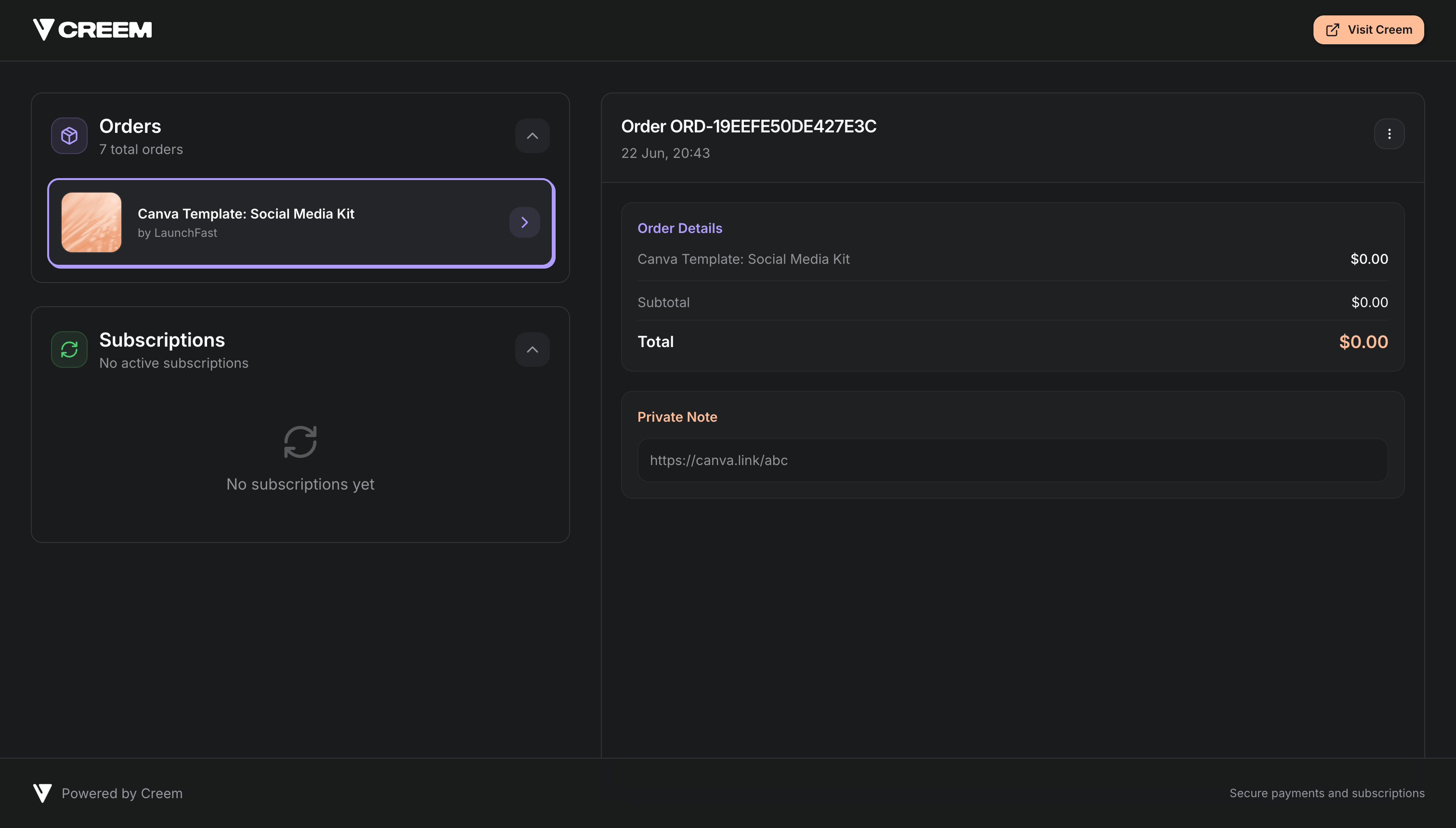
After a successful payment, the buyer sees your private note content immediately:- Post-purchase confirmation screen (when you don’t redirect away immediately)
- Purchase confirmation email
- Customer portal (so they can find it again later)
Create your Canva template link
1
Finish your template in Canva
Complete your design in Canva. Use a clear page structure and names if you’re selling a multi-page pack (for example, “Cover”, “Instagram post”, “Story”).
2
Generate a template link
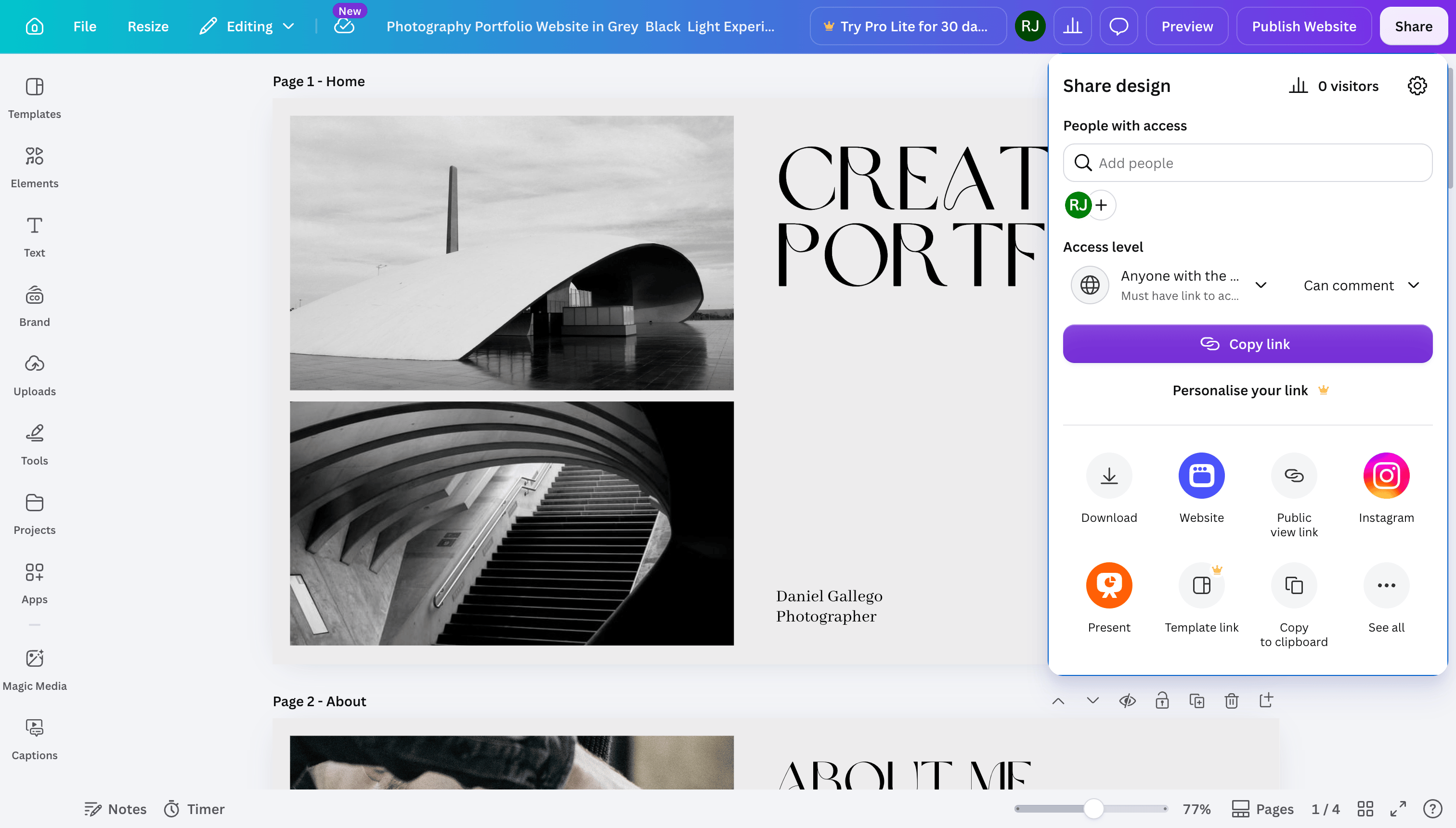
In the Canva editor:
- Open your finished design.
- Click Share in the top menu.
- In Access level, change Only you can access to Anyone with the link and Can edit to Can comment.
-
Click Copy link and save the URL somewhere safe.
Set up automated delivery with Private Notes
1
Create a product for your template
Go to the Products tab and create a new product.Use a clear name like “Canva Template: Social Media Kit” and a description that matches what the buyer gets.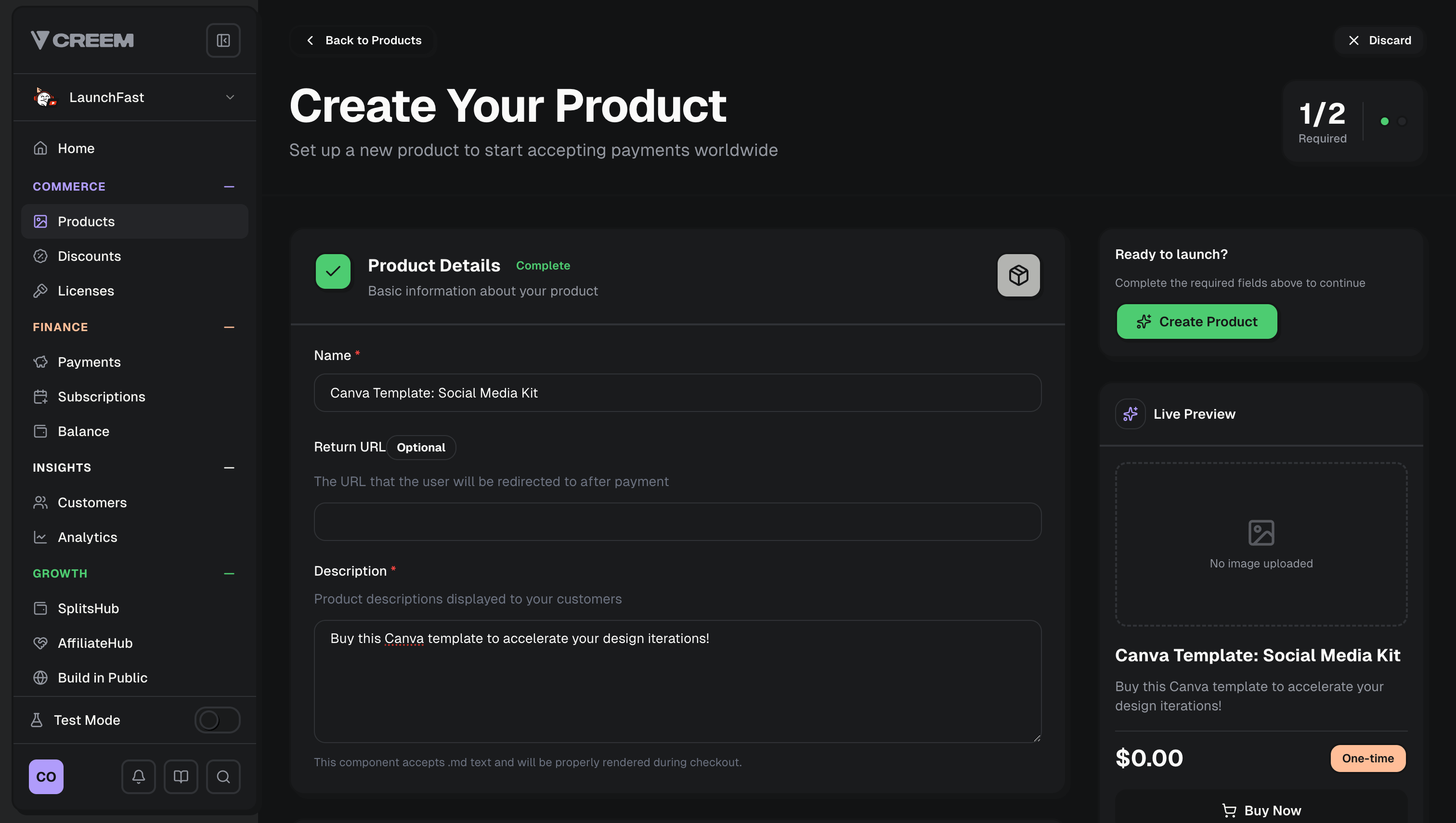
2
Enable Private Notes and add your template link
In the product settings under Product Features, add Private Notes and paste a note that includes your Canva template link.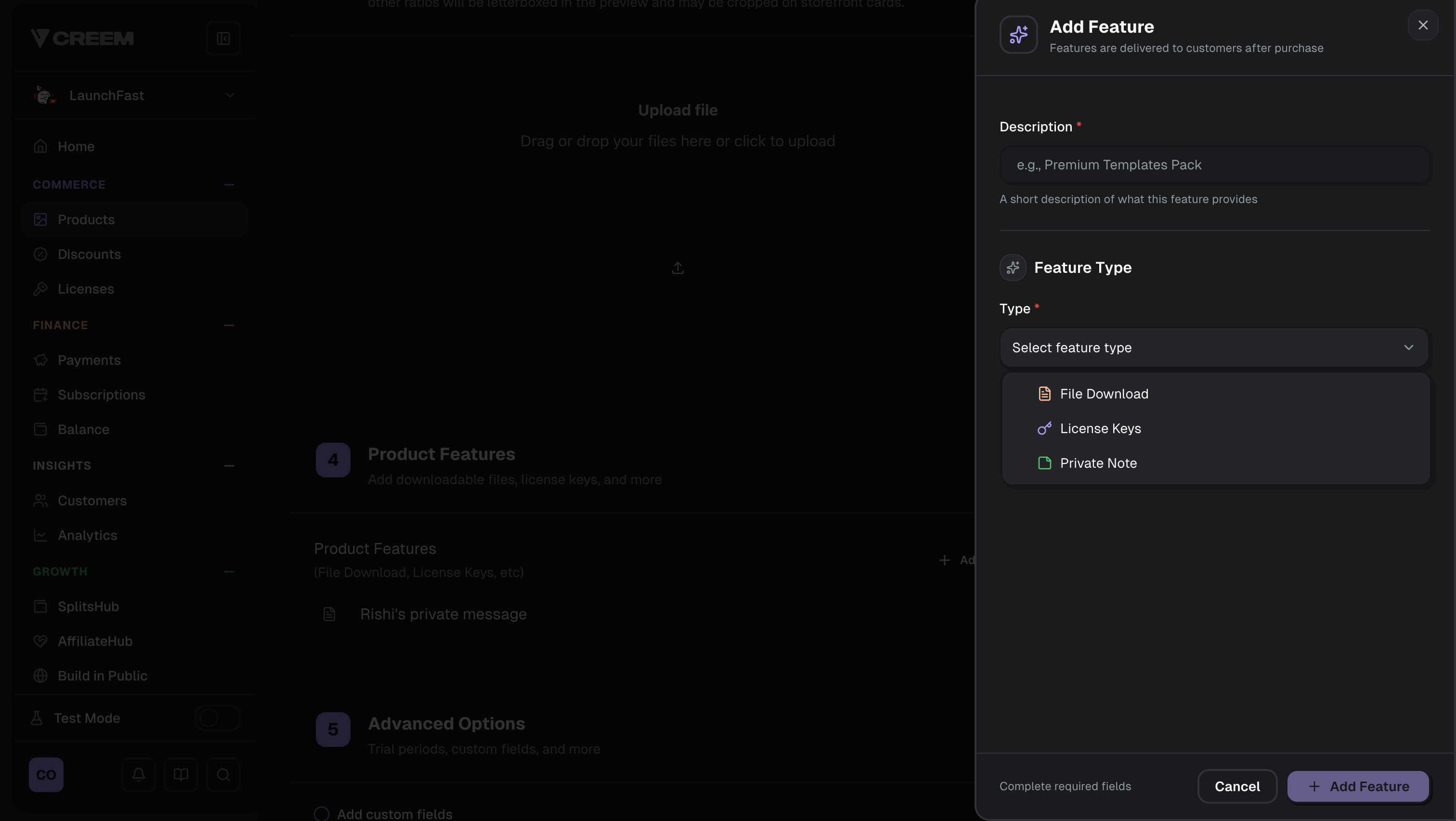
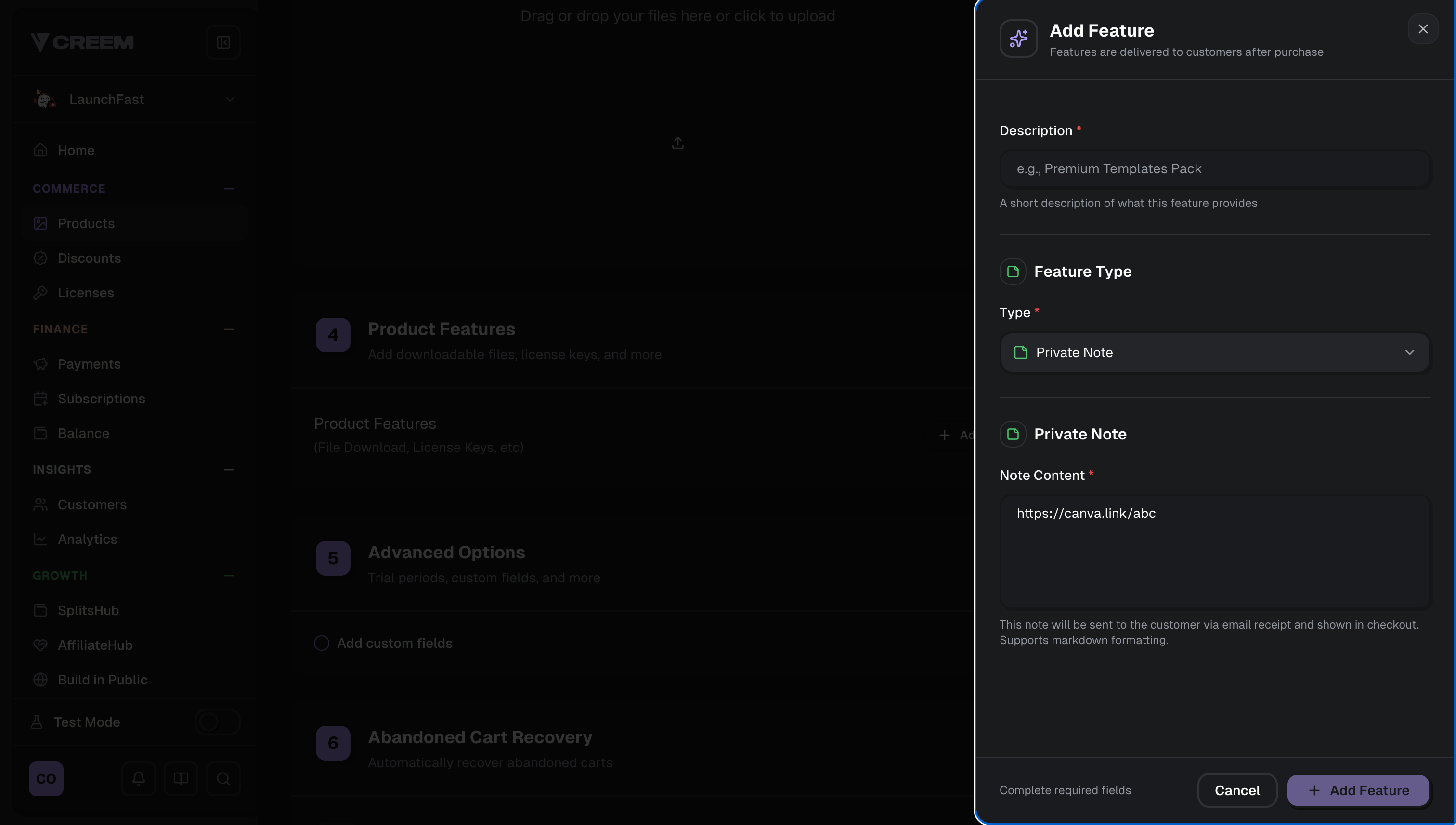
Keep the Canva template link in the Private Note so it’s only revealed after payment.
Create a checkout (no-code or API)
You can sell the Canva template with either a shareable checkout link or a checkout session you create on demand.No-code checkout link
Copy a payment link from the product and share it anywhere.
Programmatic checkout session
Create a checkout session via API/SDK for dynamic flows.
Option A: Share the product payment link (no code)
After creating your product, click Share in the dashboard and use the payment link on:- Your landing page
- A “Buy now” button
- A newsletter or social post
Option B: Create a checkout session (API)
If you want to attach internal tracking (template slug, campaign, user ID), create a checkout session and redirect the buyer to it.Where the Canva template link appears to customers
After setup, the Canva template link is delivered automatically in several places:Order Confirmation Page
If no custom redirect URL is specified, the note is shown on the order success page right after checkout.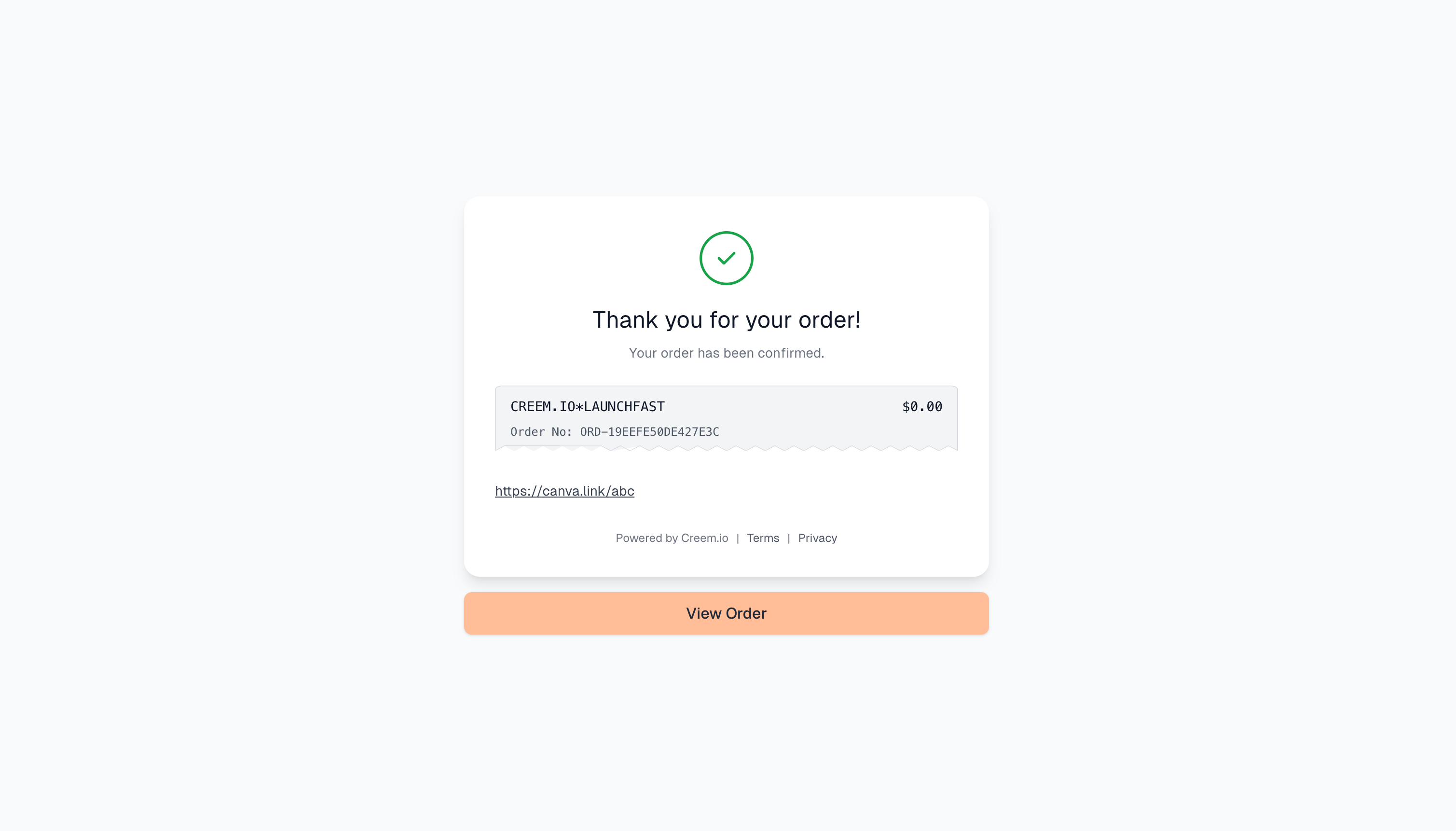
Email Receipt
The private note with the Canva template link is included in the purchase confirmation email.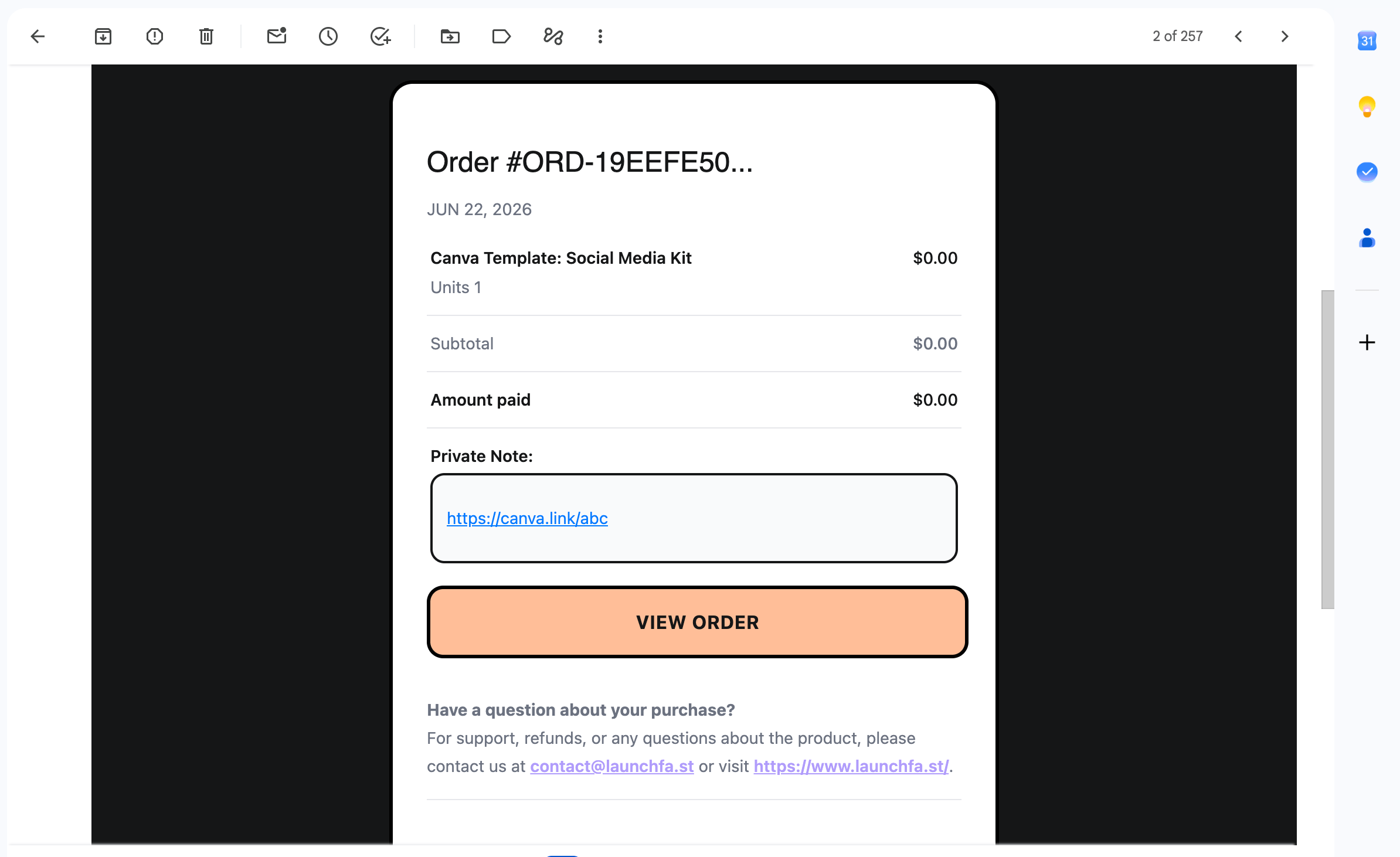
Customer Portal
Customers can open the note and copy the Canva template link again from their customer portal.