> ## Documentation Index
> Fetch the complete documentation index at: https://docs.creem.io/llms.txt
> Use this file to discover all available pages before exploring further.
# Referly Affiliate Program Integration
> Run your affiliate program on Creem with Referly. One webhook tracks sales, renewals, refunds and coupon codes, and Referly handles your affiliates end to end.
 ## Overview
[Referly](https://referly.so/creem) is affiliate tracking and management software with a native Creem
connection. An affiliate shares a link or a discount code, Referly records the click, and when that
visitor buys through your Creem checkout the sale arrives on a signed webhook and is credited to the
right affiliate.
Setup is one webhook in Creem, two values pasted into Referly, and one metadata field carried through
your checkout. Sales, subscription renewals, trials, refunds and chargebacks all arrive through that
single webhook.
## What you can do with Referly
A branded portal where affiliates sign up and find their links, codes and earnings.
Clicks, sign-ups, one-time sales, subscription renewals, refunds and chargebacks.
Different rates per Creem product, or rule-based plans.
A Creem discount code per affiliate, credited without a link. Automatic generation needs the
Business plan or above.
Affiliates create and rename their own codes, synced to your Creem store.
Bank transfer, PayPal or Wise, or discount codes and Creem customer credits instead of cash.
* A Creem account (production or test mode, Referly follows the key you connect with)
* A Referly account ([start here](https://referly.so/creem))
* A Creem API key, plus the signing secret of the webhook you create in step 3
## How It Works
Creem hosts checkout on its own domain, so the affiliate referral needs a way to travel from your
site into the sale. That is the one piece you wire up yourself, and it is a single metadata field.
* A visitor clicks an affiliate link and lands on your site. The Referly tracking script stores the
referral in their browser and exposes it as `window.affiliateId`.
* They go to checkout, and you attach that referral to the Creem checkout as `referly_ref` metadata.
For payment links, a drop-in snippet from Referly does this for you.
* Creem processes the payment and sends a signed webhook to Referly.
* Referly matches the referral (or the discount code used at checkout) to the affiliate, calculates
the commission, and records it.
Your API key powers the optional extras: listing your Creem products for product-based commission
rules, creating discount codes for coupon attribution, and crediting affiliates who are paid in Creem
customer credits. Sales never come through the API; they arrive on the signed webhook.
Referly reads `referly_ref` from checkout metadata, not `creem_ref`. Creem reserves `creem_ref`
for its own [built-in affiliate feature](/features/affiliate-program), so the two can coexist.
## Integration Steps
Eight steps, about twenty minutes including the test purchase.
Sign up at [referly.so](https://referly.so/creem) and create an affiliate program for your Creem store.
The setup wizard walks you through the parts that matter:
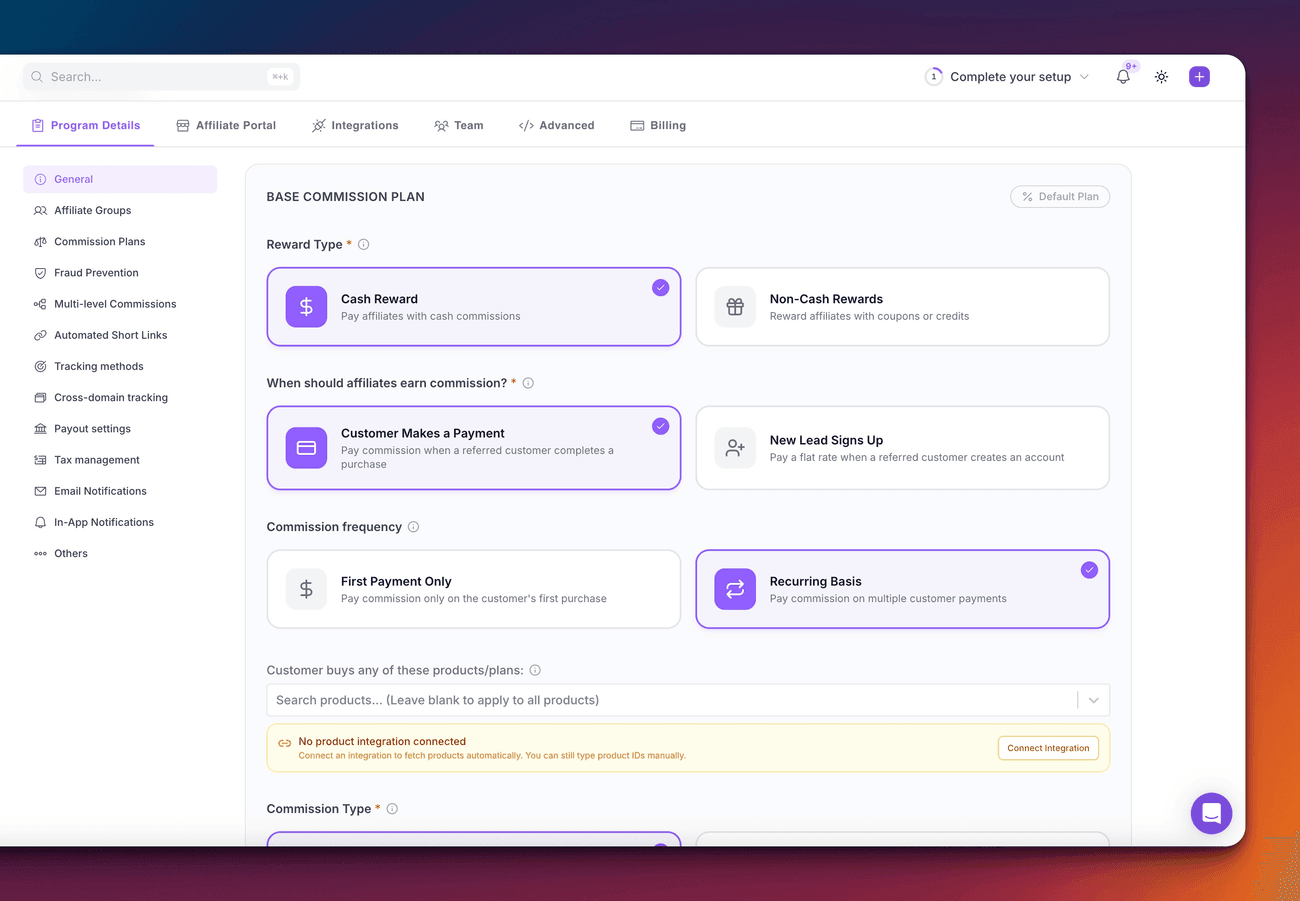
* **Reward and trigger**: a cash commission (percentage or flat amount), earned when a customer
makes a payment. Product-specific rates can be added later, once Creem is connected and Referly
can list your products.
* **Commission frequency**: choose **Recurring** if you want subscription renewals to pay
commission. **First payment only** pays once per customer and ignores renewals.
* **Payout hold**: how long commissions are held before payout. This is also your refund window.
A refund inside the hold reverses the commission automatically; after the hold, the commission
has been released for payout and is not reversed.
* **Affiliate portal**: the page your affiliates sign up on and where they find their links and
codes.
## Overview
[Referly](https://referly.so/creem) is affiliate tracking and management software with a native Creem
connection. An affiliate shares a link or a discount code, Referly records the click, and when that
visitor buys through your Creem checkout the sale arrives on a signed webhook and is credited to the
right affiliate.
Setup is one webhook in Creem, two values pasted into Referly, and one metadata field carried through
your checkout. Sales, subscription renewals, trials, refunds and chargebacks all arrive through that
single webhook.
## What you can do with Referly
A branded portal where affiliates sign up and find their links, codes and earnings.
Clicks, sign-ups, one-time sales, subscription renewals, refunds and chargebacks.
Different rates per Creem product, or rule-based plans.
A Creem discount code per affiliate, credited without a link. Automatic generation needs the
Business plan or above.
Affiliates create and rename their own codes, synced to your Creem store.
Bank transfer, PayPal or Wise, or discount codes and Creem customer credits instead of cash.
* A Creem account (production or test mode, Referly follows the key you connect with)
* A Referly account ([start here](https://referly.so/creem))
* A Creem API key, plus the signing secret of the webhook you create in step 3
## How It Works
Creem hosts checkout on its own domain, so the affiliate referral needs a way to travel from your
site into the sale. That is the one piece you wire up yourself, and it is a single metadata field.
* A visitor clicks an affiliate link and lands on your site. The Referly tracking script stores the
referral in their browser and exposes it as `window.affiliateId`.
* They go to checkout, and you attach that referral to the Creem checkout as `referly_ref` metadata.
For payment links, a drop-in snippet from Referly does this for you.
* Creem processes the payment and sends a signed webhook to Referly.
* Referly matches the referral (or the discount code used at checkout) to the affiliate, calculates
the commission, and records it.
Your API key powers the optional extras: listing your Creem products for product-based commission
rules, creating discount codes for coupon attribution, and crediting affiliates who are paid in Creem
customer credits. Sales never come through the API; they arrive on the signed webhook.
Referly reads `referly_ref` from checkout metadata, not `creem_ref`. Creem reserves `creem_ref`
for its own [built-in affiliate feature](/features/affiliate-program), so the two can coexist.
## Integration Steps
Eight steps, about twenty minutes including the test purchase.
Sign up at [referly.so](https://referly.so/creem) and create an affiliate program for your Creem store.
The setup wizard walks you through the parts that matter:
* **Reward and trigger**: a cash commission (percentage or flat amount), earned when a customer
makes a payment. Product-specific rates can be added later, once Creem is connected and Referly
can list your products.
* **Commission frequency**: choose **Recurring** if you want subscription renewals to pay
commission. **First payment only** pays once per customer and ignores renewals.
* **Payout hold**: how long commissions are held before payout. This is also your refund window.
A refund inside the hold reverses the commission automatically; after the hold, the commission
has been released for payout and is not reversed.
* **Affiliate portal**: the page your affiliates sign up on and where they find their links and
codes.
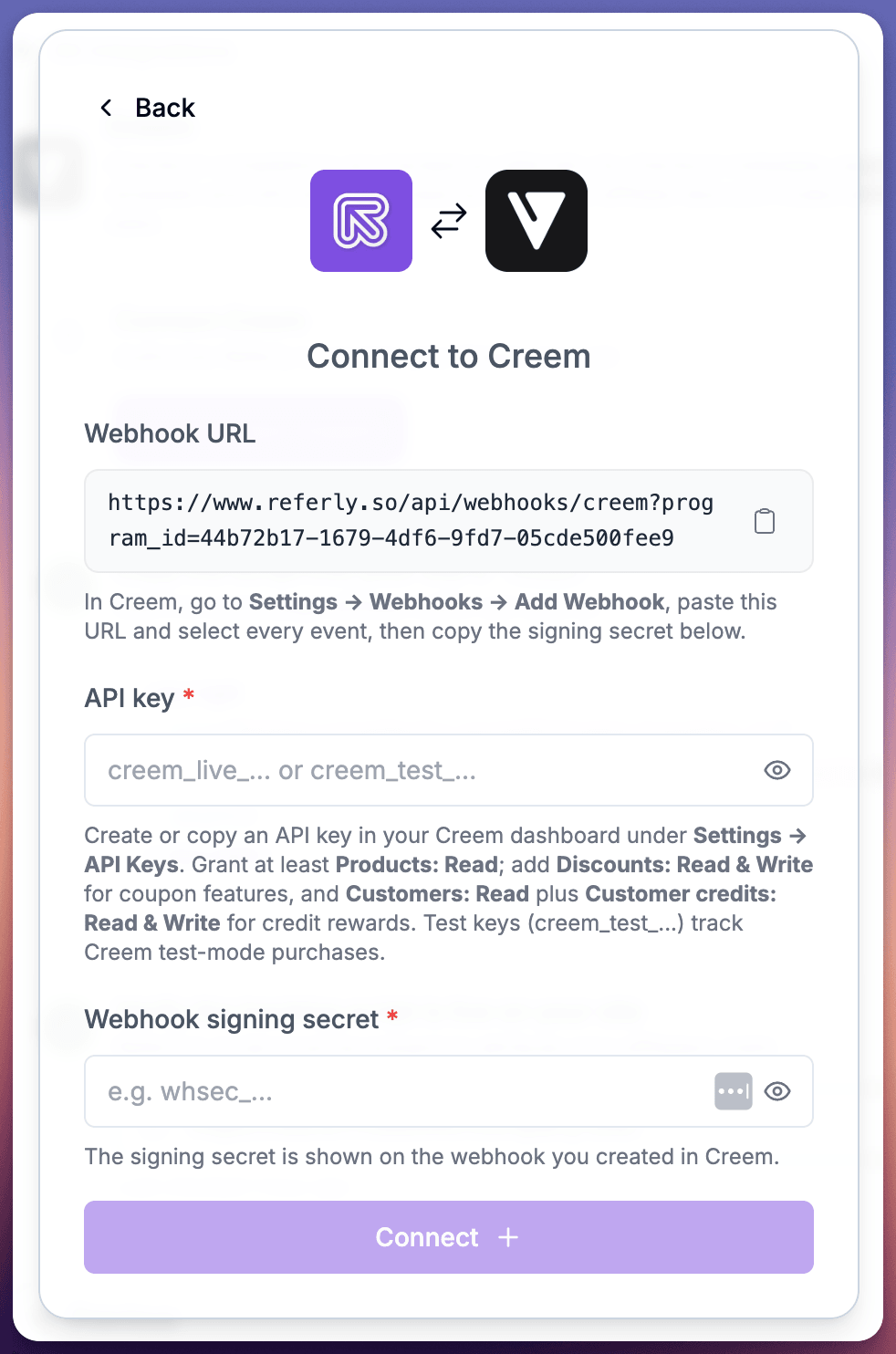
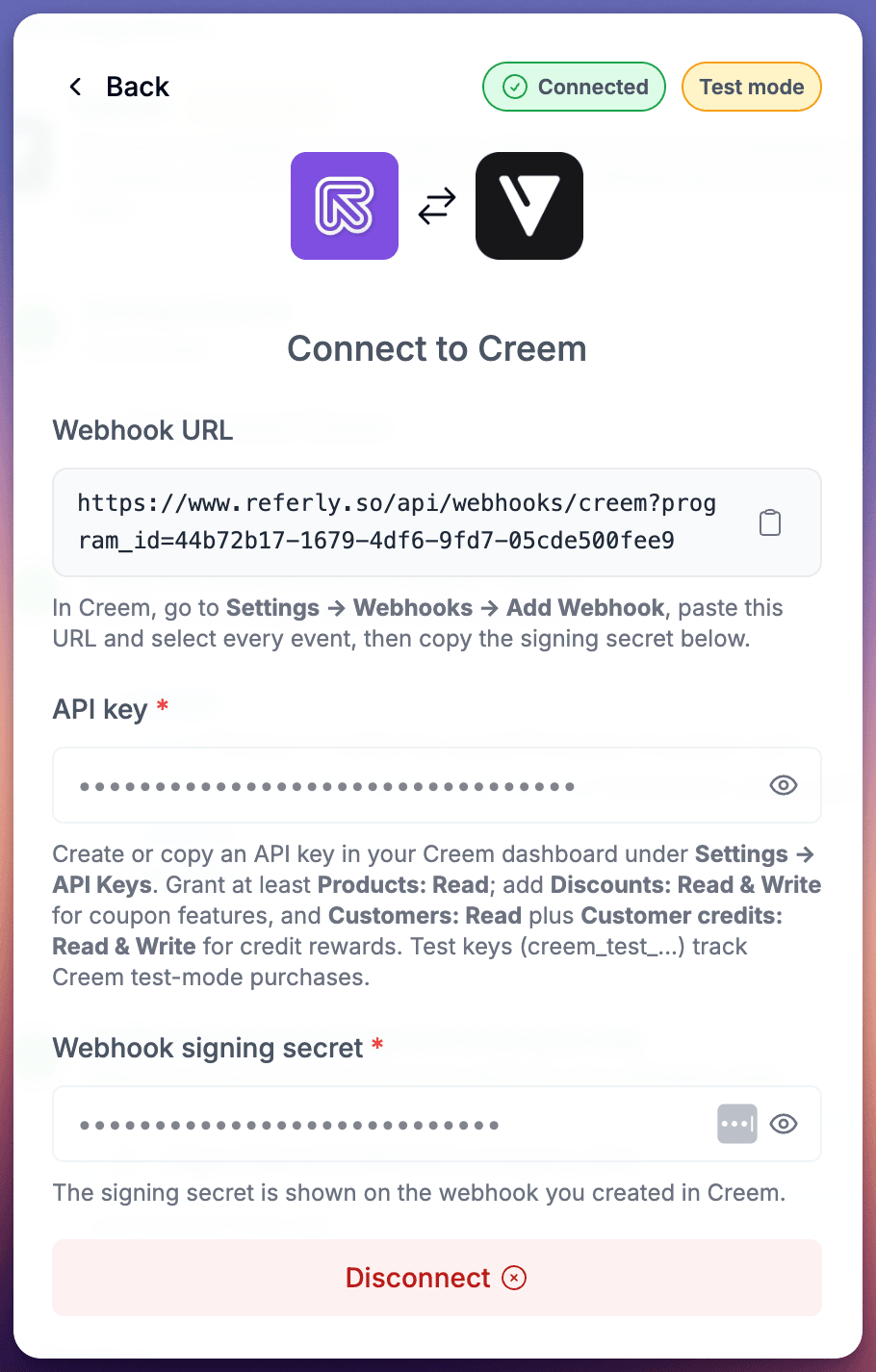
 In your Referly dashboard, open **Settings > Integrations** and choose **Creem**. The dialog shows
your program's unique webhook URL. Copy it and keep this dialog open; you will come back to it in
step 5.
In your Referly dashboard, open **Settings > Integrations** and choose **Creem**. The dialog shows
your program's unique webhook URL. Copy it and keep this dialog open; you will come back to it in
step 5.
 In your Creem dashboard, go to **Settings > Webhooks** and click **Add Webhook**, then:
1. Give it a name you will recognize later, for example "Referly".
2. Paste the webhook URL from step 2 as the endpoint URL.
3. Check that **every event type** is selected. They are selected by default, so the counter should
match the full list; leave it that way.
4. Click **Create webhook**.
5. Open the webhook you just created and copy its **signing secret**; you will paste it into Referly
in step 5.
In your Creem dashboard, go to **Settings > Webhooks** and click **Add Webhook**, then:
1. Give it a name you will recognize later, for example "Referly".
2. Paste the webhook URL from step 2 as the endpoint URL.
3. Check that **every event type** is selected. They are selected by default, so the counter should
match the full list; leave it that way.
4. Click **Create webhook**.
5. Open the webhook you just created and copy its **signing secret**; you will paste it into Referly
in step 5.
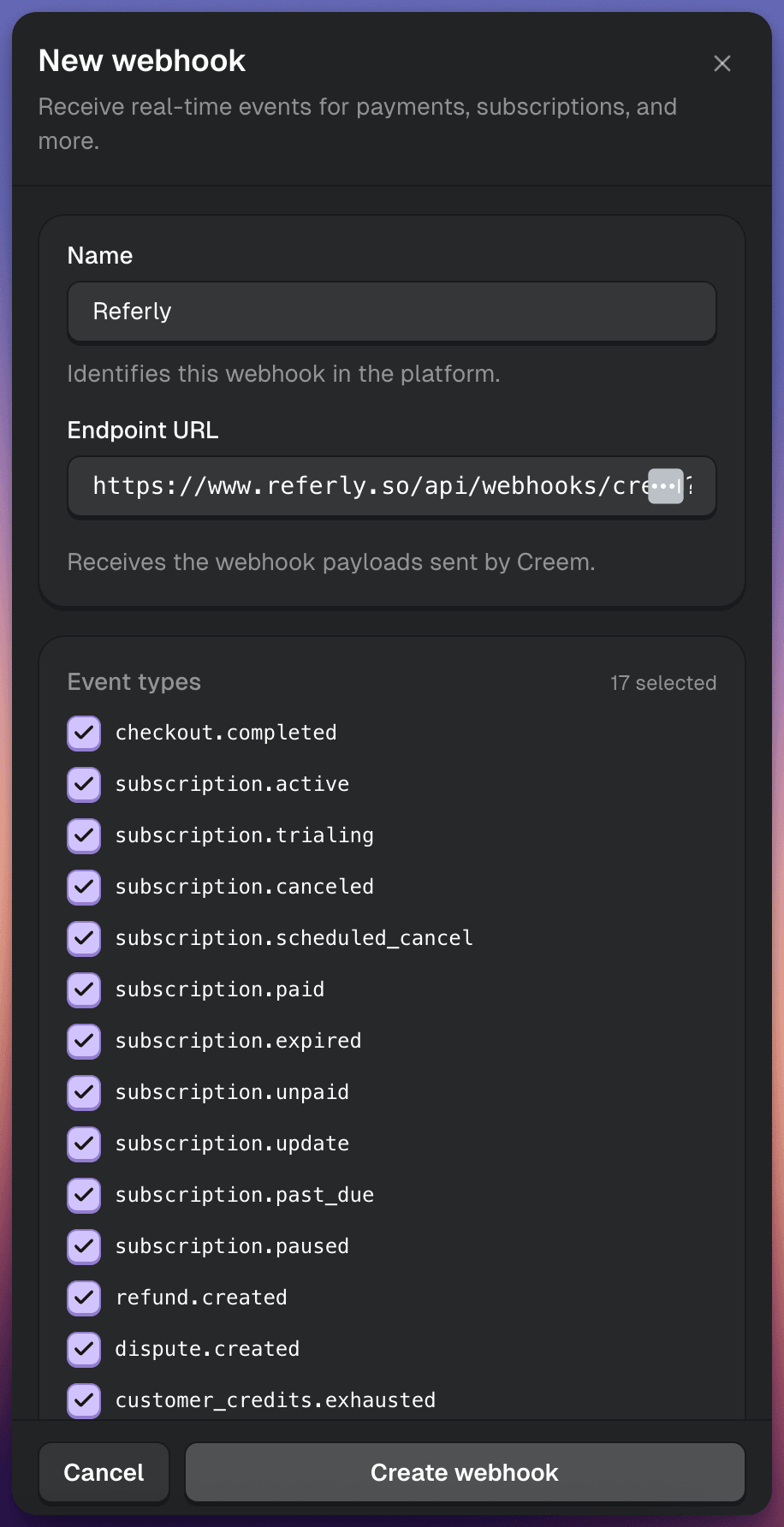 Keep every event type selected. Referly ignores the events it does not need, but a webhook saved
with only some events is accepted without complaint and then silently drops sales or refunds. If
tracking ever goes quiet, check this first.
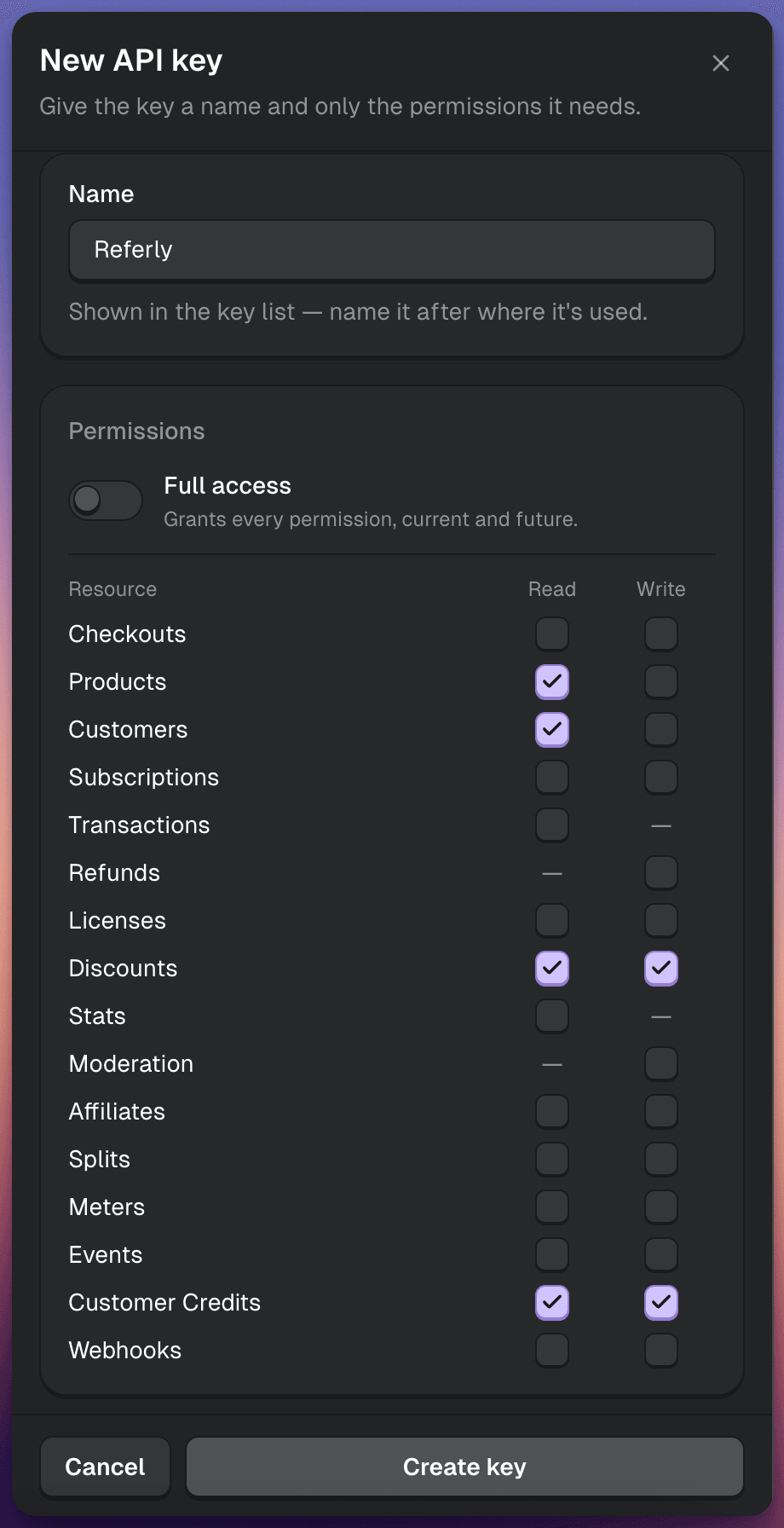
In Creem, go to **Settings > API Keys** and create a key. Switch **Full access** off and grant only
the permissions Referly uses:
| Permission | Needed for |
| ------------------------------------ | ---------------------------------------------------------------------------------------------------------------------- |
| **Products: Read** | Always. Validates the connection and lists your products for product-based commission rules. |
| **Discounts: Read and Write** | Only if Referly should create and sync affiliate discount codes. |
| **Customers: Read** | Only if you reward affiliates with Creem customer credits (Referly looks the affiliate's customer record up by email). |
| **Customer Credits: Read and Write** | Only if you reward affiliates with Creem customer credits (Referly creates and tops up their credits account). |
Nothing else is required. Referly never writes customers, products or orders.
Use a production key for live tracking. A `creem_test_` key connects the same way and tracks Creem
Test Mode purchases instead, which is how you run the test purchase in step 8.
Keep every event type selected. Referly ignores the events it does not need, but a webhook saved
with only some events is accepted without complaint and then silently drops sales or refunds. If
tracking ever goes quiet, check this first.
In Creem, go to **Settings > API Keys** and create a key. Switch **Full access** off and grant only
the permissions Referly uses:
| Permission | Needed for |
| ------------------------------------ | ---------------------------------------------------------------------------------------------------------------------- |
| **Products: Read** | Always. Validates the connection and lists your products for product-based commission rules. |
| **Discounts: Read and Write** | Only if Referly should create and sync affiliate discount codes. |
| **Customers: Read** | Only if you reward affiliates with Creem customer credits (Referly looks the affiliate's customer record up by email). |
| **Customer Credits: Read and Write** | Only if you reward affiliates with Creem customer credits (Referly creates and tops up their credits account). |
Nothing else is required. Referly never writes customers, products or orders.
Use a production key for live tracking. A `creem_test_` key connects the same way and tracks Creem
Test Mode purchases instead, which is how you run the test purchase in step 8.
 Back in the Referly dialog from step 2:
* Paste the **API key** from step 4
* Paste the **webhook signing secret** from step 3, including its prefix
* Click **Connect**
Referly validates the key against Creem before saving, so you find out straight away if something
is off. A test key shows a **Test mode** badge so there is no guessing which environment you are in.
Back in the Referly dialog from step 2:
* Paste the **API key** from step 4
* Paste the **webhook signing secret** from step 3, including its prefix
* Click **Connect**
Referly validates the key against Creem before saving, so you find out straight away if something
is off. A test key shows a **Test mode** badge so there is no guessing which environment you are in.
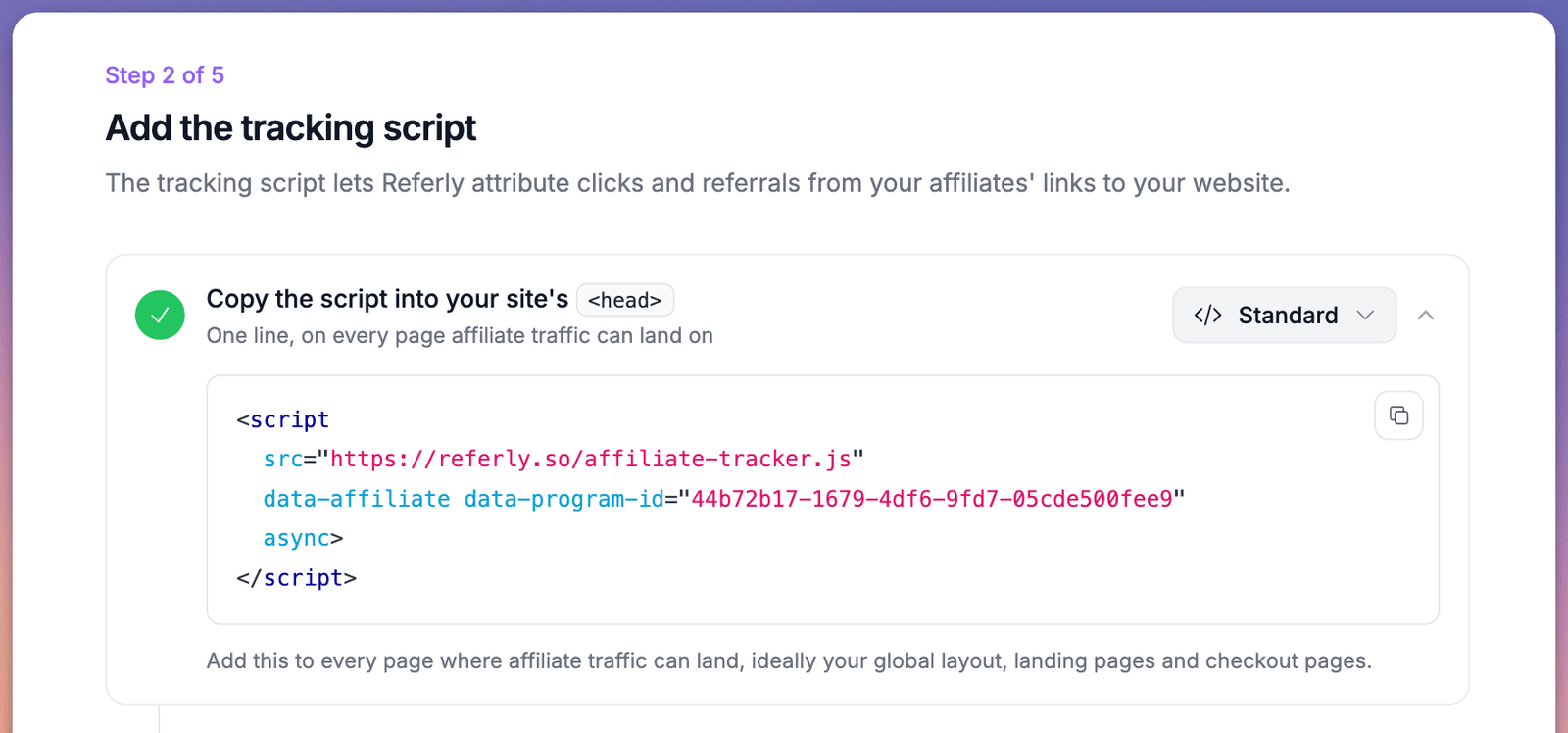
 Copy your program's tracking script from the Referly dashboard (**Settings > Tracking methods**, or
step 2 of the integration wizard) into the `` of your marketing site. It records affiliate
clicks, stores the referral for your program's cookie window, and exposes it as
`window.affiliateId` for the next step.
```html Tracking script theme={null}
```
Replace `YOUR_PROGRAM_ID` with the id shown in your dashboard; the copy button in Referly fills it
in for you.
Copy your program's tracking script from the Referly dashboard (**Settings > Tracking methods**, or
step 2 of the integration wizard) into the `` of your marketing site. It records affiliate
clicks, stores the referral for your program's cookie window, and exposes it as
`window.affiliateId` for the next step.
```html Tracking script theme={null}
```
Replace `YOUR_PROGRAM_ID` with the id shown in your dashboard; the copy button in Referly fills it
in for you.
 This is the step that connects a click to a sale. Without it, link-attributed sales arrive with no
referral attached (discount-code sales still match through the code itself).
Pick whichever matches how you sell:
```json Checkout API theme={null}
{
"product_id": "prod_your_product",
"success_url": "https://yoursite.com/success",
"metadata": { "referly_ref": "REFERLY_ID_FROM_YOUR_FRONTEND" }
}
```
```html Payment links theme={null}
```
```js Links you build in JavaScript theme={null}
const url = new URL("https://www.creem.io/payment/prod_your_product");
if (window.affiliateId) {
url.searchParams.set("metadata[referly_ref]", window.affiliateId);
}
window.location.href = url.toString();
```
**Checkout API**: read the referral in the browser with `window.affiliateId` and send it along with
the rest of your checkout request; your server puts it in `metadata.referly_ref`.
**Payment links**: the snippet appends `metadata[referly_ref]` to every `` element on the page
whose `href` points at `creem.io/payment/` or `creem.io/test/payment/`. It handles links that
appear after page load (it watches the DOM, so client-side rendering, modals and pricing toggles are
covered), updates a link again if the referral changes from the raw ref to the click id, and
decorates a link once more on click as a last resort.
**Links you build in JavaScript**: the snippet only sees anchor elements. If a button opens Creem
from code (for example `window.open` or `location.href`), append the parameter yourself as in the
third tab, or use the Checkout API.
Creem carries checkout metadata onto the subscription, so renewals keep crediting the same
affiliate without you doing anything extra.
Run this once in Test Mode before going live. It takes about five minutes.
1. **Visit your site through an affiliate link.** Take any affiliate's link from your Referly portal
(or your own test affiliate's) and open your site with it. The click appears on that affiliate
in Referly.
2. **Check the link carries the referral.** Hover a Creem payment link on the page: its address now
ends in `metadata[referly_ref]=...`. Checkout API integrations should log the `referly_ref`
value they send instead.
3. **Buy with a test card.** Complete the checkout with card `4111 1111 1111 1111`, any future
expiry and any CVC. In Referly, the buyer appears as a referral and the order appears as a sale
with the commission calculated for that affiliate.
4. **Refund the order in Creem** (Orders, open the order, Refund). Referly marks the sale refunded
and reverses the commission. This works because the sale is still inside your payout hold; a
refund after the hold is not reversed automatically.
5. **Resend the webhook.** In Creem, open the webhook's deliveries and resend the
`checkout.completed` event. Referly de-duplicates by Creem order id, so nothing changes: still
one sale, no second commission.
6. **Test a coupon-only sale** if you use affiliate codes. Give an affiliate a Creem discount code
in Referly, open a fresh private window without any affiliate link, and check out using the
code. The sale is credited to that affiliate through the code alone.
To switch to live mode:
1. In Creem, switch out of Test Mode and repeat step 3 for the live environment: the same webhook
URL, every event type selected, **Create webhook**, then copy the live webhook's signing secret.
2. Create a live API key with the same restricted permissions as step 4.
3. In Referly, click **Disconnect** in the Creem dialog, then connect again with the live key and the
live signing secret. The Test mode badge disappears. Test-mode sales stay in Referly as history;
live sales arrive on the same webhook URL from here on.
## What Gets Tracked
Once you are connected, these all happen on their own:
| Event | What happens |
| -------------------- | ------------------------------------------------------------------------------------------------------------------------------------- |
| One-time sale | Commission credited when the checkout completes |
| Subscription renewal | Commission per billing period, at the amount actually charged, when the commission plan pays on a recurring basis |
| Trial start | Referral recorded, but no commission until the first real payment |
| Refund | Inside the payout hold: the sale is marked refunded and the full commission is reversed. After the hold: nothing changes |
| Chargeback | Treated like a refund, with the same payout-hold rule |
| Coupon code | A sale using an affiliate's Creem discount code credits that affiliate. Automatic per-affiliate codes need the Business plan or above |
Commissions are calculated on the pre-tax sale amount, and every sale, refund and dispute is
de-duplicated by its Creem order id, so webhook retries and manual resends never count twice.
## Refunds and chargebacks
A refund or chargeback reverses the commission only while the sale is inside your payout hold (the
hold you set in step 1). During the hold, the sale is marked refunded and the affiliate's commission
is taken back in full. Partial refunds reverse the entire commission, not a proportional share.
After the hold, the commission has already been released for payout. Referly acknowledges the
refund webhook but changes nothing: the sale stays as it was, the commission is not reversed, and
the dashboard's manual mark-as-refunded action is blocked for the same reason. Settle it with the
affiliate directly. If refunds are common in your business, set a payout hold that covers your
refund policy.
## Good to Know
* **Check the event selection first.** A webhook saved with only some events ticked fails quietly.
* **Coupon attribution works without the snippet.** If an affiliate's discount code is used at
checkout, the sale is credited through the code even when no `referly_ref` metadata is present.
* **One Creem key per Referly program.** A key already connected to another Referly program is
rejected.
* **Re-created the webhook? Update the signing secret.** Deleting and re-creating the endpoint in
Creem gives you a new secret; paste the new one into Referly's connect dialog, or deliveries fail
their signature check.
Guides to commission plans, coupon rules, payouts and the affiliate portal in Referly's own docs.
This is the step that connects a click to a sale. Without it, link-attributed sales arrive with no
referral attached (discount-code sales still match through the code itself).
Pick whichever matches how you sell:
```json Checkout API theme={null}
{
"product_id": "prod_your_product",
"success_url": "https://yoursite.com/success",
"metadata": { "referly_ref": "REFERLY_ID_FROM_YOUR_FRONTEND" }
}
```
```html Payment links theme={null}
```
```js Links you build in JavaScript theme={null}
const url = new URL("https://www.creem.io/payment/prod_your_product");
if (window.affiliateId) {
url.searchParams.set("metadata[referly_ref]", window.affiliateId);
}
window.location.href = url.toString();
```
**Checkout API**: read the referral in the browser with `window.affiliateId` and send it along with
the rest of your checkout request; your server puts it in `metadata.referly_ref`.
**Payment links**: the snippet appends `metadata[referly_ref]` to every `` element on the page
whose `href` points at `creem.io/payment/` or `creem.io/test/payment/`. It handles links that
appear after page load (it watches the DOM, so client-side rendering, modals and pricing toggles are
covered), updates a link again if the referral changes from the raw ref to the click id, and
decorates a link once more on click as a last resort.
**Links you build in JavaScript**: the snippet only sees anchor elements. If a button opens Creem
from code (for example `window.open` or `location.href`), append the parameter yourself as in the
third tab, or use the Checkout API.
Creem carries checkout metadata onto the subscription, so renewals keep crediting the same
affiliate without you doing anything extra.
Run this once in Test Mode before going live. It takes about five minutes.
1. **Visit your site through an affiliate link.** Take any affiliate's link from your Referly portal
(or your own test affiliate's) and open your site with it. The click appears on that affiliate
in Referly.
2. **Check the link carries the referral.** Hover a Creem payment link on the page: its address now
ends in `metadata[referly_ref]=...`. Checkout API integrations should log the `referly_ref`
value they send instead.
3. **Buy with a test card.** Complete the checkout with card `4111 1111 1111 1111`, any future
expiry and any CVC. In Referly, the buyer appears as a referral and the order appears as a sale
with the commission calculated for that affiliate.
4. **Refund the order in Creem** (Orders, open the order, Refund). Referly marks the sale refunded
and reverses the commission. This works because the sale is still inside your payout hold; a
refund after the hold is not reversed automatically.
5. **Resend the webhook.** In Creem, open the webhook's deliveries and resend the
`checkout.completed` event. Referly de-duplicates by Creem order id, so nothing changes: still
one sale, no second commission.
6. **Test a coupon-only sale** if you use affiliate codes. Give an affiliate a Creem discount code
in Referly, open a fresh private window without any affiliate link, and check out using the
code. The sale is credited to that affiliate through the code alone.
To switch to live mode:
1. In Creem, switch out of Test Mode and repeat step 3 for the live environment: the same webhook
URL, every event type selected, **Create webhook**, then copy the live webhook's signing secret.
2. Create a live API key with the same restricted permissions as step 4.
3. In Referly, click **Disconnect** in the Creem dialog, then connect again with the live key and the
live signing secret. The Test mode badge disappears. Test-mode sales stay in Referly as history;
live sales arrive on the same webhook URL from here on.
## What Gets Tracked
Once you are connected, these all happen on their own:
| Event | What happens |
| -------------------- | ------------------------------------------------------------------------------------------------------------------------------------- |
| One-time sale | Commission credited when the checkout completes |
| Subscription renewal | Commission per billing period, at the amount actually charged, when the commission plan pays on a recurring basis |
| Trial start | Referral recorded, but no commission until the first real payment |
| Refund | Inside the payout hold: the sale is marked refunded and the full commission is reversed. After the hold: nothing changes |
| Chargeback | Treated like a refund, with the same payout-hold rule |
| Coupon code | A sale using an affiliate's Creem discount code credits that affiliate. Automatic per-affiliate codes need the Business plan or above |
Commissions are calculated on the pre-tax sale amount, and every sale, refund and dispute is
de-duplicated by its Creem order id, so webhook retries and manual resends never count twice.
## Refunds and chargebacks
A refund or chargeback reverses the commission only while the sale is inside your payout hold (the
hold you set in step 1). During the hold, the sale is marked refunded and the affiliate's commission
is taken back in full. Partial refunds reverse the entire commission, not a proportional share.
After the hold, the commission has already been released for payout. Referly acknowledges the
refund webhook but changes nothing: the sale stays as it was, the commission is not reversed, and
the dashboard's manual mark-as-refunded action is blocked for the same reason. Settle it with the
affiliate directly. If refunds are common in your business, set a payout hold that covers your
refund policy.
## Good to Know
* **Check the event selection first.** A webhook saved with only some events ticked fails quietly.
* **Coupon attribution works without the snippet.** If an affiliate's discount code is used at
checkout, the sale is credited through the code even when no `referly_ref` metadata is present.
* **One Creem key per Referly program.** A key already connected to another Referly program is
rejected.
* **Re-created the webhook? Update the signing secret.** Deleting and re-creating the endpoint in
Creem gives you a new secret; paste the new one into Referly's connect dialog, or deliveries fail
their signature check.
Guides to commission plans, coupon rules, payouts and the affiliate portal in Referly's own docs.