> ## Documentation Index
> Fetch the complete documentation index at: https://docs.creem.io/llms.txt
> Use this file to discover all available pages before exploring further.
# How to Sell Canva Templates
> Sell Canva templates with Creem and automatically share a template link right after payment
This guide shows you how to sell a Canva template with Creem so buyers get **instant access** to your **template link** as soon as payment completes.
You’ll set up:
* A finished Canva design and a [template link](https://www.canva.com/en_in/help/share-via-link-or-email/#share-your-design-using-a-link)
* A Creem product with a **Private Note** that contains the link (Markdown supported)
* A checkout flow (no-code payment link or API integration)
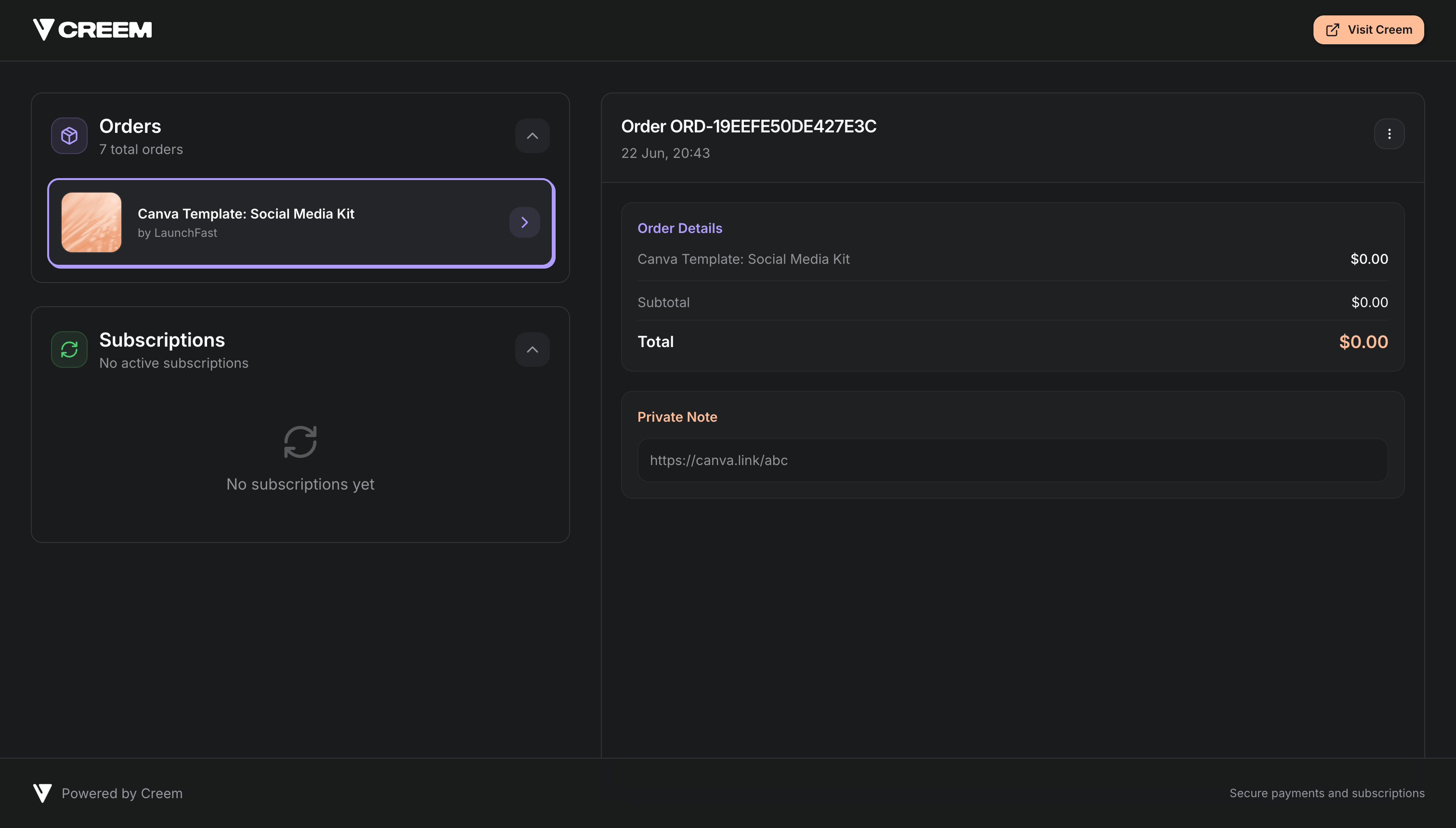
* Automatic delivery on the post-purchase screen, email receipt, and customer portal
## What buyers experience
After a successful payment, the buyer sees your private note content immediately:
* **Post-purchase confirmation screen** (when you don’t redirect away immediately)
* **Purchase confirmation email**
* **Customer portal** (so they can find it again later)
When they open the template link, Canva prompts them to sign in (or create a free account), then adds an editable copy of your design to their workspace. Your original file stays unchanged.
## Create your Canva template link
Complete your design in Canva. Use a clear page structure and names if you’re selling a multi-page pack (for example, “Cover”, “Instagram post”, “Story”).
In the Canva editor:
1. Open your finished design.
2. Click **Share** in the top menu.
3. In **Access level**, change **Only you can access** to **Anyone with the link** and **Can edit** to **Can comment**.
4. Click **Copy link** and save the URL somewhere safe.
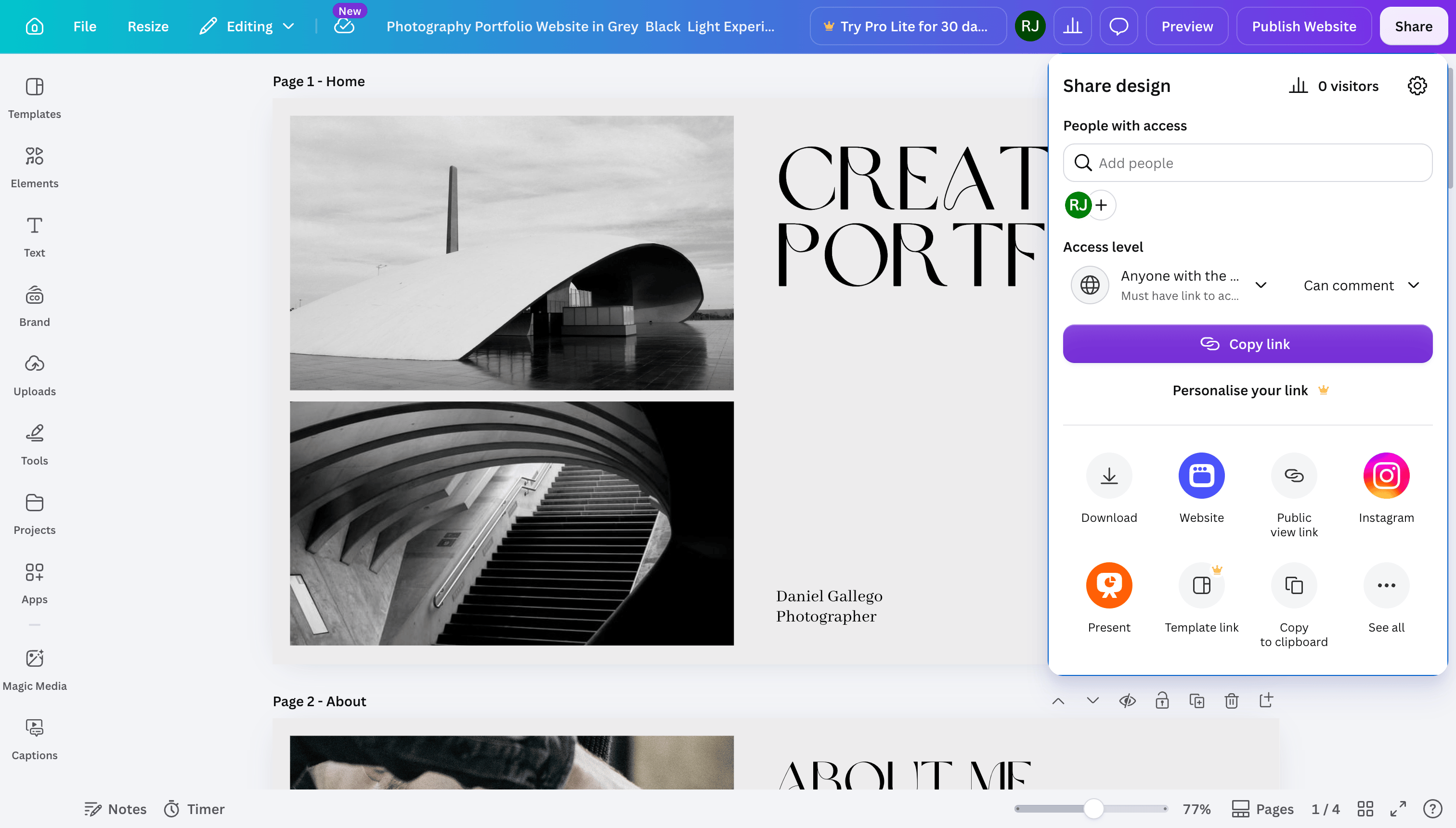 Full steps are in [Canva’s template link help article](https://www.canva.com/help/share-template-link/).
## Set up automated delivery with Private Notes
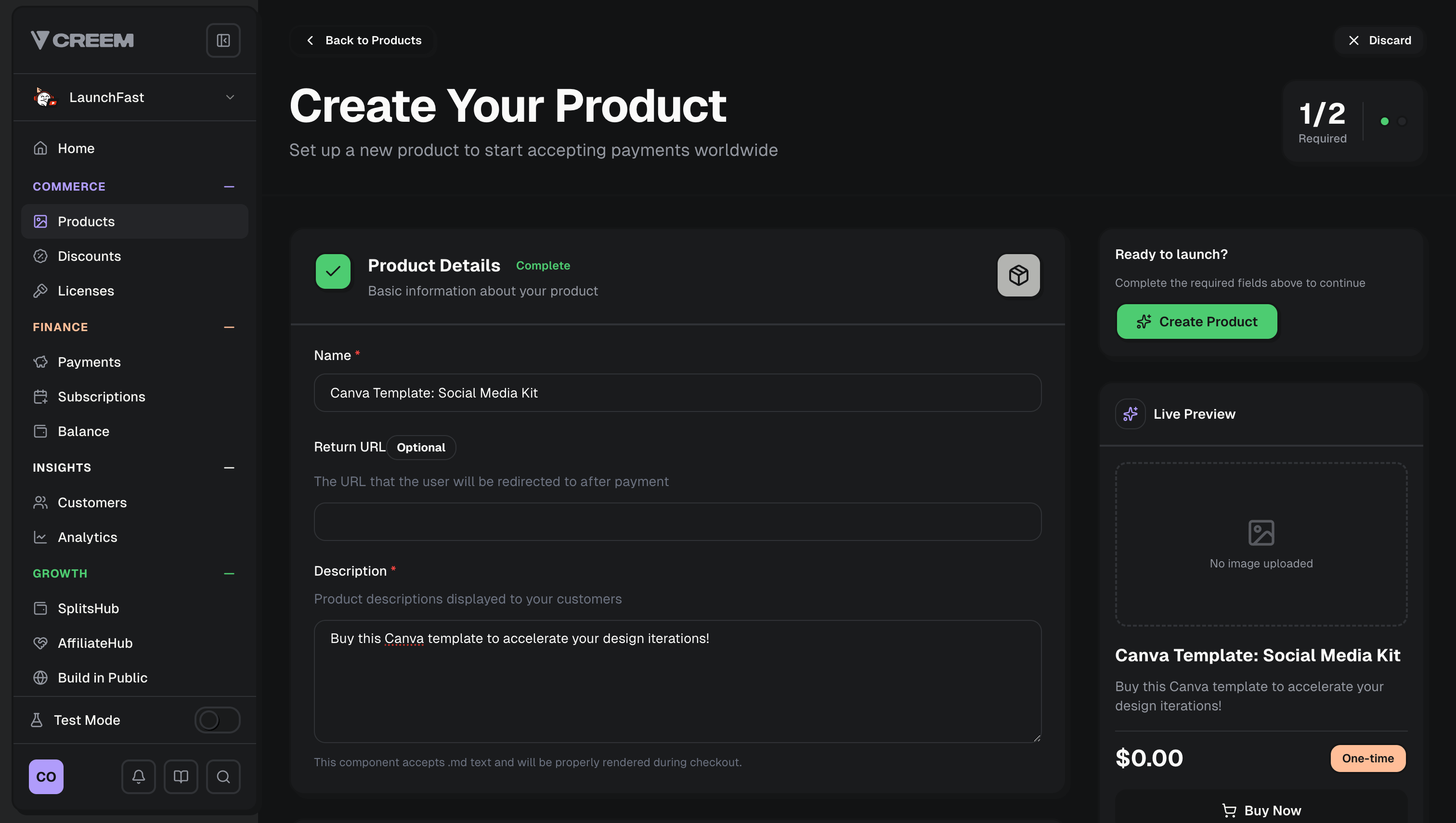
Go to the [Products tab](https://creem.io/dashboard/products) and create a new product.
Use a clear name like “Canva Template: Social Media Kit” and a description that matches what the buyer gets.
Full steps are in [Canva’s template link help article](https://www.canva.com/help/share-template-link/).
## Set up automated delivery with Private Notes
Go to the [Products tab](https://creem.io/dashboard/products) and create a new product.
Use a clear name like “Canva Template: Social Media Kit” and a description that matches what the buyer gets.
 In the product settings under **Product Features**, add [Private Notes](/features/addons/private-notes) and paste a note that includes your Canva template link.
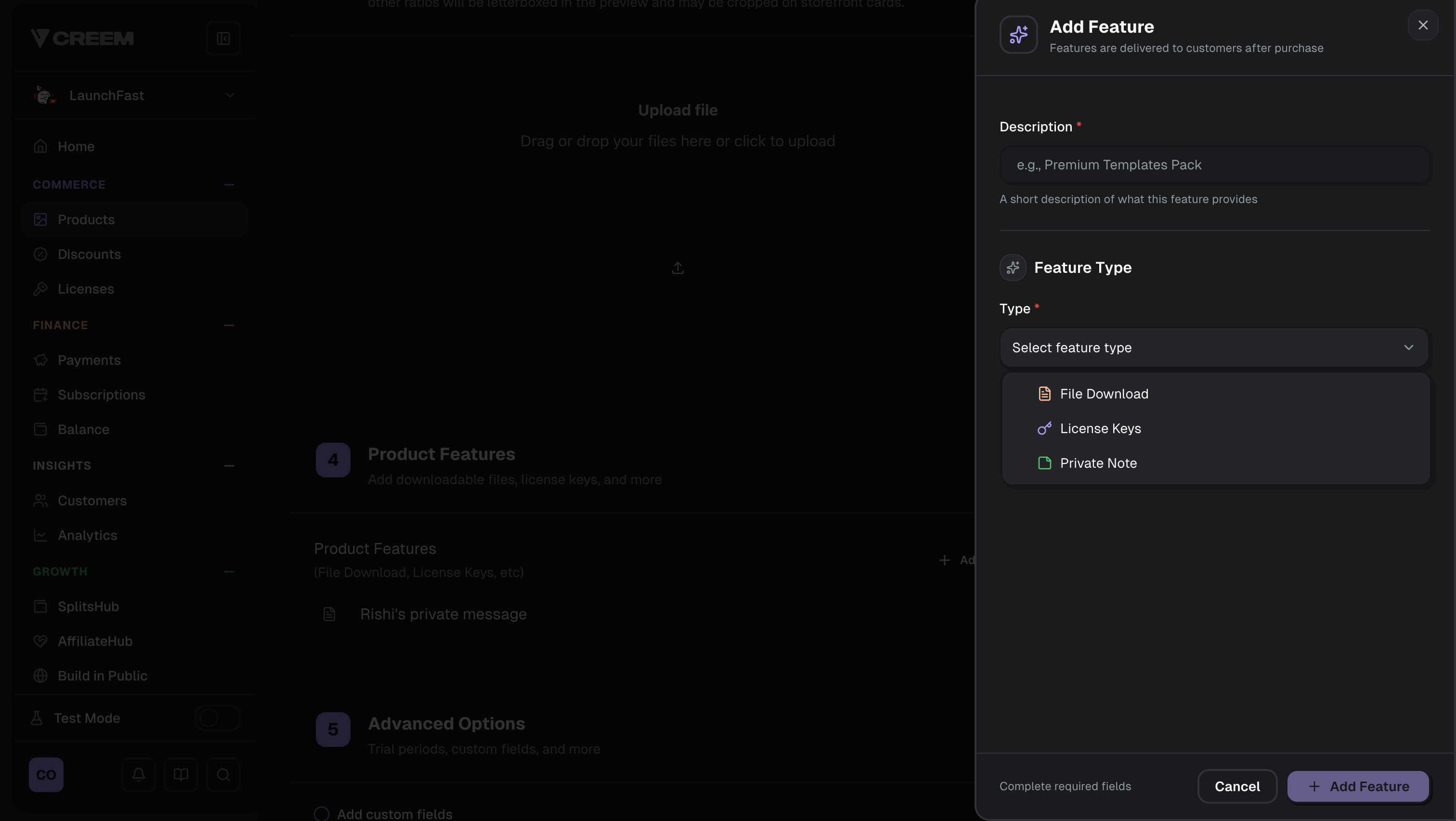 Private Notes support Markdown, so you can include a clickable link, short instructions, and support details.
Example:
```md theme={null}
## Your Canva template is ready
Open this link to add the template to your Canva account:
- **Template link**: https://canva.link/...
Next steps:
1. Open the link (sign in or create a free Canva account)
2. Customize the copy in your own Canva workspace
```
Private Notes support Markdown, so you can include a clickable link, short instructions, and support details.
Example:
```md theme={null}
## Your Canva template is ready
Open this link to add the template to your Canva account:
- **Template link**: https://canva.link/...
Next steps:
1. Open the link (sign in or create a free Canva account)
2. Customize the copy in your own Canva workspace
```
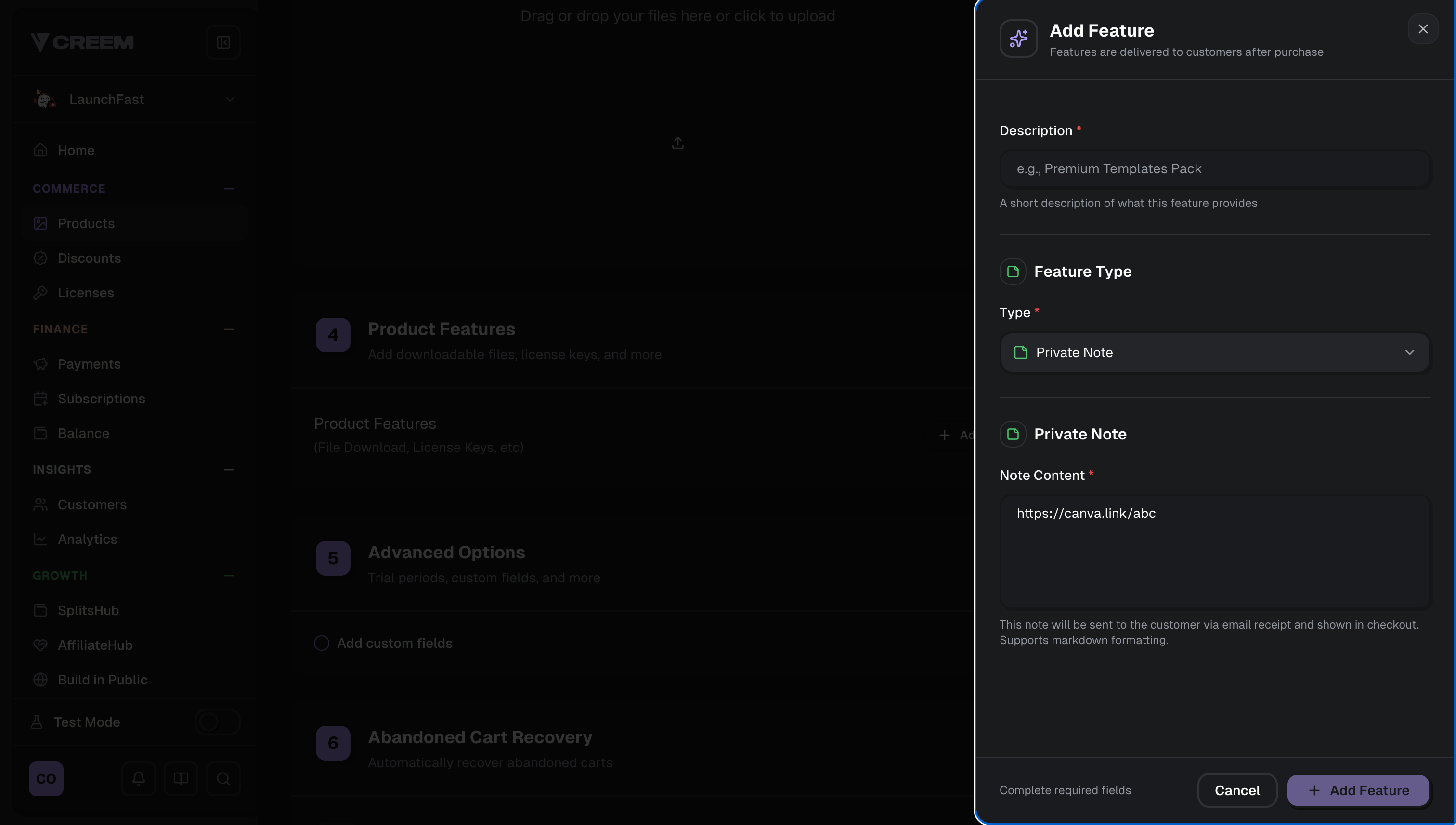 Keep the Canva template link in the Private Note so it’s only revealed after payment.
## Create a checkout (no-code or API)
You can sell the Canva template with either a shareable checkout link or a checkout session you create on demand.
Copy a payment link from the product and share it anywhere.
Create a checkout session via API/SDK for dynamic flows.
### Option A: Share the product payment link (no code)
After creating your product, click **Share** in the dashboard and use the payment link on:
* Your landing page
* A “Buy now” button
* A newsletter or social post
### Option B: Create a checkout session (API)
If you want to attach internal tracking (template slug, campaign, user ID), create a checkout session and redirect the buyer to it.
```typescript theme={null}
const checkout = await creem.checkouts.create({
productId: 'prod_YOUR_TEMPLATE_PRODUCT_ID',
requestId: 'order_12345',
metadata: {
productType: 'canva_template',
templateSlug: 'social-media-kit',
campaign: 'launch',
},
});
// Redirect the user to checkout.url (depending on your framework)
```
If you already know the buyer’s email (for example, they’re logged in),
pre-fill it to reduce checkout friction.
```typescript theme={null}
const checkout = await creem.checkouts.create({
productId: 'prod_YOUR_TEMPLATE_PRODUCT_ID',
customer: { email: 'buyer@example.com' },
});
```
## Where the Canva template link appears to customers
After setup, the Canva template link is delivered automatically in several places:
### Order Confirmation Page
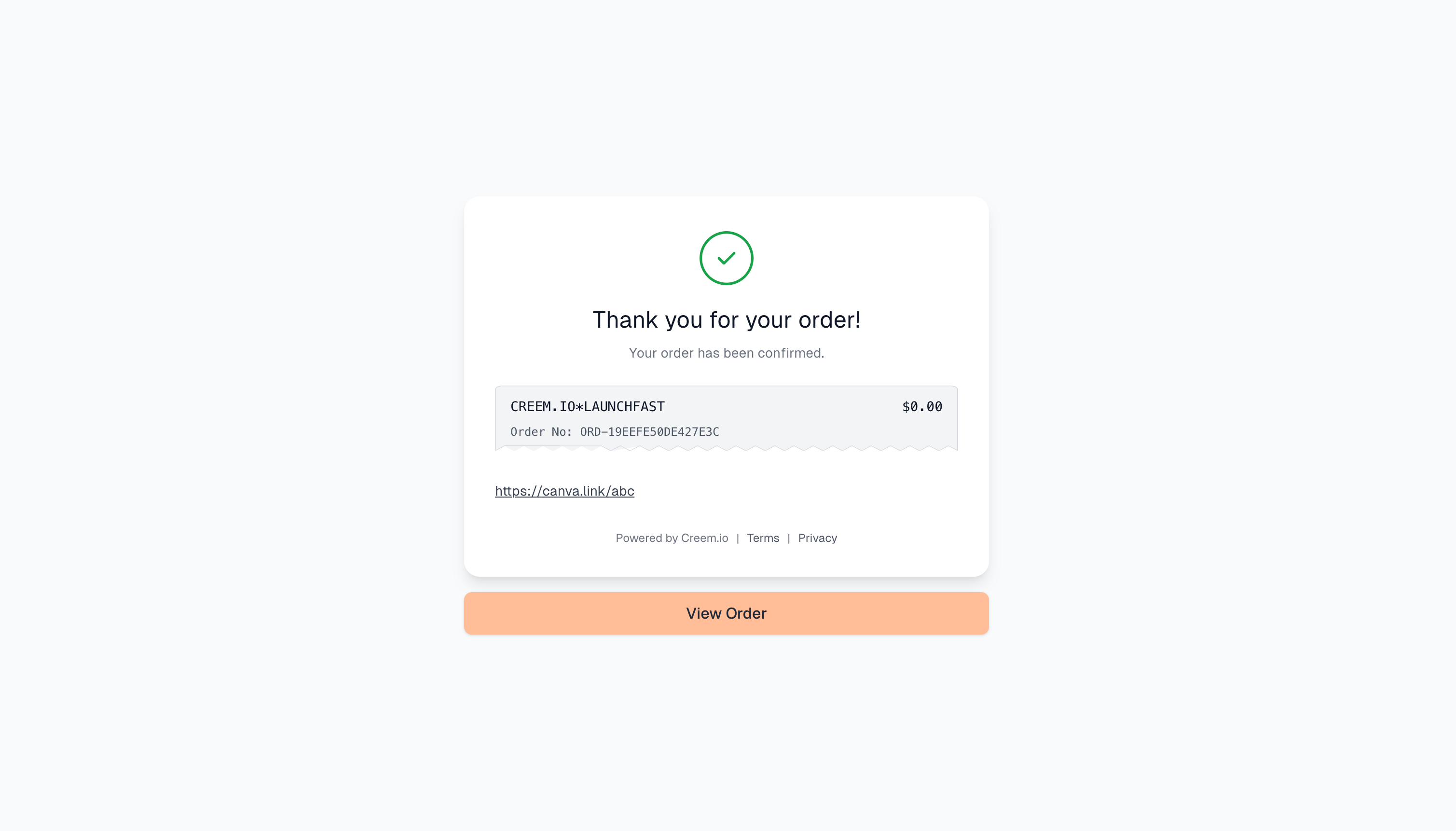
If no custom redirect URL is specified, the note is shown on the order success page right after checkout.
Keep the Canva template link in the Private Note so it’s only revealed after payment.
## Create a checkout (no-code or API)
You can sell the Canva template with either a shareable checkout link or a checkout session you create on demand.
Copy a payment link from the product and share it anywhere.
Create a checkout session via API/SDK for dynamic flows.
### Option A: Share the product payment link (no code)
After creating your product, click **Share** in the dashboard and use the payment link on:
* Your landing page
* A “Buy now” button
* A newsletter or social post
### Option B: Create a checkout session (API)
If you want to attach internal tracking (template slug, campaign, user ID), create a checkout session and redirect the buyer to it.
```typescript theme={null}
const checkout = await creem.checkouts.create({
productId: 'prod_YOUR_TEMPLATE_PRODUCT_ID',
requestId: 'order_12345',
metadata: {
productType: 'canva_template',
templateSlug: 'social-media-kit',
campaign: 'launch',
},
});
// Redirect the user to checkout.url (depending on your framework)
```
If you already know the buyer’s email (for example, they’re logged in),
pre-fill it to reduce checkout friction.
```typescript theme={null}
const checkout = await creem.checkouts.create({
productId: 'prod_YOUR_TEMPLATE_PRODUCT_ID',
customer: { email: 'buyer@example.com' },
});
```
## Where the Canva template link appears to customers
After setup, the Canva template link is delivered automatically in several places:
### Order Confirmation Page
If no custom redirect URL is specified, the note is shown on the order success page right after checkout.
 ### Email Receipt
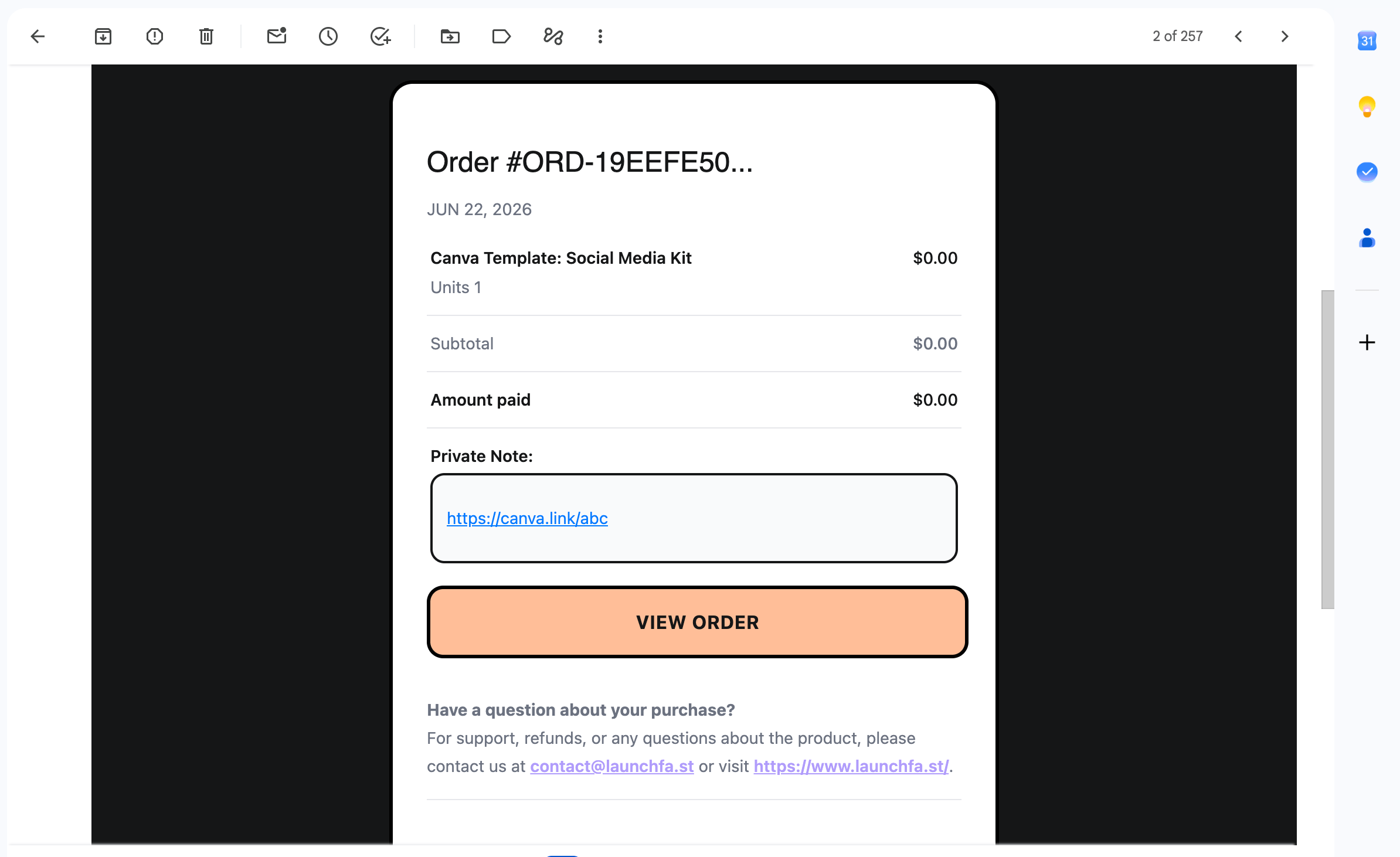
The private note with the Canva template link is included in the purchase confirmation email.
### Email Receipt
The private note with the Canva template link is included in the purchase confirmation email.
 ### Customer Portal
Customers can open the note and copy the Canva template link again from their customer portal.
### Customer Portal
Customers can open the note and copy the Canva template link again from their customer portal.