> ## Documentation Index
> Fetch the complete documentation index at: https://docs.creem.io/llms.txt
> Use this file to discover all available pages before exploring further.
# Storefronts
> Create a hosted storefront page that displays all your products in one place. Start selling immediately without building your own website.
## What is a Storefront?
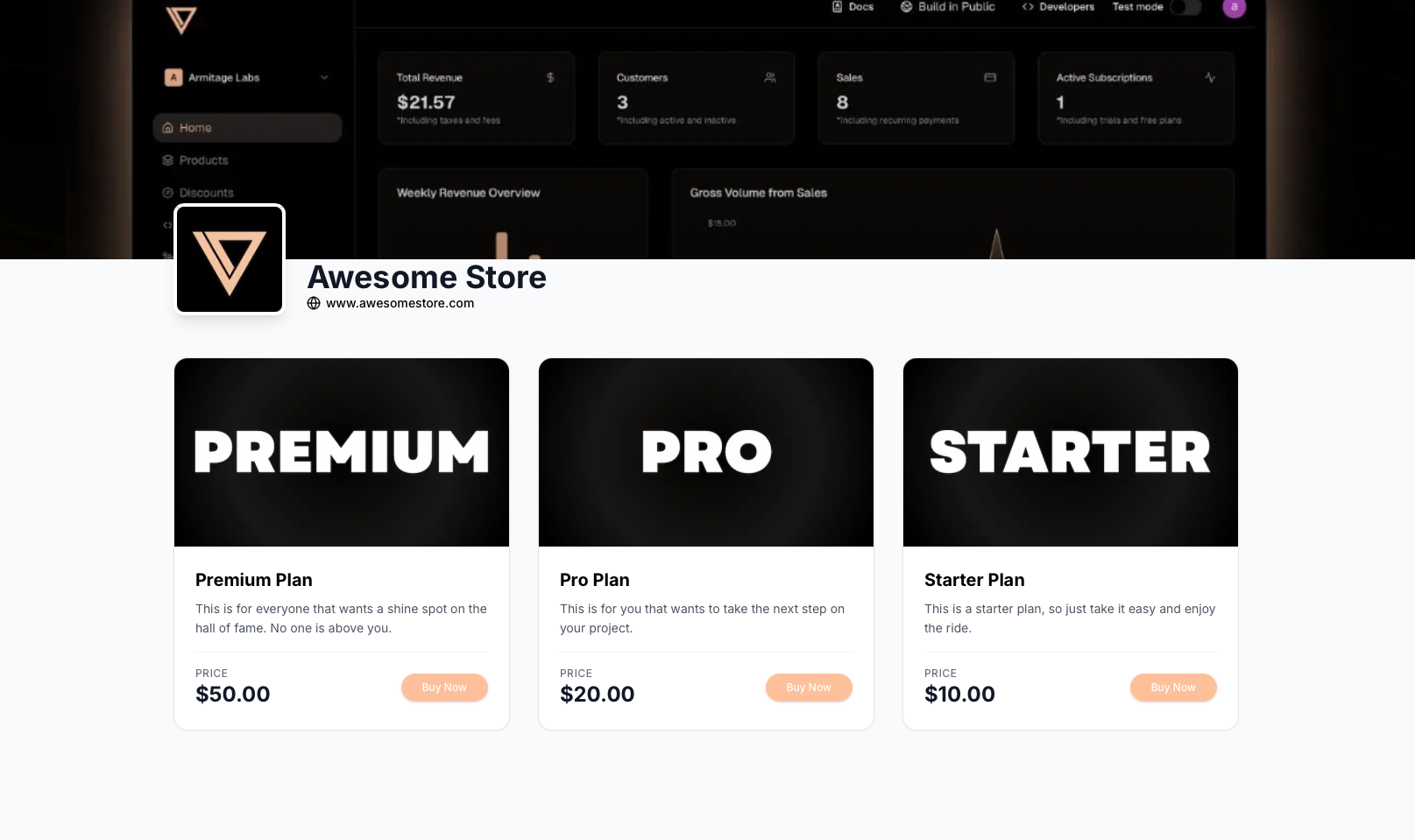
A Storefront is a fully hosted page on Creem's domain that automatically displays all your products in a clean, professional layout. Your customers can browse, compare, and purchase any of your products from a single page.
No coding required. No website needed. Just create your products and your storefront is ready.
 ## Key Features
* **Automatic Product Listing** - All your active products appear automatically
* **Hosted by Creem** - No servers or infrastructure to manage
* **Mobile Optimized** - Works perfectly on all devices
* **Built-in Checkout** - Seamless payment flow included
* **Always Up-to-Date** - Product changes reflect instantly
## How It Works
When you enable Storefronts, Creem creates a unique URL for your store:
```
https://creem.io/store/your-store-name
```
Customers can:
1. Browse all your products
2. Click on any product to learn more
3. Complete checkout instantly
4. Receive their purchase confirmation
All payments, taxes, and compliance are handled by Creem as your Merchant of Record.
## Setting Up Your Storefront
### Step 1: Enable Storefronts
1. Log into your [Creem dashboard](https://creem.io/dashboard)
2. Navigate to **Settings** > **Storefronts**
3. Click **Enable Public Storefront**
4. Click on Allow Search Engine Indexing if you want to be ranked on Google (optional)
## Key Features
* **Automatic Product Listing** - All your active products appear automatically
* **Hosted by Creem** - No servers or infrastructure to manage
* **Mobile Optimized** - Works perfectly on all devices
* **Built-in Checkout** - Seamless payment flow included
* **Always Up-to-Date** - Product changes reflect instantly
## How It Works
When you enable Storefronts, Creem creates a unique URL for your store:
```
https://creem.io/store/your-store-name
```
Customers can:
1. Browse all your products
2. Click on any product to learn more
3. Complete checkout instantly
4. Receive their purchase confirmation
All payments, taxes, and compliance are handled by Creem as your Merchant of Record.
## Setting Up Your Storefront
### Step 1: Enable Storefronts
1. Log into your [Creem dashboard](https://creem.io/dashboard)
2. Navigate to **Settings** > **Storefronts**
3. Click **Enable Public Storefront**
4. Click on Allow Search Engine Indexing if you want to be ranked on Google (optional)
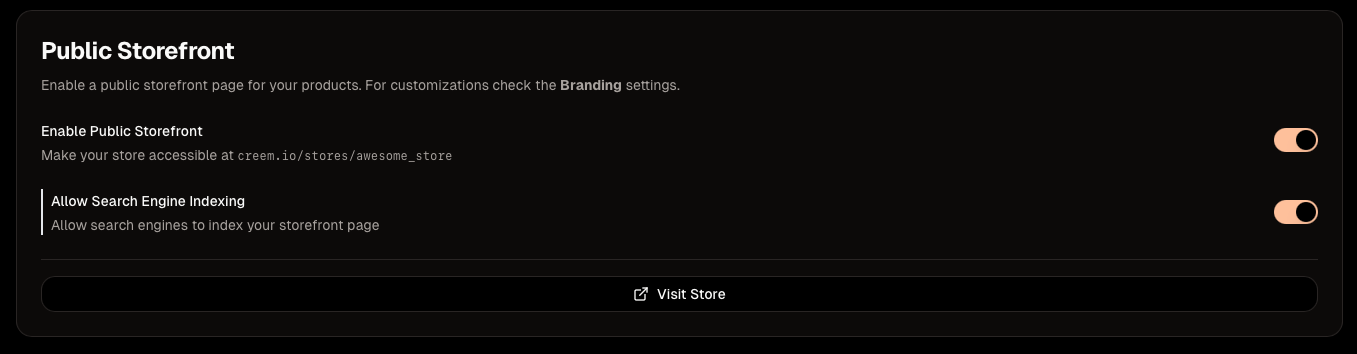 You can disable your storefront at any time by toggling off **Enable Public Storefront** again. If you prefer your store not to appear in search engine results, simply turn off **Allow Search Engine Indexing**, this will update your robots.txt to block indexing.
### Step 2: Customize Your Storefront
To configure your storefront go to **Settings** > **Storefronts** and setup your store.
* **Logo** - Upload your brand logo (recommended: 512x512px)
* **Banner** - A cool banner to improve the overal look
* **Theme** - Set a default light or dark theme
* **Colors** - Match your brand colors (optional)
### Step 3: Add Products
Your storefront automatically displays all **active** products. To add products:
1. Go to **Products** in your dashboard
2. Click **Create Product**
3. Fill in product details (name, price, description)
4. Click **Save**
The product will appear on your storefront immediately.
### Step 4: Share Your Storefront
Once your storefront is ready, share it with customers:
* Add the link to your social media profiles
* Include it in your email signature
* Share it in newsletters or marketing campaigns
* Embed it as a link on your existing website
```
https://creem.io/store/your-store-name
```
## Managing Your Storefront
### Updating Products
Any changes you make to your products update automatically:
* Edit product details - Changes appear instantly
* Adjust pricing - New prices show immediately
* Add/remove products - Storefront updates in real-time
* Archieve products - They're removed from the storefront
## Related Features
Create direct payment links for individual products
Offer multiple products together at a discounted price
Create promotional codes for your storefront products
Let customers manage their purchases and subscriptions
***
Need help setting up your storefront? [Contact us](https://www.creem.io/contact) or join our [Discord community](https://discord.gg/q3GKZs92Av).
You can disable your storefront at any time by toggling off **Enable Public Storefront** again. If you prefer your store not to appear in search engine results, simply turn off **Allow Search Engine Indexing**, this will update your robots.txt to block indexing.
### Step 2: Customize Your Storefront
To configure your storefront go to **Settings** > **Storefronts** and setup your store.
* **Logo** - Upload your brand logo (recommended: 512x512px)
* **Banner** - A cool banner to improve the overal look
* **Theme** - Set a default light or dark theme
* **Colors** - Match your brand colors (optional)
### Step 3: Add Products
Your storefront automatically displays all **active** products. To add products:
1. Go to **Products** in your dashboard
2. Click **Create Product**
3. Fill in product details (name, price, description)
4. Click **Save**
The product will appear on your storefront immediately.
### Step 4: Share Your Storefront
Once your storefront is ready, share it with customers:
* Add the link to your social media profiles
* Include it in your email signature
* Share it in newsletters or marketing campaigns
* Embed it as a link on your existing website
```
https://creem.io/store/your-store-name
```
## Managing Your Storefront
### Updating Products
Any changes you make to your products update automatically:
* Edit product details - Changes appear instantly
* Adjust pricing - New prices show immediately
* Add/remove products - Storefront updates in real-time
* Archieve products - They're removed from the storefront
## Related Features
Create direct payment links for individual products
Offer multiple products together at a discounted price
Create promotional codes for your storefront products
Let customers manage their purchases and subscriptions
***
Need help setting up your storefront? [Contact us](https://www.creem.io/contact) or join our [Discord community](https://discord.gg/q3GKZs92Av).