> ## Documentation Index
> Fetch the complete documentation index at: https://docs.creem.io/llms.txt
> Use this file to discover all available pages before exploring further.
# Seat Based Billing
> Seat Based Billing in Creem enables you to charge customers based on the number of seats or users they need, supporting both one-time payments and subscription models. This documentation explains how to implement and manage seat-based billing for your products.
## Understanding Seat Based Billing
Seat Based Billing allows you to set a per-seat price for your product and let customers purchase multiple seats. This is particularly useful for team-based products, enterprise software, or any service where pricing scales with the number of users.
Seat Based Billing in Creem works for both One Time Payments and Subscriptions seamlessly without any special setup.
## Key Concepts
### Per-Seat Pricing
In Seat Based Billing:
* **Base Price:** Set in the Creem dashboard as the price per individual seat
* **Units:** Represents the number of seats being purchased
* **Total Price:** Automatically calculated as (Base Price × Units)
## Implementation
To implement Seat Based Billing:
1. Create a product in your Creem dashboard where the price is the base seat price
2. Generate a checkout session with the desired number of seats using the `units` parameter
3. Direct your customer to the checkout URL
```tsx theme={null}
"use client"; // Optional: Works with server components
import { CreemCheckout } from "@creem_io/nextjs";
export function SeatBasedCheckout({ seatCount }: { seatCount: number }) {
return (
);
}
```
Learn more about the Next.js adapter and advanced features.
```typescript theme={null}
import { Creem } from "creem";
const creem = new Creem({
apiKey: process.env.CREEM_API_KEY!,
server: process.env.NODE_ENV === "production" ? "prod" : "test",
});
// Create a checkout session with multiple seats
const checkout = await creem.checkouts.create({
productId: "prod_YOUR_PRODUCT_ID",
units: 5, // Number of seats to purchase
successUrl: "https://yoursite.com/success",
});
// Redirect to the checkout URL
console.log(checkout.checkoutUrl);
```
View the full SDK API reference and advanced usage examples.
```typescript theme={null}
"use client";
import { authClient } from "@/lib/auth-client";
export function SeatBasedCheckout({
productId,
seatCount
}: {
productId: string;
seatCount: number;
}) {
const handleCheckout = async () => {
const { data, error } = await authClient.creem.createCheckout({
productId,
units: seatCount, // Number of seats to purchase
successUrl: "/dashboard",
});
if (data?.url) {
window.location.href = data.url;
}
};
return (
);
}
```
Learn about database persistence and automatic user synchronization.
If you're in test mode, use `https://test-api.creem.io` instead of `https://api.creem.io`. Learn
more about [Test Mode](/getting-started/test-mode).
```bash theme={null}
curl -X POST https://api.creem.io/v1/checkouts \
-H "x-api-key: YOUR_API_KEY" \
-H "Content-Type: application/json" \
-d '{
"product_id": "prod_YOUR_PRODUCT_ID",
"units": 5,
"request_id": "order_123",
"success_url": "https://yoursite.com/success"
}'
```
### Response
```json theme={null}
{
"id": "ch_1QyIQDw9cbFWdA1ry5Qc6I",
"checkout_url": "https://checkout.creem.io/ch_1QyIQDw9cbFWdA1ry5Qc6I",
"product_id": "prod_YOUR_PRODUCT_ID",
"units": 5,
"status": "pending"
}
```
View the complete endpoint documentation with all available parameters.
## Managing Seat Changes
You can manage seat quantities for your customers in subscriptions by:
* **Adding seats:** Modify the subscription through the dashboard or update subscription API
* **Reducing seats:** Modify the subscription through the dashboard or update subscription API
### Programmatically Update Seats
You can add or reduce seats in a subscription programmatically using the Creem API.
First, retrieve the subscription to get the subscription item ID:
```typescript theme={null}
import { Creem } from "creem";
const creem = new Creem({
apiKey: process.env.CREEM_API_KEY!,
server: process.env.NODE_ENV === "production" ? "prod" : "test",
});
// Get subscription details
const subscription = await creem.subscriptions.get("sub_YOUR_SUBSCRIPTION_ID");
// Extract the subscription item ID
const itemId = subscription.items[0].id;
console.log("Item ID:", itemId);
```
If you're in test mode, use `https://test-api.creem.io` instead of `https://api.creem.io`. Learn
more about [Test Mode](/getting-started/test-mode).
```bash theme={null}
curl -X GET "https://api.creem.io/v1/subscriptions?subscription_id=sub_YOUR_SUBSCRIPTION_ID" \
-H "x-api-key: YOUR_API_KEY"
```
**Response:**
```json theme={null}
{
"id": "sub_2O4LbygGkNJJ6VrStIZz21",
"items": [
{
"object": "subscription_item",
"id": "sitem_3l8jhRR2jWWhIBbJrKLwPT",
"product_id": "prod_6PyZn18alhCSGwhJXHBdQ4",
"units": 10,
"created_at": "2025-01-10T08:49:13.790Z"
}
],
"status": "active"
}
```
Use the subscription item ID to update the number of seats:
```typescript theme={null}
// Update the subscription to 15 seats
const updated = await creem.subscriptions.update("sub_YOUR_SUBSCRIPTION_ID", {
items: [
{
id: "sitem_3l8jhRR2jWWhIBbJrKLwPT", // Item ID from step 1
priceId: "pprice_YOUR_PRICE_ID", // Price ID for validation
units: 15, // New seat count
},
],
updateBehavior: "proration-charge-immediately", // Optional
});
console.log("Subscription updated:", updated);
```
If you're in test mode, use `https://test-api.creem.io` instead of `https://api.creem.io`. Learn
more about [Test Mode](/getting-started/test-mode).
```bash theme={null}
curl -X POST https://api.creem.io/v1/subscriptions/sub_YOUR_SUBSCRIPTION_ID \
-H "x-api-key: YOUR_API_KEY" \
-H "Content-Type: application/json" \
-d '{
"items": [
{
"id": "sitem_3l8jhRR2jWWhIBbJrKLwPT",
"price_id": "pprice_YOUR_PRICE_ID",
"units": 15
}
]
}'
```
**Update Behavior Options:** - `proration-charge-immediately`: Calculate proration and charge
immediately - `proration-charge`: Calculate proration and charge at next billing cycle -
`proration-none`: No proration, just update the seat count
### Manual subscription changes through the Creem Dashboard
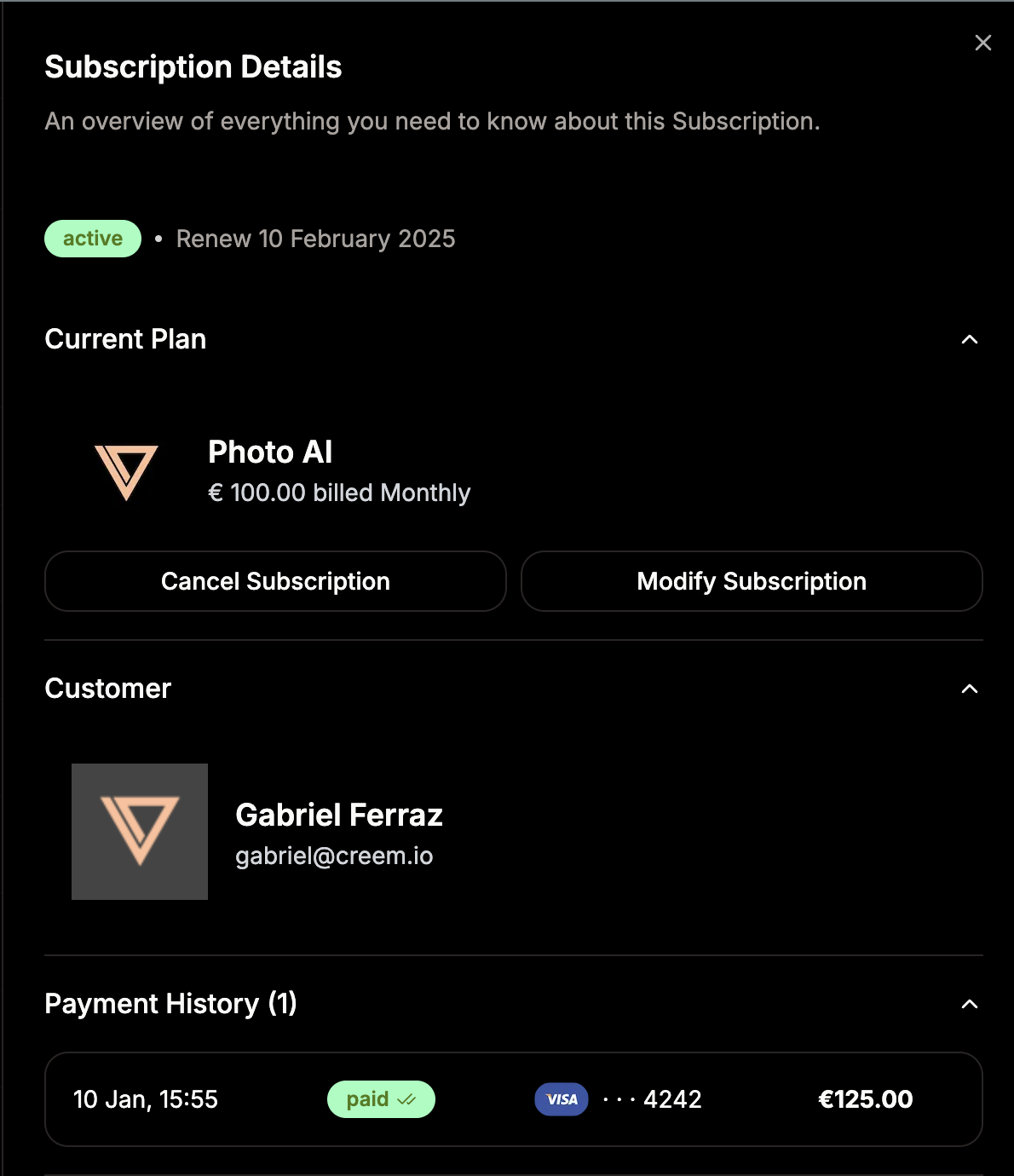
You can also modify subscription seats through your Creem Dashboard as a merchant.
Simply click on a subscription, and upon the details sheet opening, click on the "Modify Subscription" button
### Billing after subscription updates
The new amount will be charged upon subscription renewal. If you need pro-rata charges or different use cases, contact the Creem team.
Remember to validate and track seat usage in your application to ensure customers don't exceed
their purchased seat limit.
**Troubleshooting Update Errors:** If you receive a 404 error with the message "Could not find
product or price" when updating subscription seats, ensure you're providing either a valid
`price_id` or `product_id` in your request. The `price_id` is recommended as it provides the most
specific reference for validation.
 ### Billing after subscription updates
The new amount will be charged upon subscription renewal. If you need pro-rata charges or different use cases, contact the Creem team.
### Billing after subscription updates
The new amount will be charged upon subscription renewal. If you need pro-rata charges or different use cases, contact the Creem team.