> ## Documentation Index
> Fetch the complete documentation index at: https://docs.creem.io/llms.txt
> Use this file to discover all available pages before exploring further.
# Product Bundles
> Group related subscription tiers together for seamless self-service upgrades and strategic upsells at checkout.
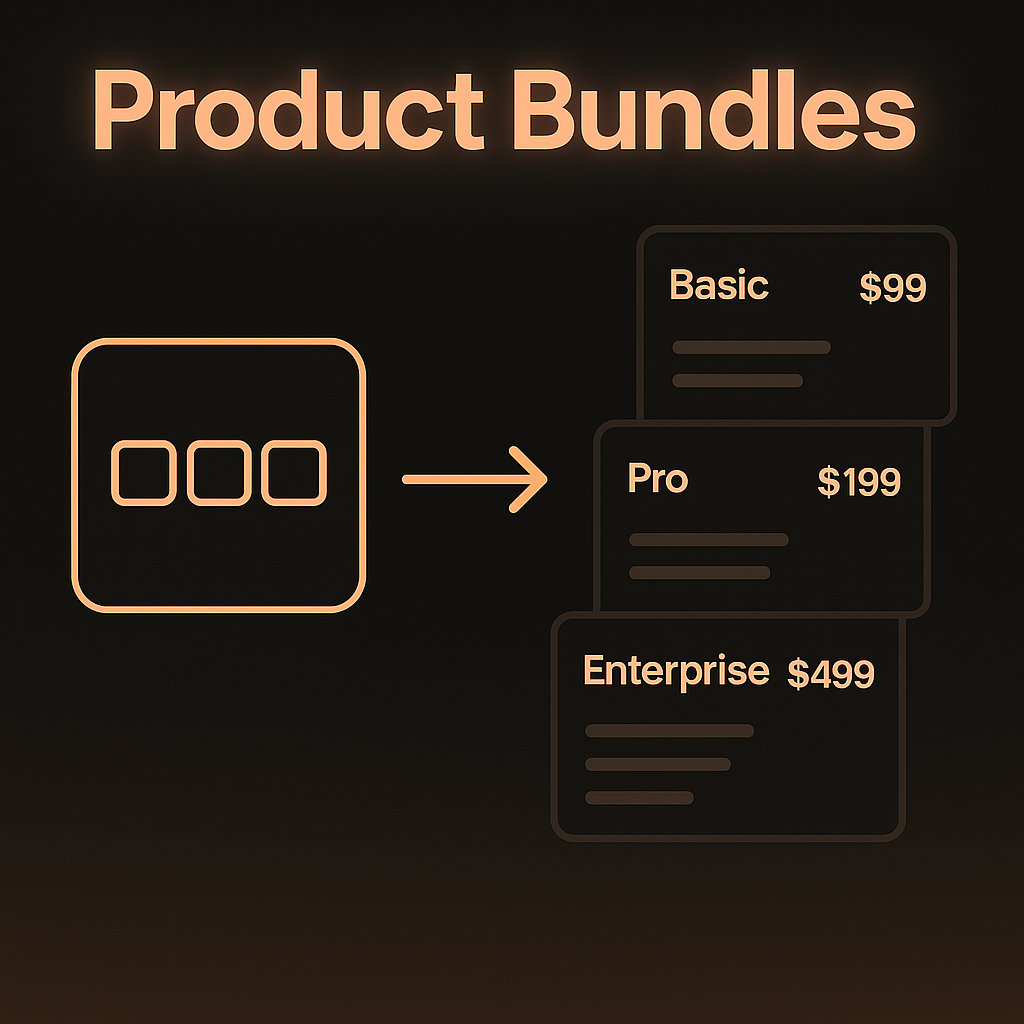
Product Bundles allow you to organize related subscription tiers into cohesive groups, enabling customers to easily upgrade or downgrade between tiers and presenting strategic upsell opportunities during checkout.
 ## What are Product Bundles?
Product Bundles are collections of related products that:
* Share similar characteristics or serve the same use case
* Represent different tiers or levels of the same service
* Enable streamlined product management in your dashboard
* Allow customers to self-service upgrade or downgrade between tiers
## Key Benefits
Logical grouping of related products with clear hierarchy
Easy product comparison and simplified decision-making
Customers can upgrade or downgrade independently
## Creating Product Bundles
Create and manage product bundles through the [Creem dashboard](https://www.creem.io/dashboard/products/bundles):
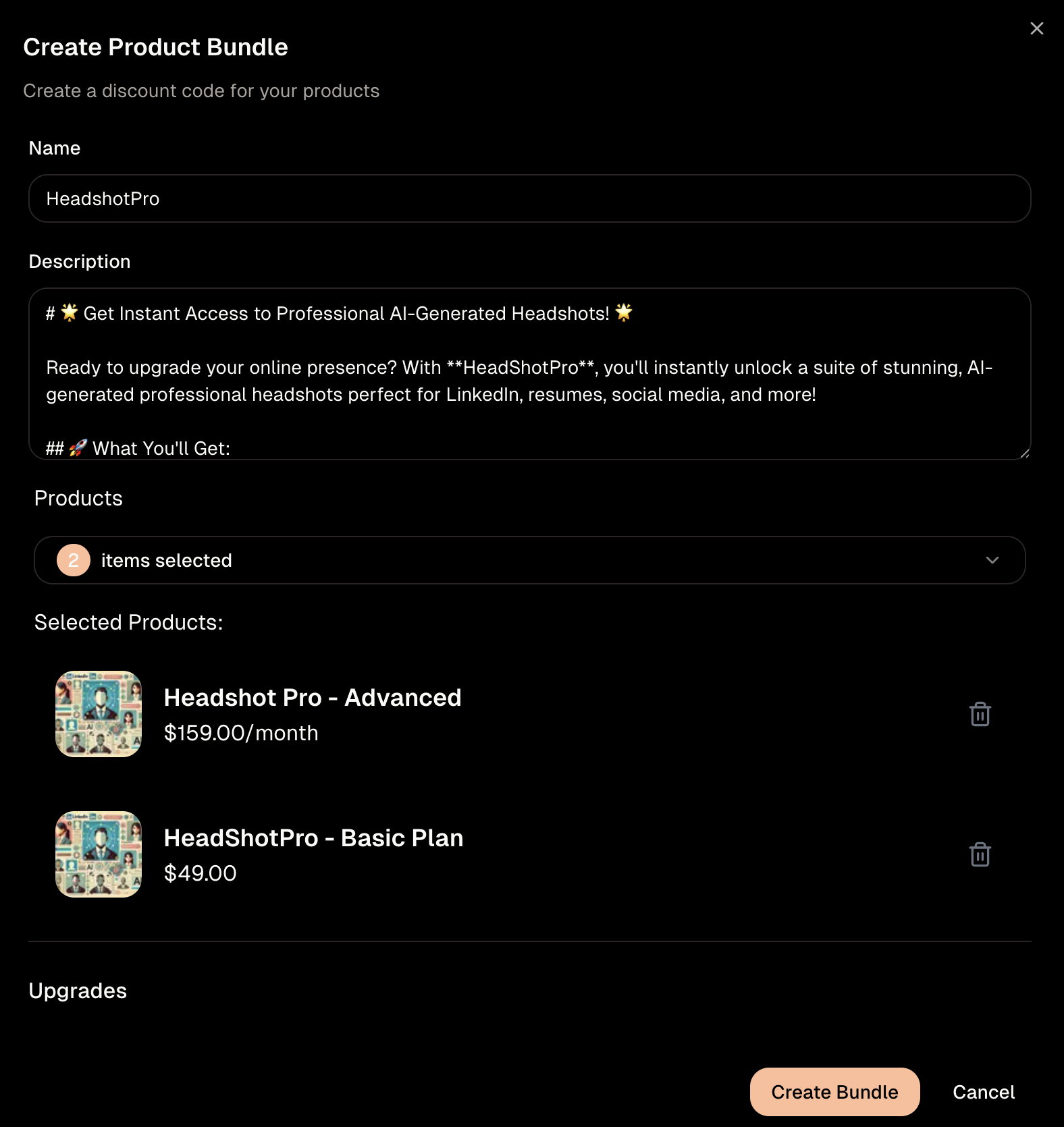
1. Navigate to **Products > Bundles**
2. Click **Create Bundle**
3. Select the products to include in the bundle
4. Configure bundle options:
* **Self-Service Upgrades/Downgrades**: Let customers manage their subscription tier independently
* **Checkout Upsells**: Show upgrade options during the checkout flow
## What are Product Bundles?
Product Bundles are collections of related products that:
* Share similar characteristics or serve the same use case
* Represent different tiers or levels of the same service
* Enable streamlined product management in your dashboard
* Allow customers to self-service upgrade or downgrade between tiers
## Key Benefits
Logical grouping of related products with clear hierarchy
Easy product comparison and simplified decision-making
Customers can upgrade or downgrade independently
## Creating Product Bundles
Create and manage product bundles through the [Creem dashboard](https://www.creem.io/dashboard/products/bundles):
1. Navigate to **Products > Bundles**
2. Click **Create Bundle**
3. Select the products to include in the bundle
4. Configure bundle options:
* **Self-Service Upgrades/Downgrades**: Let customers manage their subscription tier independently
* **Checkout Upsells**: Show upgrade options during the checkout flow
 ## Self-Service Upgrades
When enabled, customers can independently upgrade or downgrade between products in the bundle through the Customer Portal, without requiring support intervention:
## Self-Service Upgrades
When enabled, customers can independently upgrade or downgrade between products in the bundle through the Customer Portal, without requiring support intervention:
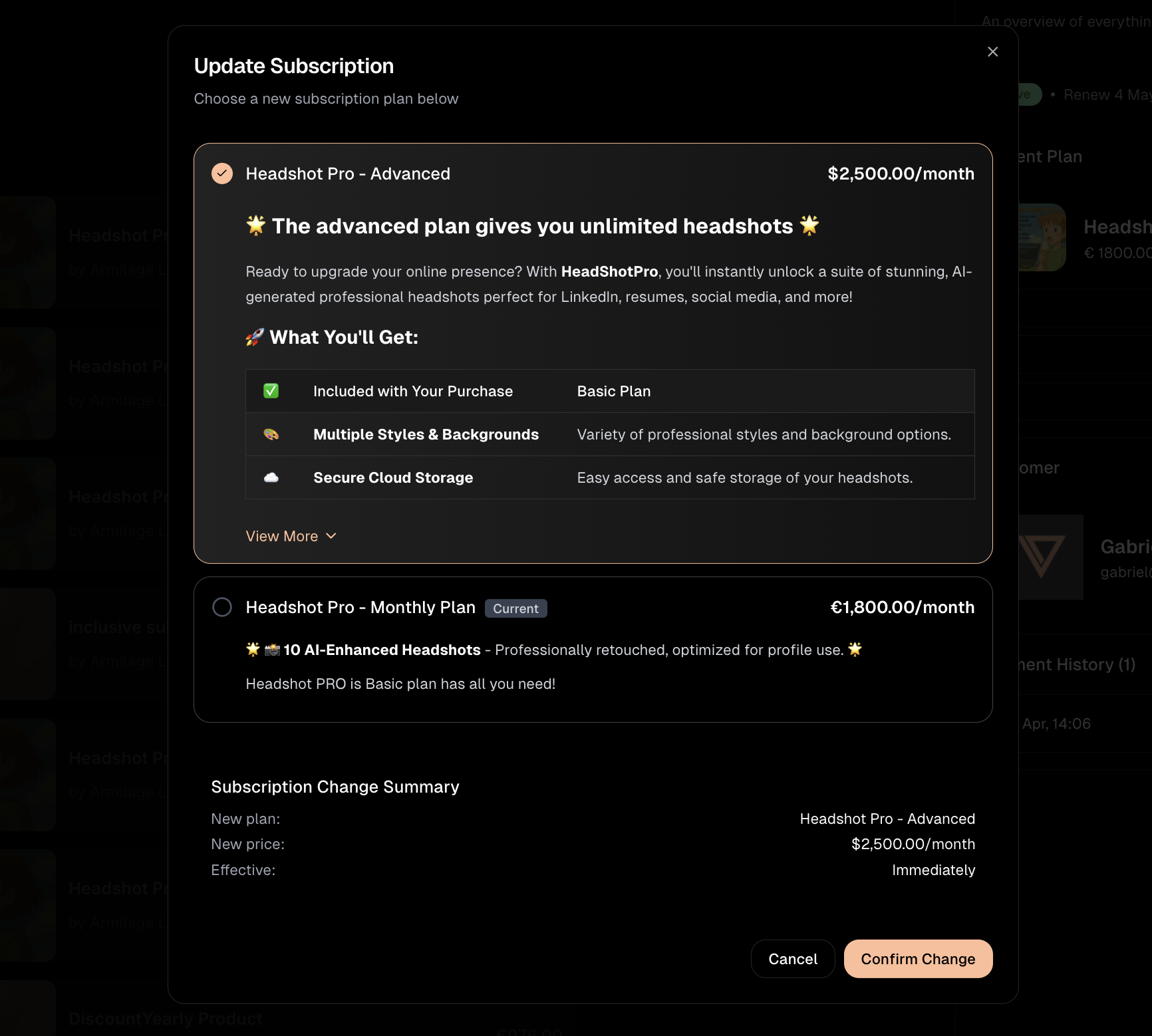 Self-service upgrades reduce support overhead and improve customer
satisfaction by giving users control over their subscription tier.
## Best Practices
### Logical Grouping
* Group products that naturally belong together
* Use consistent naming conventions across tiers
* Maintain clear relationships between products in the bundle
### Value Proposition
* Clearly differentiate features between tiers
* Maintain logical price progression from lower to higher tiers
* Highlight the unique benefits of each tier
### Bundle Organization
* Keep bundles focused and specific to a single product line
* Avoid mixing unrelated products in the same bundle
* Document bundle contents and tier differences clearly
***
## Next Steps
Programmatically create checkout sessions for bundled products
Receive real-time updates about subscription upgrades and changes
Self-service upgrades reduce support overhead and improve customer
satisfaction by giving users control over their subscription tier.
## Best Practices
### Logical Grouping
* Group products that naturally belong together
* Use consistent naming conventions across tiers
* Maintain clear relationships between products in the bundle
### Value Proposition
* Clearly differentiate features between tiers
* Maintain logical price progression from lower to higher tiers
* Highlight the unique benefits of each tier
### Bundle Organization
* Keep bundles focused and specific to a single product line
* Avoid mixing unrelated products in the same bundle
* Document bundle contents and tier differences clearly
***
## Next Steps
Programmatically create checkout sessions for bundled products
Receive real-time updates about subscription upgrades and changes