> ## Documentation Index
> Fetch the complete documentation index at: https://docs.creem.io/llms.txt
> Use this file to discover all available pages before exploring further.
# Pay What You Want
> Let customers choose how much they pay for a product at checkout, with a minimum price you control and an optional suggested amount.
Pay what you want (PWYW) lets your customers decide the amount they pay at checkout. You set a **minimum price** they must meet, and an optional **suggested price** that pre-fills the checkout to guide them. It's a great fit for donations, tip jars, "name your price" launches, and supporter pricing.
Pay what you want is only available for **one-time payment** products. It is not supported for
subscriptions.
## How It Works
* The product's **price** acts as the *minimum* — customers can pay this amount or more, but never less.
* The **suggested price** is pre-filled at checkout to nudge customers toward a higher amount. It must be greater than or equal to the minimum, and is optional.
* At checkout, the customer opens **Choose price** and enters any amount that meets the minimum.
## Enable in the Dashboard
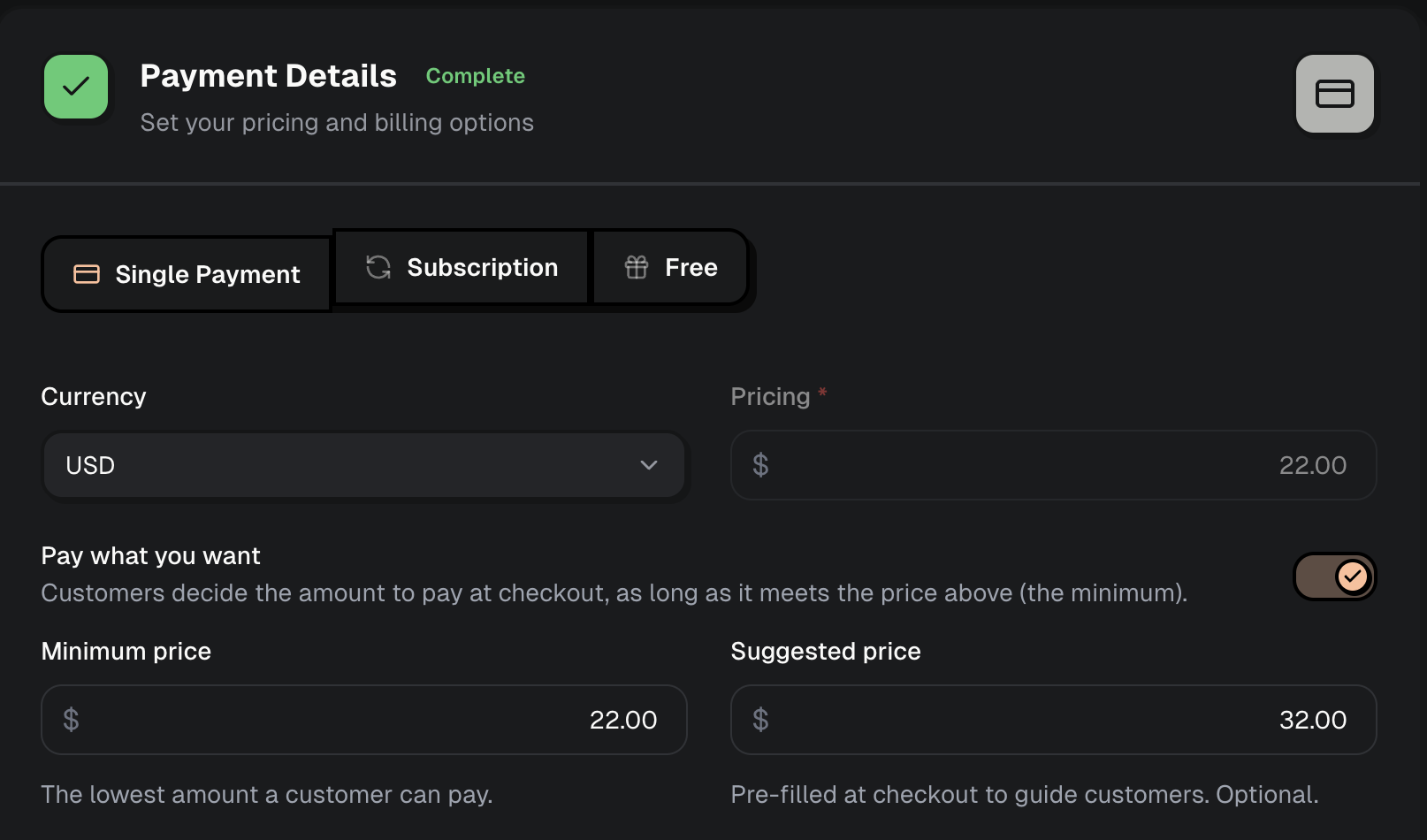
1. Go to **Products** and create or edit a one-time product.
2. Under **Payment Details**, select **Single Payment**.
3. Toggle on **Pay what you want**.
4. Set the **Minimum price** (the lowest amount a customer can pay) and, optionally, a **Suggested price** to pre-fill at checkout.
 ## The Checkout Experience
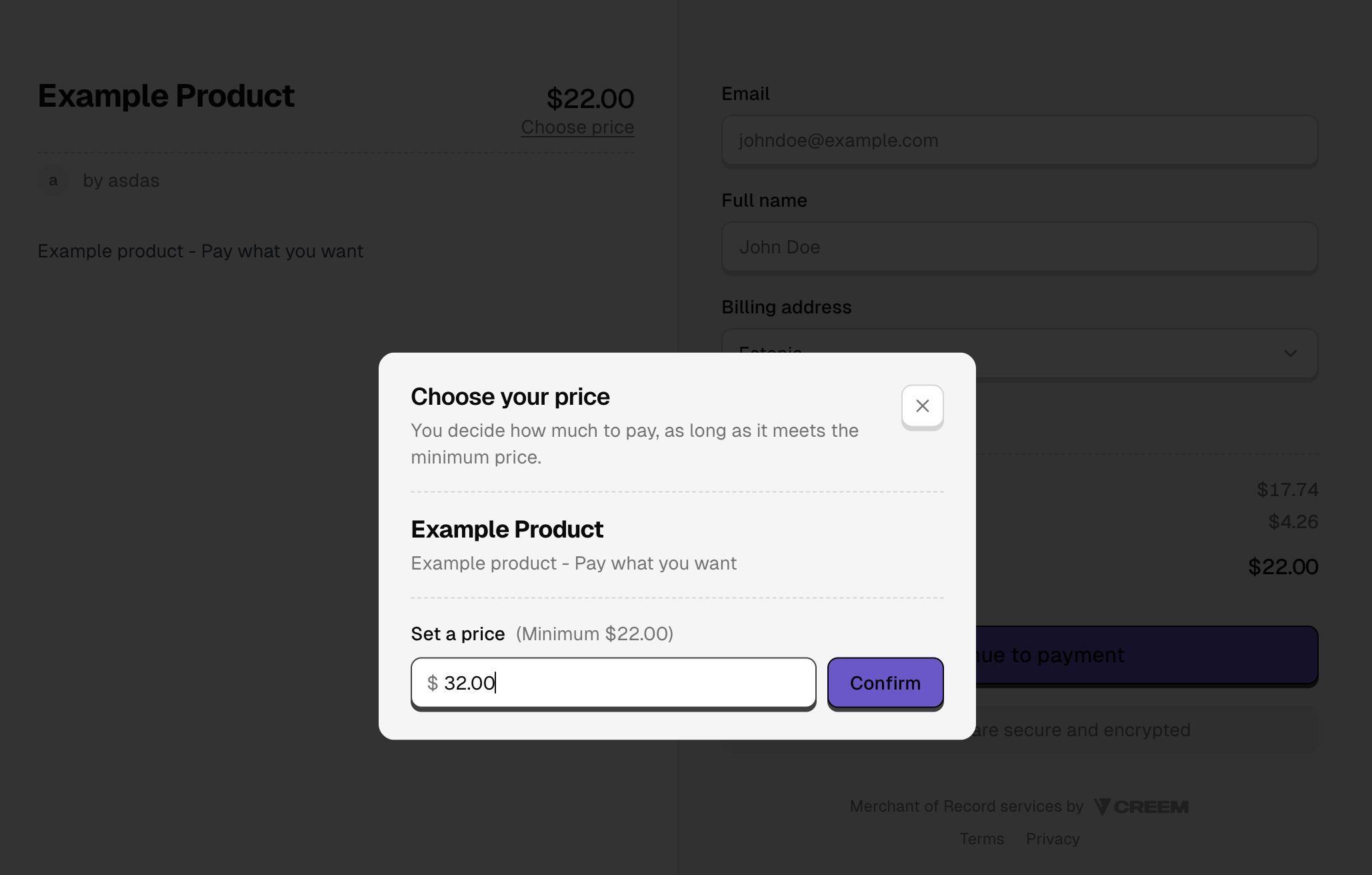
When pay what you want is enabled, customers see a **Choose price** link on the checkout. Selecting it opens a dialog where they can set their own amount, as long as it meets the minimum. If you configured a suggested price, it's pre-filled here.
## The Checkout Experience
When pay what you want is enabled, customers see a **Choose price** link on the checkout. Selecting it opens a dialog where they can set their own amount, as long as it meets the minimum. If you configured a suggested price, it's pre-filled here.
 ## Next Steps
Enable pay what you want programmatically with the create product endpoint
Learn how single, non-recurring payments work in Creem
Create dynamic checkout sessions programmatically
Run promotions with percentage or fixed-amount discounts
Handle payment events and automate your workflow
## Next Steps
Enable pay what you want programmatically with the create product endpoint
Learn how single, non-recurring payments work in Creem
Create dynamic checkout sessions programmatically
Run promotions with percentage or fixed-amount discounts
Handle payment events and automate your workflow