> ## Documentation Index
> Fetch the complete documentation index at: https://docs.creem.io/llms.txt
> Use this file to discover all available pages before exploring further.
# Checkout Customization
> Customize your checkout and email receipts with your brand logo, colors, and theme for a seamless customer experience.
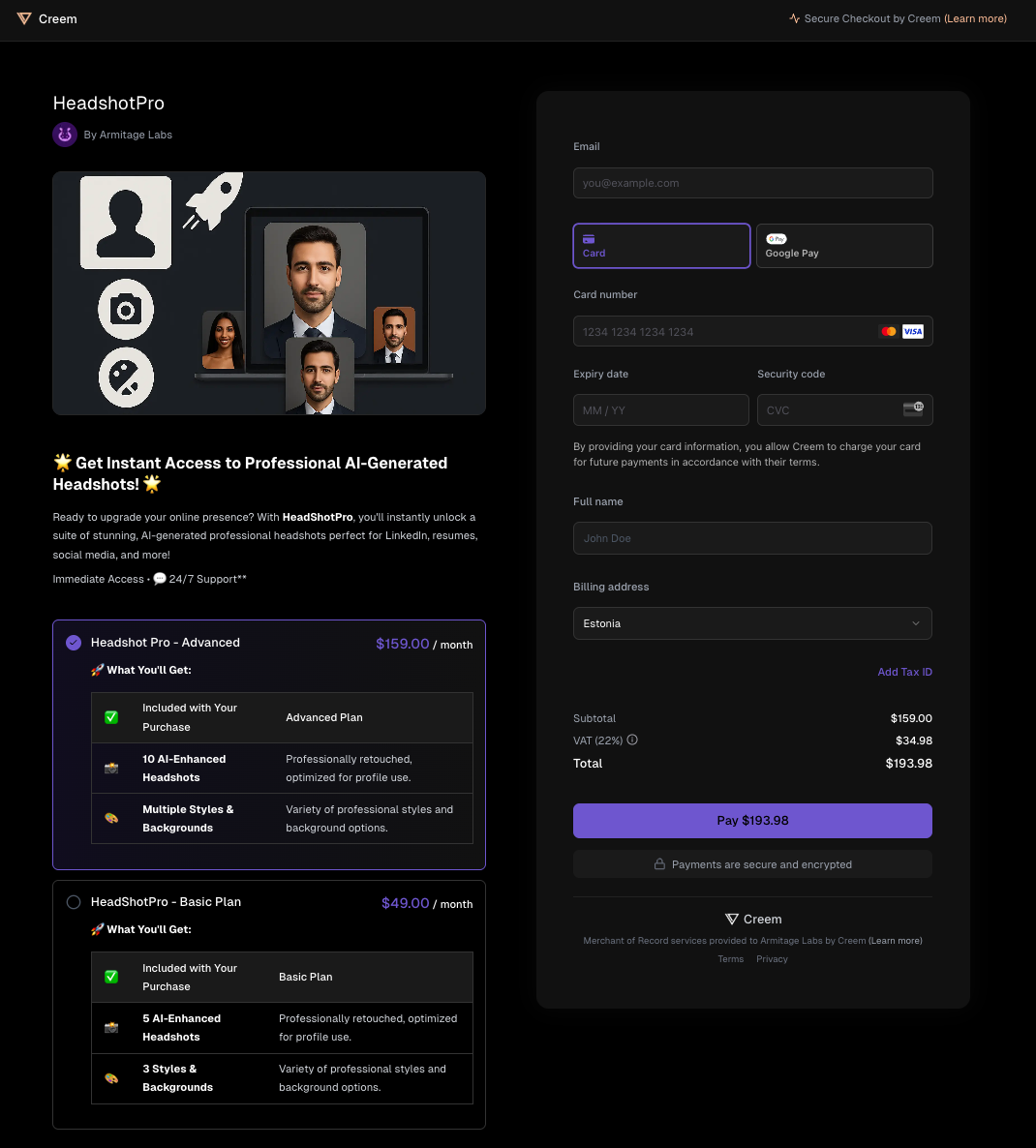
Deliver a seamless, on-brand experience from your application to the checkout and beyond. Creem lets you customize your checkout flow and email receipts with your store's logo, colors, and theme. Ensuring your customers always feel at home.
## Why Customize Branding?
* **Consistent brand experience** from your app to checkout and receipts
* **Build trust** with your customers
* **Increase conversion** by reducing friction and confusion
Your logo and colors are used on both the checkout page and the email receipt
sent after a successful payment.
## How to Update Your Store Branding
Click your profile icon in the top right corner, then select Settings{' '}
for your current store.
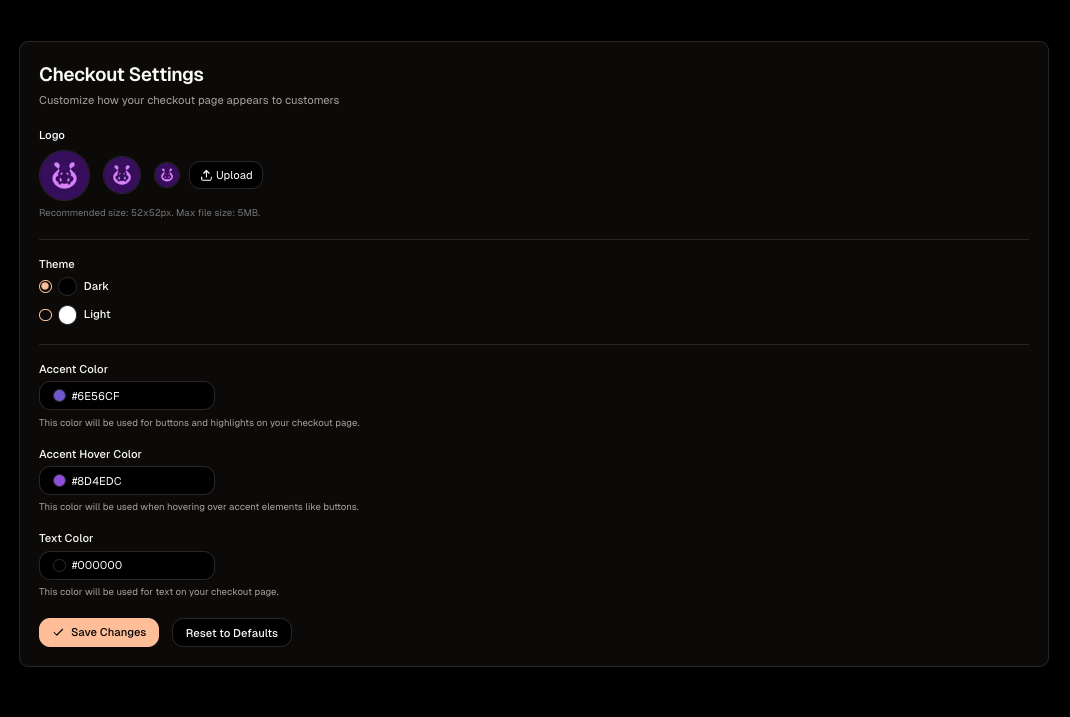
In the settings sidebar, navigate to Branding.
Upload your logo (used on checkout and email receipts)
Select your default checkout theme (light or dark)
Pick your accent color (used for buttons, upsells, and field
borders)
Set your accent hover color (for button hover states)
Choose your text color (for dynamic buttons and component text)
Save your changes. You can preview your checkout with the new branding
instantly.
## Test Mode vs Live Mode
You can safely experiment with different branding options in [Test Mode](/getting-started/test-mode). These changes won't affect your live checkout. When you're ready, switch to live mode and apply your final branding for real customers.
## Programmatic Theme Selection
You can override the default checkout theme by appending ?theme=light or ?theme=dark to your checkout URL before redirecting your customers.
Example:{' '}
[https://www.creem.io/payment/prod\_3pcofZ4pTXtuvdDb1j2MMp?theme=dark](https://www.creem.io/payment/prod_3pcofZ4pTXtuvdDb1j2MMp?theme=dark)
See the full list of URL parameters you can use with payment links, including discount codes and metadata.
## Best Practices
* Use a high-contrast logo with a transparent background for best results
* Choose accessible color combinations for text and buttons
* Preview your checkout and email receipts in both light and dark themes
* Test your branding in test mode before going live
 ## Why Customize Branding?
* **Consistent brand experience** from your app to checkout and receipts
* **Build trust** with your customers
* **Increase conversion** by reducing friction and confusion
## Why Customize Branding?
* **Consistent brand experience** from your app to checkout and receipts
* **Build trust** with your customers
* **Increase conversion** by reducing friction and confusion
 ## Test Mode vs Live Mode
You can safely experiment with different branding options in [Test Mode](/getting-started/test-mode). These changes won't affect your live checkout. When you're ready, switch to live mode and apply your final branding for real customers.
## Programmatic Theme Selection
You can override the default checkout theme by appending
## Test Mode vs Live Mode
You can safely experiment with different branding options in [Test Mode](/getting-started/test-mode). These changes won't affect your live checkout. When you're ready, switch to live mode and apply your final branding for real customers.
## Programmatic Theme Selection
You can override the default checkout theme by appending