> ## Documentation Index
> Fetch the complete documentation index at: https://docs.creem.io/llms.txt
> Use this file to discover all available pages before exploring further.
# Creem CLI
> Install, configure, and use the Creem CLI to manage your store from the terminal. Full command reference, interactive mode, and automation examples.
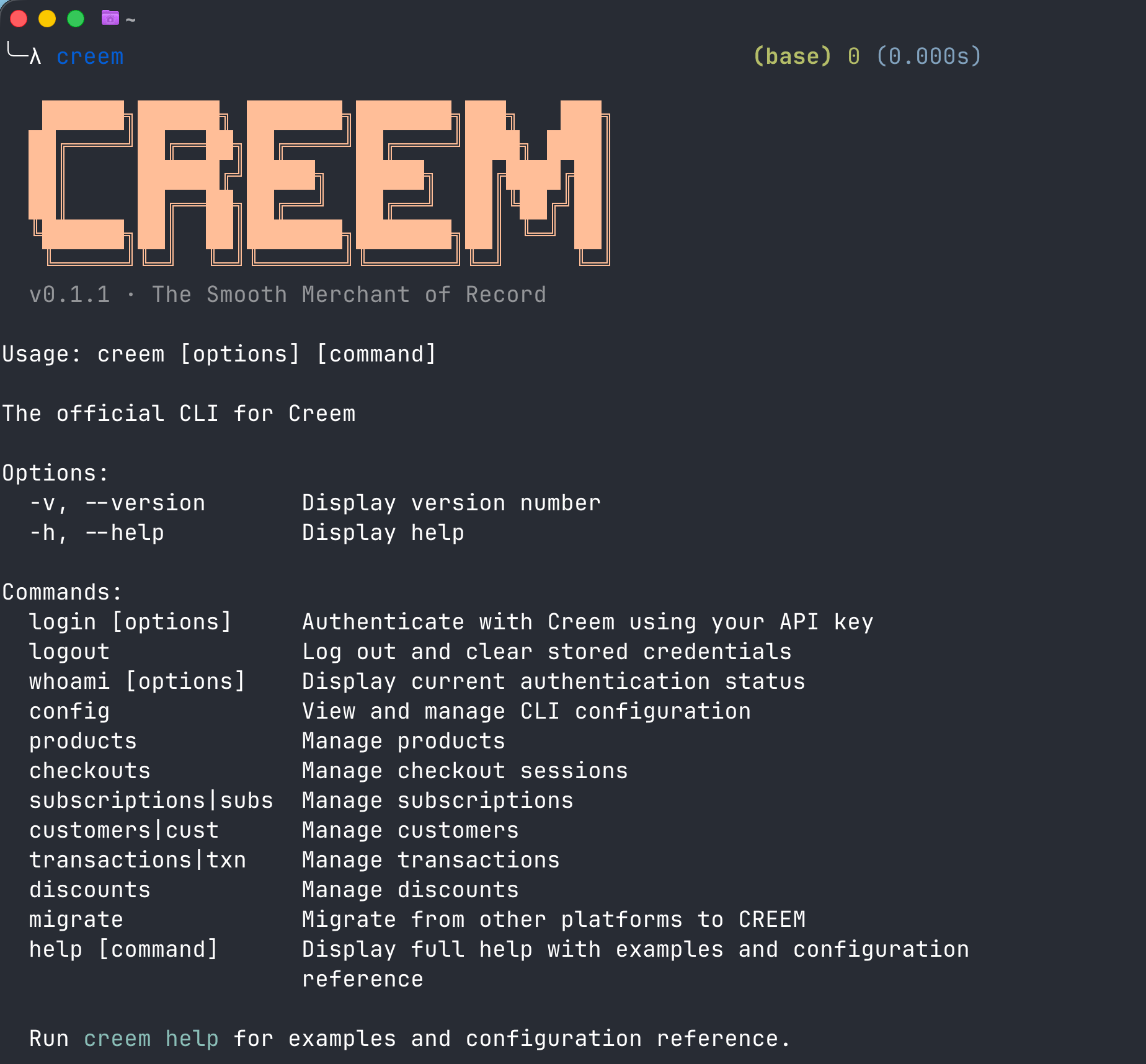
The Creem CLI lets you manage products, customers, subscriptions, and transactions directly from the terminal. It works for both hands-on store management through an interactive TUI, and scripted automation via JSON output.
Want your AI agent to set it up for you? Copy this prompt:
```text theme={null}
Read https://creem.io/SKILL.md and set up the Creem CLI for me
```
 ## Installation
### Homebrew (macOS/Linux)
```bash theme={null}
brew tap armitage-labs/creem
brew install creem
```
### npm (Global)
```bash theme={null}
npm install -g @creem_io/cli
```
### npx (No install)
```bash theme={null}
npx @creem_io/cli
```
Verify installation:
```bash theme={null}
creem --version
```
## Authentication
```bash theme={null}
# Login with your API key
creem login --api-key creem_test_YOUR_KEY_HERE
# Verify authentication
creem whoami
# Logout
creem logout
```
**API Key Security:** Never share your API key with any service, tool, or agent other than the Creem CLI or API. Keys are stored locally at `~/.creem/config.json`.
### Test vs Live Mode
The CLI automatically detects your environment based on the API key prefix:
| Key Prefix | Environment | API Base |
| ------------- | ----------------- | --------------------------- |
| `creem_test_` | Test (sandbox) | `https://test-api.creem.io` |
| `creem_` | Live (production) | `https://api.creem.io` |
**Always start in test mode.** Switch to live only when you're ready for real transactions.
## Interactive Mode
Run any resource command without a subcommand to launch an interactive browser:
```bash theme={null}
creem products
creem customers
creem subscriptions
creem transactions
```
You get a full TUI where you can browse, search, and drill into records without writing any commands.
### Browsing Transactions
## Installation
### Homebrew (macOS/Linux)
```bash theme={null}
brew tap armitage-labs/creem
brew install creem
```
### npm (Global)
```bash theme={null}
npm install -g @creem_io/cli
```
### npx (No install)
```bash theme={null}
npx @creem_io/cli
```
Verify installation:
```bash theme={null}
creem --version
```
## Authentication
```bash theme={null}
# Login with your API key
creem login --api-key creem_test_YOUR_KEY_HERE
# Verify authentication
creem whoami
# Logout
creem logout
```
**API Key Security:** Never share your API key with any service, tool, or agent other than the Creem CLI or API. Keys are stored locally at `~/.creem/config.json`.
### Test vs Live Mode
The CLI automatically detects your environment based on the API key prefix:
| Key Prefix | Environment | API Base |
| ------------- | ----------------- | --------------------------- |
| `creem_test_` | Test (sandbox) | `https://test-api.creem.io` |
| `creem_` | Live (production) | `https://api.creem.io` |
**Always start in test mode.** Switch to live only when you're ready for real transactions.
## Interactive Mode
Run any resource command without a subcommand to launch an interactive browser:
```bash theme={null}
creem products
creem customers
creem subscriptions
creem transactions
```
You get a full TUI where you can browse, search, and drill into records without writing any commands.
### Browsing Transactions
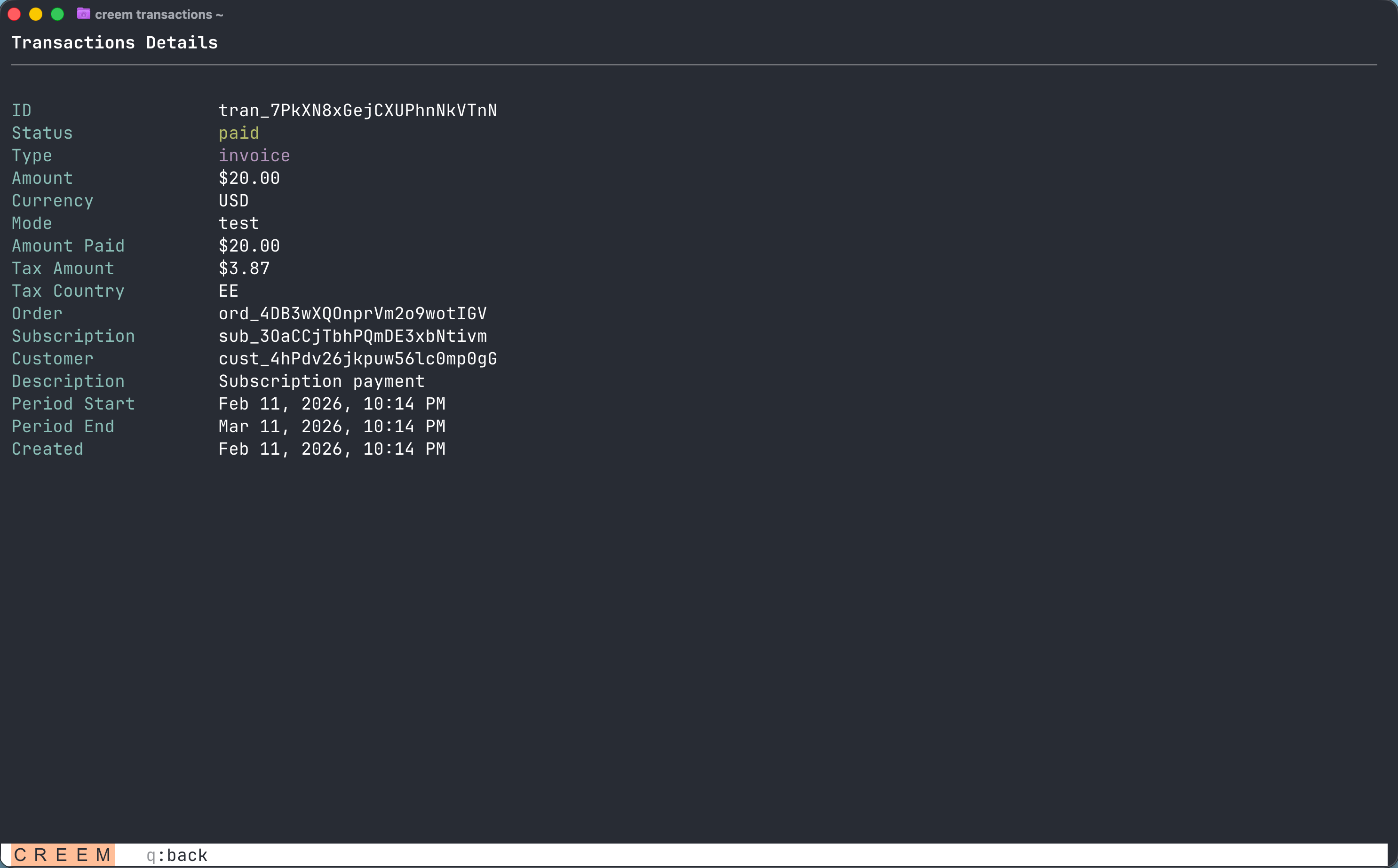
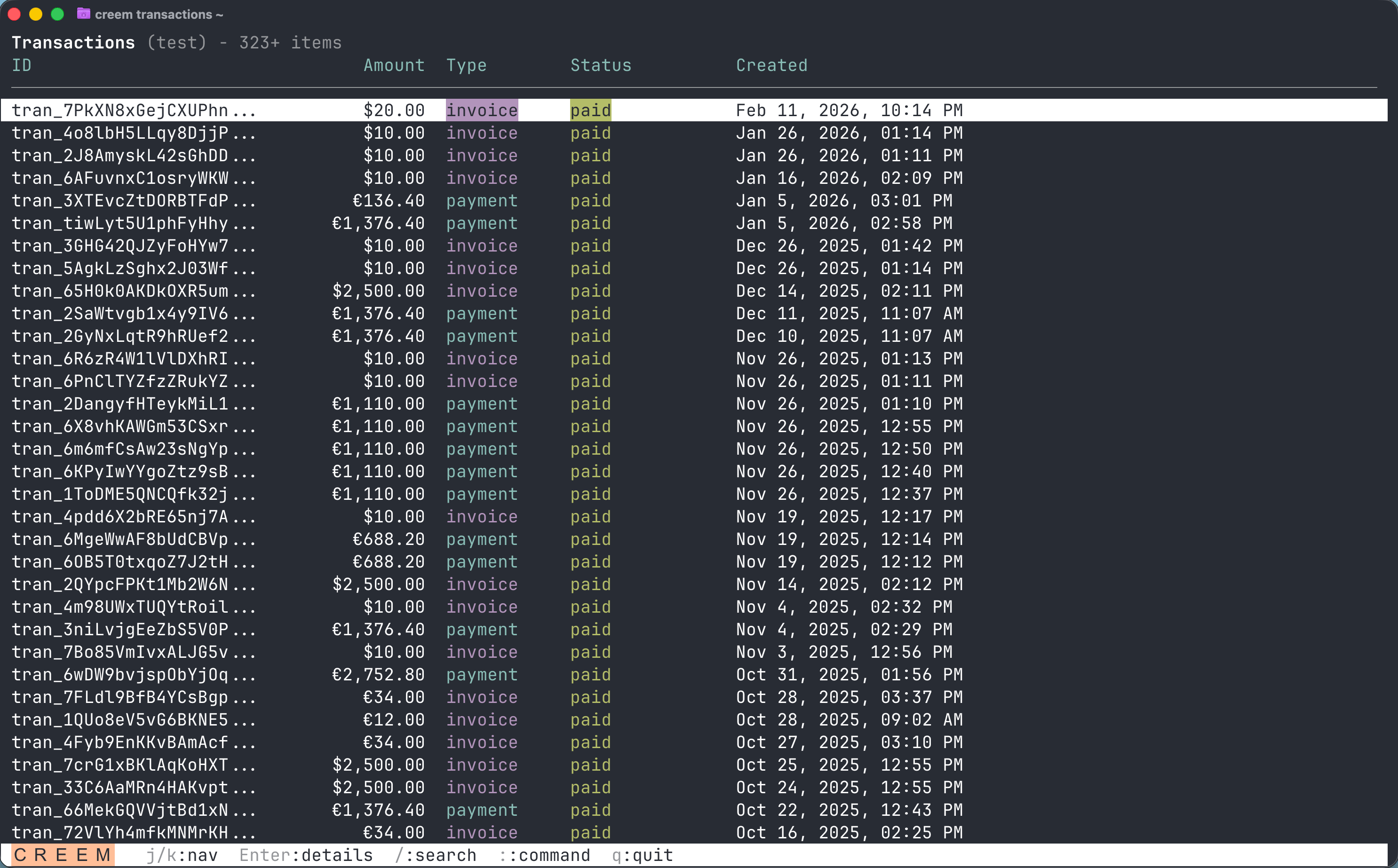 Press Enter on any row to drill into the full detail view:
 ### Managing Subscriptions
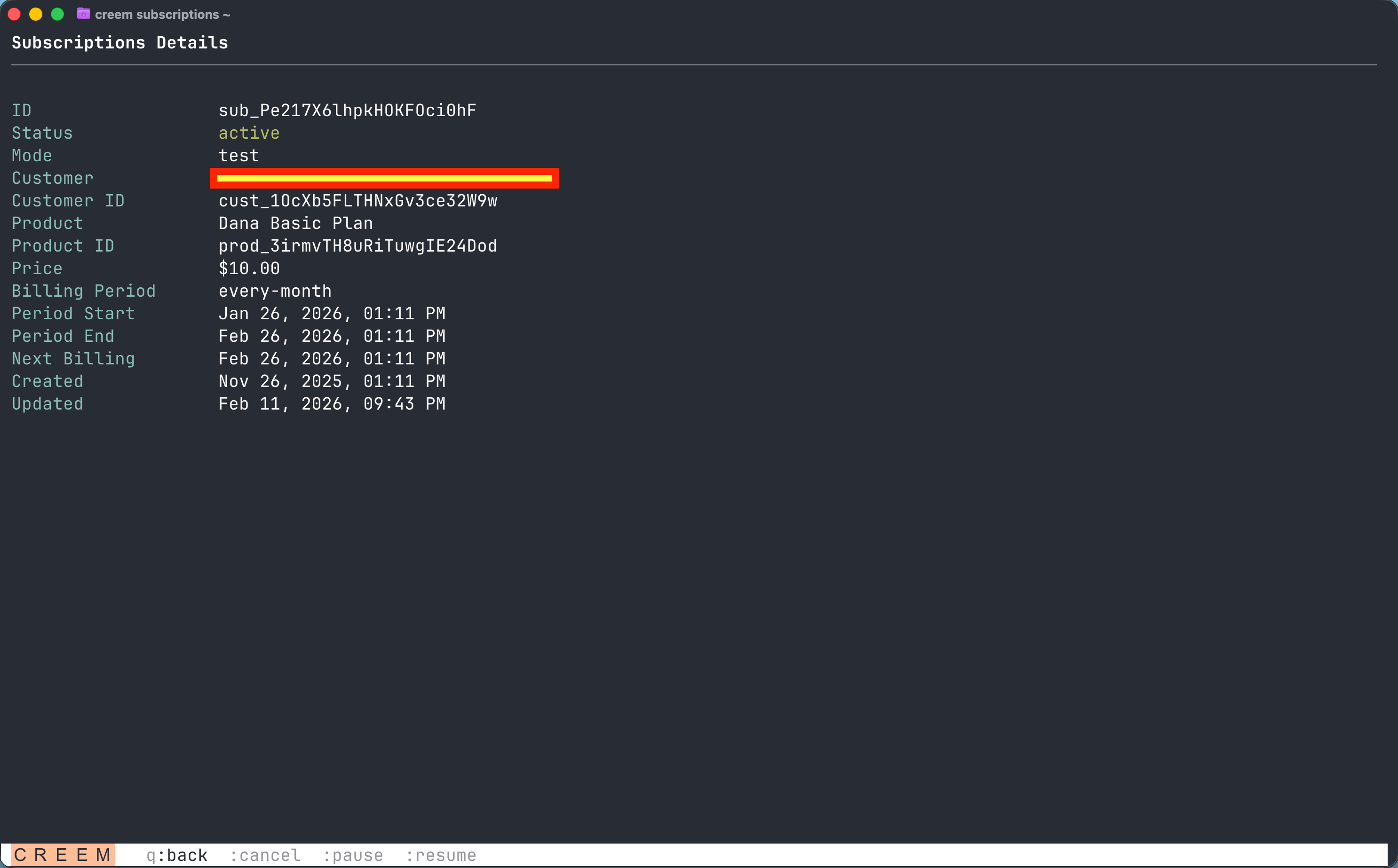
Navigate into any subscription to see its full details and take actions directly from the status bar:
### Managing Subscriptions
Navigate into any subscription to see its full details and take actions directly from the status bar:
 ### Navigation Keys
| Key | Action |
| --------------------- | ---------------------------------------- |
| `j`/`k` or arrow keys | Move through the list |
| Enter | View details |
| `/` | Search |
| `:` | Open command bar (cancel, pause, resume) |
| `q` | Go back or exit |
## Command Reference
### Products
```bash theme={null}
# List all products
creem products list
# List with pagination
creem products list --page 2 --limit 10
# Get a specific product
creem products get prod_XXXXX
# Create a product
creem products create \
--name "Pro Plan" \
--description "Monthly pro subscription with all features" \
--price 1999 \
--currency USD \
--billing-type recurring \
--billing-period every-month
```
**Product Options:**
| Option | Values |
| ------------------ | --------------------------------------------------------------------- |
| `--billing-type` | `onetime`, `recurring` |
| `--billing-period` | `every-month`, `every-three-months`, `every-six-months`, `every-year` |
| `--tax-category` | `saas`, `digital-goods-service`, `ebooks` |
| `--tax-mode` | `inclusive`, `exclusive` |
### Customers
```bash theme={null}
# List all customers
creem customers list
# Get customer by ID
creem customers get cust_XXXXX
# Get customer by email
creem customers get --email user@example.com
# Generate billing portal link (self-service for payment methods, invoices)
creem customers billing cust_XXXXX
```
### Subscriptions
```bash theme={null}
# List all subscriptions
creem subscriptions list
# Filter by status
creem subscriptions list --status active
# Get subscription details
creem subscriptions get sub_XXXXX
# Cancel immediately
creem subscriptions cancel sub_XXXXX
# Cancel at period end (customer keeps access until billing period ends)
creem subscriptions cancel sub_XXXXX --mode scheduled
# Pause billing
creem subscriptions pause sub_XXXXX
# Resume billing
creem subscriptions resume sub_XXXXX
```
**Subscription Statuses:** `active`, `trialing`, `paused`, `past_due`, `expired`, `canceled`, `scheduled_cancel`
Use `--mode scheduled` for cancellations. Immediate cancellation cuts off access instantly, which frustrates customers.
### Checkouts
```bash theme={null}
# Create a checkout session
creem checkouts create --product prod_XXXXX
# Create with success URL
creem checkouts create --product prod_XXXXX --success-url https://app.com/welcome
# Get checkout details
creem checkouts get chk_XXXXX
```
### Transactions
```bash theme={null}
# List all transactions (newest first)
creem transactions list
# List with more results
creem transactions list --limit 50
# Filter by customer
creem transactions list --customer cust_XXXXX
# Filter by product
creem transactions list --product prod_XXXXX
# Get transaction details
creem transactions get txn_XXXXX
```
### Discounts
```bash theme={null}
# List all discount codes
creem discounts list
# Get discount details
creem discounts get disc_XXXXX
```
### Configuration
```bash theme={null}
# View all settings
creem config show
# Switch to live mode
creem config set environment live
# Switch to test mode
creem config set environment test
# Set default output format
creem config set output_format json
creem config set output_format table
# Get a specific setting
creem config get environment
# List all config keys
creem config list
```
## Output Formats
Every command supports table (default) and JSON output:
```bash theme={null}
# Per-command JSON output
creem products list --json
creem customers get cust_XXXXX --json
# Set JSON as global default
creem config set output_format json
```
**For AI agents and scripting:** Always use `--json` and parse with `jq` for reliable automation:
```bash theme={null}
creem products list --json | jq '.[].id'
creem customers get cust_XXXXX --json | jq '.email'
creem subscriptions list --status active --json | jq 'length'
```
## Automation Examples
### Check for new transactions
```bash theme={null}
LATEST=$(creem transactions list --limit 1 --json | jq -r '.[0].id')
echo "Latest transaction: $LATEST"
```
### Count active subscriptions
```bash theme={null}
ACTIVE=$(creem subscriptions list --status active --json | jq 'length')
echo "Active subscriptions: $ACTIVE"
```
### Check for payment issues
```bash theme={null}
PAST_DUE=$(creem subscriptions list --status past_due --json | jq 'length')
EXPIRED=$(creem subscriptions list --status expired --json | jq 'length')
if [ "$PAST_DUE" -gt 0 ] || [ "$EXPIRED" -gt 0 ]; then
echo "⚠️ Alert: $PAST_DUE past_due, $EXPIRED expired subscriptions"
fi
```
### Generate bulk checkout links
```bash theme={null}
for PRODUCT_ID in prod_AAA prod_BBB prod_CCC; do
URL=$(creem checkouts create --product "$PRODUCT_ID" --json | jq -r '.checkout_url')
echo "$PRODUCT_ID: $URL"
done
```
### Daily subscription health check
```bash theme={null}
#!/bin/bash
# Run daily via cron to monitor subscription health
echo "Subscription Report - $(date)"
echo "================================"
echo "Active: $(creem subscriptions list --status active --json | jq 'length')"
echo "Trialing: $(creem subscriptions list --status trialing --json | jq 'length')"
echo "Past Due: $(creem subscriptions list --status past_due --json | jq 'length')"
echo "Expired: $(creem subscriptions list --status expired --json | jq 'length')"
echo "Canceled: $(creem subscriptions list --status canceled --json | jq 'length')"
```
## Migration
The CLI includes a `migrate` command to help you move from other platforms:
```bash theme={null}
creem migrate lemon-squeezy
```
## Tips for AI Agents
If you're an AI agent using the CLI on behalf of a human:
Always add `--json` to commands when processing output programmatically. Parse with `jq` for reliable automation.
Mistakes in live mode affect real customers and money. Always develop against test mode.
Run `creem whoami` before operations to confirm authentication and environment.
List resources first, then use actual IDs from the response. Don't assume ID formats.
## Going Live
Before accepting real payments:
1. Complete account verification in the [Dashboard](https://creem.io/dashboard) under Balances → Payout Account
2. Switch to your live API key:
```bash theme={null}
creem login --api-key creem_LIVE_KEY_HERE
```
The CLI automatically switches to the production API based on the key prefix.
## Next Steps
Set up automated monitoring so your AI agent notifies you about sales and issues
Handle real-time payment events in your application
Integrate Creem programmatically with TypeScript, Next.js, or Better Auth
Full API documentation with all endpoints
### Navigation Keys
| Key | Action |
| --------------------- | ---------------------------------------- |
| `j`/`k` or arrow keys | Move through the list |
| Enter | View details |
| `/` | Search |
| `:` | Open command bar (cancel, pause, resume) |
| `q` | Go back or exit |
## Command Reference
### Products
```bash theme={null}
# List all products
creem products list
# List with pagination
creem products list --page 2 --limit 10
# Get a specific product
creem products get prod_XXXXX
# Create a product
creem products create \
--name "Pro Plan" \
--description "Monthly pro subscription with all features" \
--price 1999 \
--currency USD \
--billing-type recurring \
--billing-period every-month
```
**Product Options:**
| Option | Values |
| ------------------ | --------------------------------------------------------------------- |
| `--billing-type` | `onetime`, `recurring` |
| `--billing-period` | `every-month`, `every-three-months`, `every-six-months`, `every-year` |
| `--tax-category` | `saas`, `digital-goods-service`, `ebooks` |
| `--tax-mode` | `inclusive`, `exclusive` |
### Customers
```bash theme={null}
# List all customers
creem customers list
# Get customer by ID
creem customers get cust_XXXXX
# Get customer by email
creem customers get --email user@example.com
# Generate billing portal link (self-service for payment methods, invoices)
creem customers billing cust_XXXXX
```
### Subscriptions
```bash theme={null}
# List all subscriptions
creem subscriptions list
# Filter by status
creem subscriptions list --status active
# Get subscription details
creem subscriptions get sub_XXXXX
# Cancel immediately
creem subscriptions cancel sub_XXXXX
# Cancel at period end (customer keeps access until billing period ends)
creem subscriptions cancel sub_XXXXX --mode scheduled
# Pause billing
creem subscriptions pause sub_XXXXX
# Resume billing
creem subscriptions resume sub_XXXXX
```
**Subscription Statuses:** `active`, `trialing`, `paused`, `past_due`, `expired`, `canceled`, `scheduled_cancel`
Use `--mode scheduled` for cancellations. Immediate cancellation cuts off access instantly, which frustrates customers.
### Checkouts
```bash theme={null}
# Create a checkout session
creem checkouts create --product prod_XXXXX
# Create with success URL
creem checkouts create --product prod_XXXXX --success-url https://app.com/welcome
# Get checkout details
creem checkouts get chk_XXXXX
```
### Transactions
```bash theme={null}
# List all transactions (newest first)
creem transactions list
# List with more results
creem transactions list --limit 50
# Filter by customer
creem transactions list --customer cust_XXXXX
# Filter by product
creem transactions list --product prod_XXXXX
# Get transaction details
creem transactions get txn_XXXXX
```
### Discounts
```bash theme={null}
# List all discount codes
creem discounts list
# Get discount details
creem discounts get disc_XXXXX
```
### Configuration
```bash theme={null}
# View all settings
creem config show
# Switch to live mode
creem config set environment live
# Switch to test mode
creem config set environment test
# Set default output format
creem config set output_format json
creem config set output_format table
# Get a specific setting
creem config get environment
# List all config keys
creem config list
```
## Output Formats
Every command supports table (default) and JSON output:
```bash theme={null}
# Per-command JSON output
creem products list --json
creem customers get cust_XXXXX --json
# Set JSON as global default
creem config set output_format json
```
**For AI agents and scripting:** Always use `--json` and parse with `jq` for reliable automation:
```bash theme={null}
creem products list --json | jq '.[].id'
creem customers get cust_XXXXX --json | jq '.email'
creem subscriptions list --status active --json | jq 'length'
```
## Automation Examples
### Check for new transactions
```bash theme={null}
LATEST=$(creem transactions list --limit 1 --json | jq -r '.[0].id')
echo "Latest transaction: $LATEST"
```
### Count active subscriptions
```bash theme={null}
ACTIVE=$(creem subscriptions list --status active --json | jq 'length')
echo "Active subscriptions: $ACTIVE"
```
### Check for payment issues
```bash theme={null}
PAST_DUE=$(creem subscriptions list --status past_due --json | jq 'length')
EXPIRED=$(creem subscriptions list --status expired --json | jq 'length')
if [ "$PAST_DUE" -gt 0 ] || [ "$EXPIRED" -gt 0 ]; then
echo "⚠️ Alert: $PAST_DUE past_due, $EXPIRED expired subscriptions"
fi
```
### Generate bulk checkout links
```bash theme={null}
for PRODUCT_ID in prod_AAA prod_BBB prod_CCC; do
URL=$(creem checkouts create --product "$PRODUCT_ID" --json | jq -r '.checkout_url')
echo "$PRODUCT_ID: $URL"
done
```
### Daily subscription health check
```bash theme={null}
#!/bin/bash
# Run daily via cron to monitor subscription health
echo "Subscription Report - $(date)"
echo "================================"
echo "Active: $(creem subscriptions list --status active --json | jq 'length')"
echo "Trialing: $(creem subscriptions list --status trialing --json | jq 'length')"
echo "Past Due: $(creem subscriptions list --status past_due --json | jq 'length')"
echo "Expired: $(creem subscriptions list --status expired --json | jq 'length')"
echo "Canceled: $(creem subscriptions list --status canceled --json | jq 'length')"
```
## Migration
The CLI includes a `migrate` command to help you move from other platforms:
```bash theme={null}
creem migrate lemon-squeezy
```
## Tips for AI Agents
If you're an AI agent using the CLI on behalf of a human:
Always add `--json` to commands when processing output programmatically. Parse with `jq` for reliable automation.
Mistakes in live mode affect real customers and money. Always develop against test mode.
Run `creem whoami` before operations to confirm authentication and environment.
List resources first, then use actual IDs from the response. Don't assume ID formats.
## Going Live
Before accepting real payments:
1. Complete account verification in the [Dashboard](https://creem.io/dashboard) under Balances → Payout Account
2. Switch to your live API key:
```bash theme={null}
creem login --api-key creem_LIVE_KEY_HERE
```
The CLI automatically switches to the production API based on the key prefix.
## Next Steps
Set up automated monitoring so your AI agent notifies you about sales and issues
Handle real-time payment events in your application
Integrate Creem programmatically with TypeScript, Next.js, or Better Auth
Full API documentation with all endpoints