> ## Documentation Index
> Fetch the complete documentation index at: https://docs.creem.io/llms.txt
> Use this file to discover all available pages before exploring further.
# Creem CLI
> Browse and manage your Creem store directly from the terminal with an interactive TUI.
The Creem CLI gives you full control of your store without leaving the terminal. Browse products, customers, subscriptions, and transactions through an interactive interface, or run quick commands for day-to-day operations.
## Installation
```bash brew theme={null}
brew tap armitage-labs/creem
brew install creem
```
```bash npm theme={null}
npm install -g @creem_io/cli
```
```bash npx theme={null}
npx @creem_io/cli
```
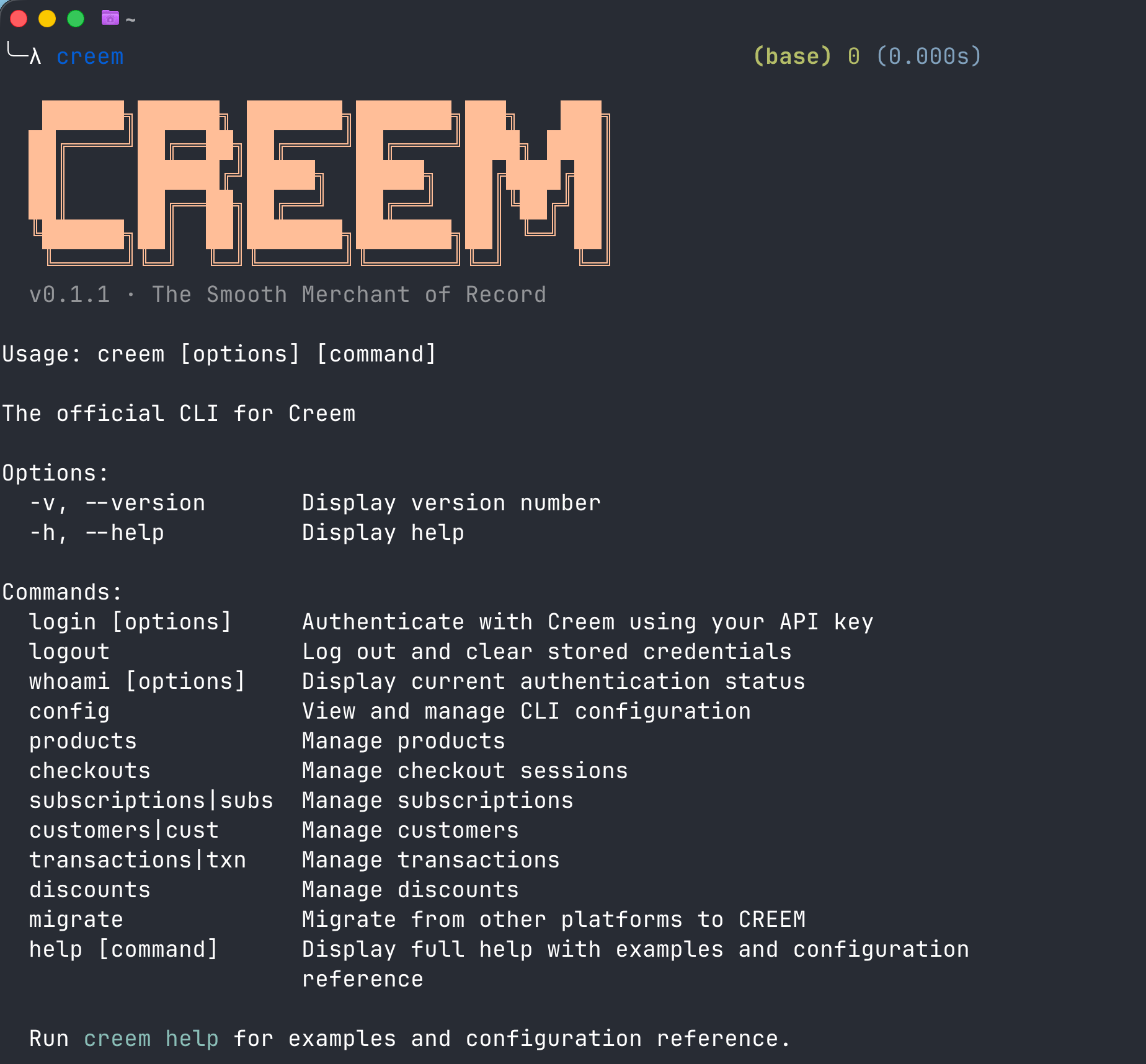
Once installed, run `creem` to see the full command reference:
 ## Login
```bash theme={null}
creem login --api-key creem_test_YOUR_KEY_HERE
```
The CLI auto-detects test vs live mode from your key prefix. You can verify your session at any time:
```
$ creem whoami
✓ Logged in to Creem
Environment test
API Key creem_te...5mBJ
API URL https://test-api.creem.io
```
**Start in test mode.** Use a `creem_test_` key while getting familiar with the CLI. Switch to live only when you're ready for real transactions.
## Interactive Mode
This is where the CLI really shines. Run any resource command without a subcommand to launch an interactive browser:
```bash theme={null}
creem products
creem customers
creem subscriptions
creem transactions
```
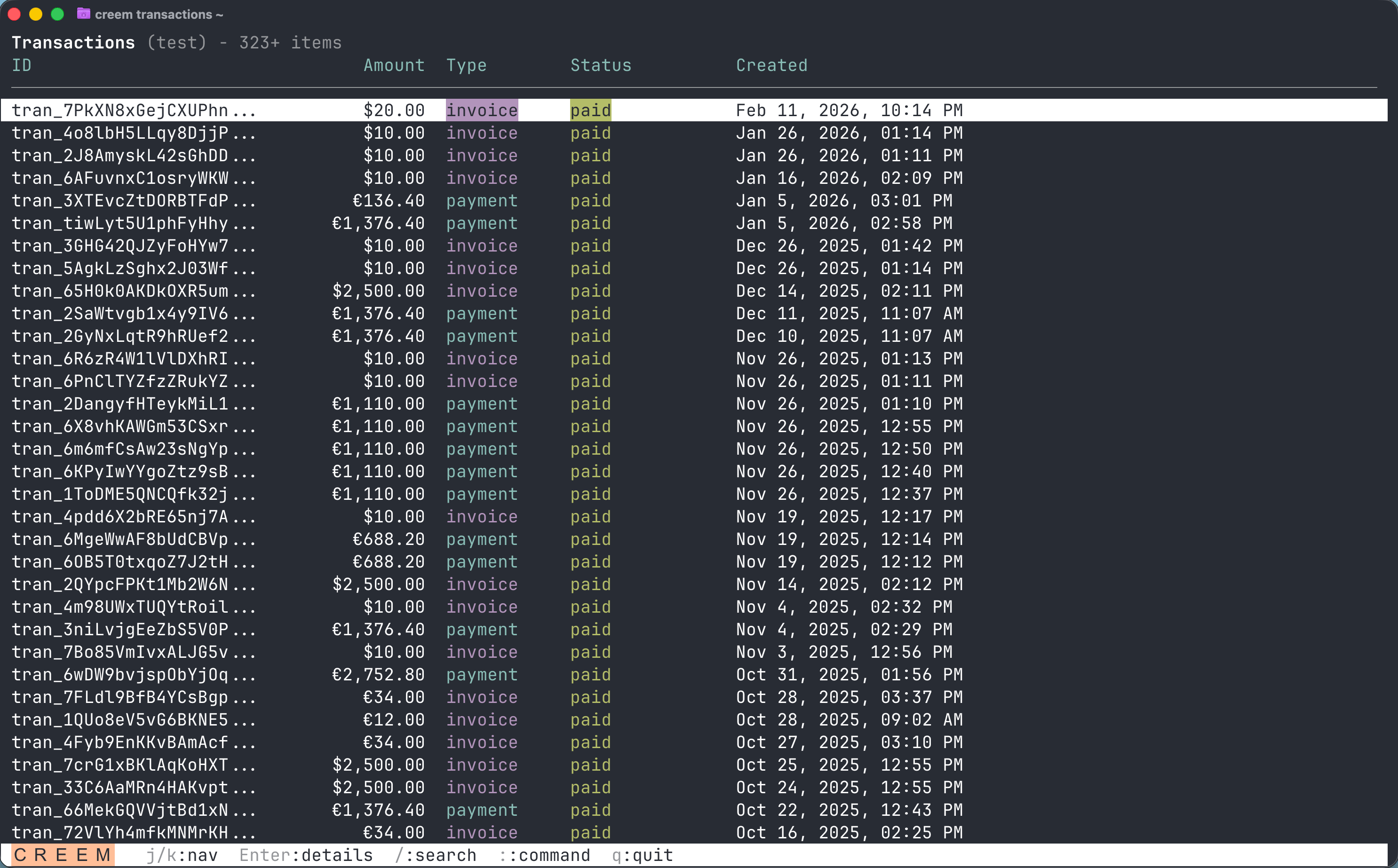
You get a full TUI (terminal user interface) where you can browse, search, and drill into records without writing any commands.
### Browsing Transactions
## Login
```bash theme={null}
creem login --api-key creem_test_YOUR_KEY_HERE
```
The CLI auto-detects test vs live mode from your key prefix. You can verify your session at any time:
```
$ creem whoami
✓ Logged in to Creem
Environment test
API Key creem_te...5mBJ
API URL https://test-api.creem.io
```
**Start in test mode.** Use a `creem_test_` key while getting familiar with the CLI. Switch to live only when you're ready for real transactions.
## Interactive Mode
This is where the CLI really shines. Run any resource command without a subcommand to launch an interactive browser:
```bash theme={null}
creem products
creem customers
creem subscriptions
creem transactions
```
You get a full TUI (terminal user interface) where you can browse, search, and drill into records without writing any commands.
### Browsing Transactions
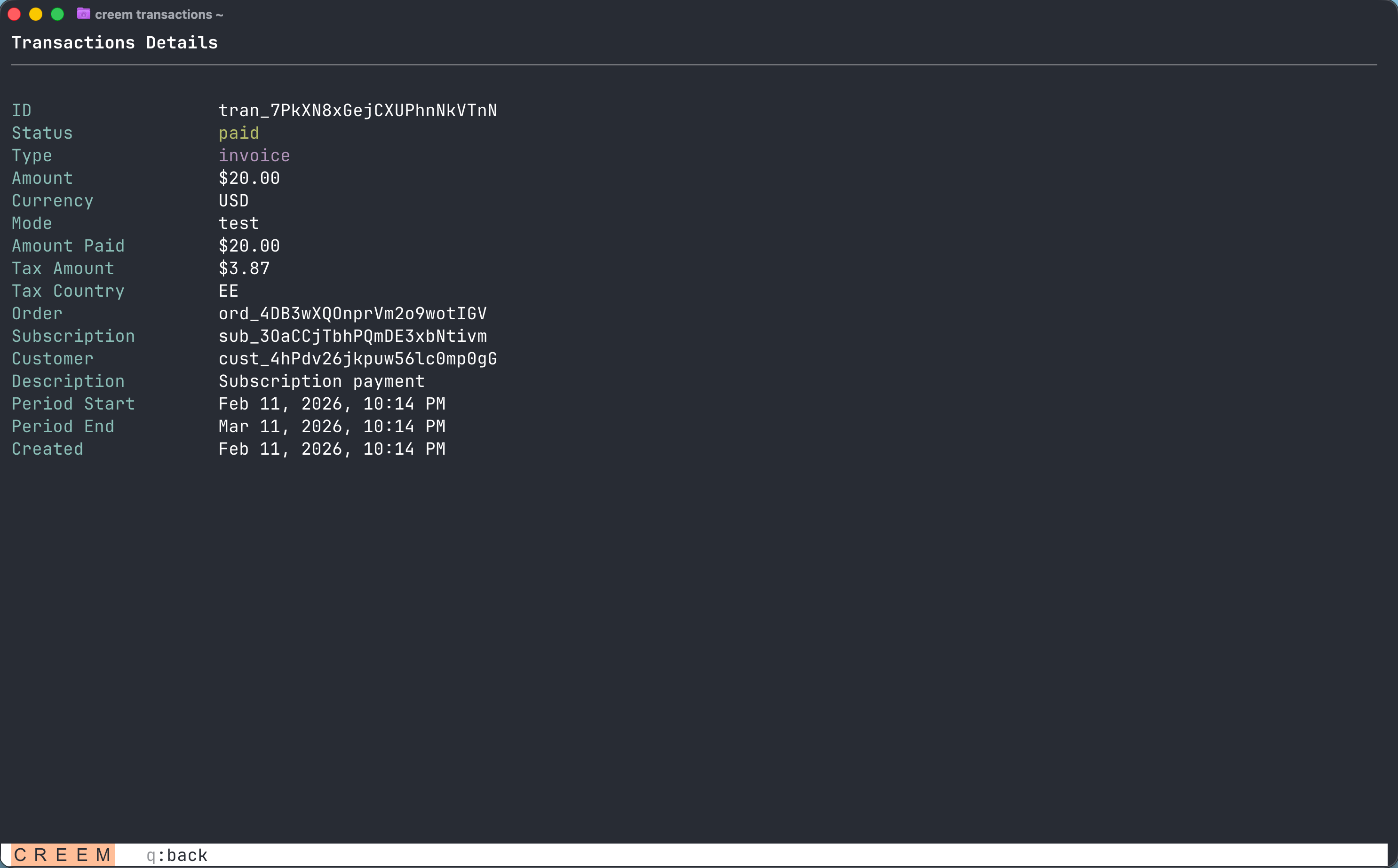
 Press Enter on any row to drill into the full detail view:
 ### Managing Subscriptions
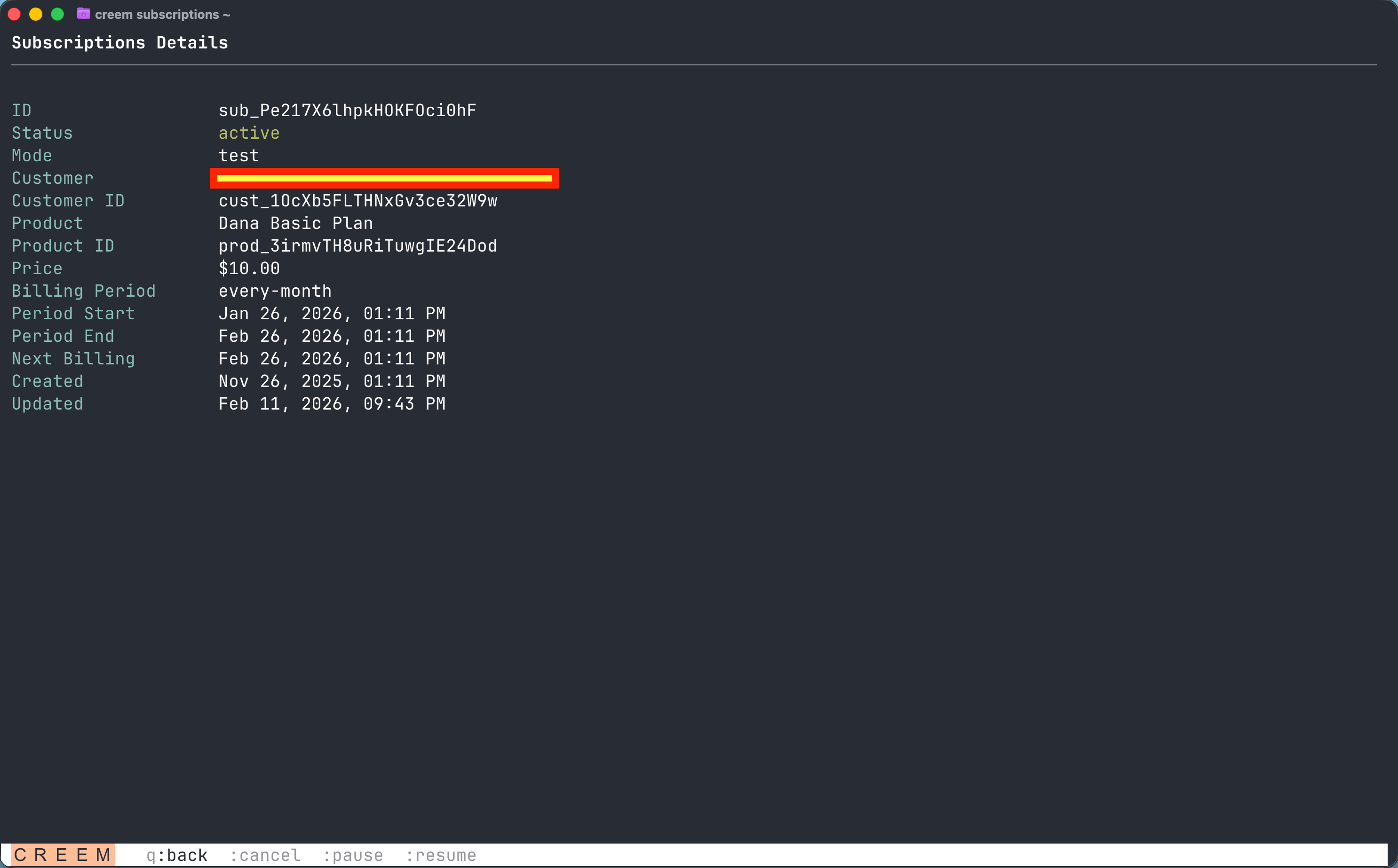
Navigate into any subscription to see its full details and take actions directly from the status bar:
### Managing Subscriptions
Navigate into any subscription to see its full details and take actions directly from the status bar:
 **Navigation keys:**
* `j`/`k` or arrow keys to move through the list
* Enter to view details
* `/` to search
* `:` to open the command bar (cancel, pause, resume)
* `q` to go back or exit
## Quick Commands
For when you need something specific without browsing:
```bash theme={null}
# Products
creem products list
creem products get prod_XXXXX
creem products create --name "Pro Plan" --price 1999 --currency USD --billing-type recurring --billing-period every-month
# Customers
creem customers list
creem customers get cust_XXXXX
creem customers billing cust_XXXXX # generates a billing portal link
# Subscriptions
creem subscriptions list --status active
creem subscriptions cancel sub_XXXXX --mode scheduled
creem subscriptions pause sub_XXXXX
creem subscriptions resume sub_XXXXX
# Transactions
creem transactions list --limit 50
creem transactions get txn_XXXXX
# Checkouts
creem checkouts create --product prod_XXXXX --success-url https://app.com/welcome
```
Use `--mode scheduled` when cancelling subscriptions. This lets the customer keep access until their billing period ends instead of cutting them off immediately.
## Configuration
```bash theme={null}
creem config show # view all settings
creem config set environment live # switch to live mode
creem config set output_format json # default to JSON output
```
Every command also supports `--json` for one-off JSON output, useful for piping into other tools:
```bash theme={null}
creem products list --json | jq '.[].name'
```
## Going Live
Before accepting real payments:
1. Complete account verification in the [Dashboard](https://creem.io/dashboard) under Balances → Payout Account
2. Switch to your live API key:
```bash theme={null}
creem login --api-key creem_LIVE_KEY_HERE
```
## Next Steps
Set up automated monitoring so your AI agent notifies you about sales and issues
Handle real-time payment events in your application
**Navigation keys:**
* `j`/`k` or arrow keys to move through the list
* Enter to view details
* `/` to search
* `:` to open the command bar (cancel, pause, resume)
* `q` to go back or exit
## Quick Commands
For when you need something specific without browsing:
```bash theme={null}
# Products
creem products list
creem products get prod_XXXXX
creem products create --name "Pro Plan" --price 1999 --currency USD --billing-type recurring --billing-period every-month
# Customers
creem customers list
creem customers get cust_XXXXX
creem customers billing cust_XXXXX # generates a billing portal link
# Subscriptions
creem subscriptions list --status active
creem subscriptions cancel sub_XXXXX --mode scheduled
creem subscriptions pause sub_XXXXX
creem subscriptions resume sub_XXXXX
# Transactions
creem transactions list --limit 50
creem transactions get txn_XXXXX
# Checkouts
creem checkouts create --product prod_XXXXX --success-url https://app.com/welcome
```
Use `--mode scheduled` when cancelling subscriptions. This lets the customer keep access until their billing period ends instead of cutting them off immediately.
## Configuration
```bash theme={null}
creem config show # view all settings
creem config set environment live # switch to live mode
creem config set output_format json # default to JSON output
```
Every command also supports `--json` for one-off JSON output, useful for piping into other tools:
```bash theme={null}
creem products list --json | jq '.[].name'
```
## Going Live
Before accepting real payments:
1. Complete account verification in the [Dashboard](https://creem.io/dashboard) under Balances → Payout Account
2. Switch to your live API key:
```bash theme={null}
creem login --api-key creem_LIVE_KEY_HERE
```
## Next Steps
Set up automated monitoring so your AI agent notifies you about sales and issues
Handle real-time payment events in your application